
Some things have to be hidden exactly. A document on a desk, a name on a screen, a face the detector keeps missing — and you want the cover in precisely the right place in every frame, not roughly the right place.
Key Frame is how you do that. You put the filter where it belongs at a few chosen moments, and PutMask works out everything in between. It is free, it works offline, nothing is uploaded anywhere, and there are no ads.
What a key frame actually is
Say a person walks from the left of the shot to the right over four seconds. You do not have to place the filter in all 120 frames.
You place it on them at the start, and again at the end. Those two moments are your key frames. PutMask then moves the filter smoothly between them, at a constant speed, filling in all 118 frames you did not touch.
If they change direction in the middle, you add one more key frame at that point. The rule is simple: one key frame wherever the movement changes. Straight movement needs two. A wandering path needs a few more.
Key Frame or Record?
PutMask has two ways to hide something by hand. Record is faster — you hold your finger on the object while the video plays. Key Frame is slower but exact, and you can adjust any point afterwards without redoing the rest. Use Record for something you can comfortably follow; use Key Frame when it has to be right.
For faces, license plates and people, use Detect & Track first — it does the whole job automatically.
Step 1 — Open Key Frame
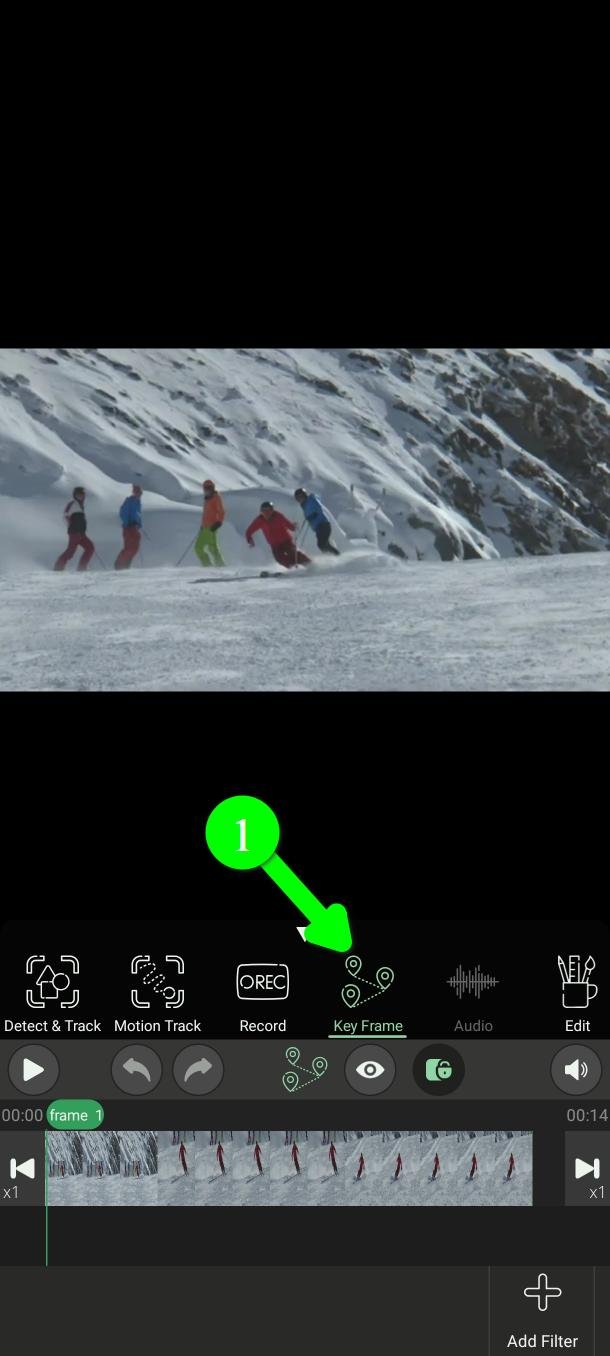
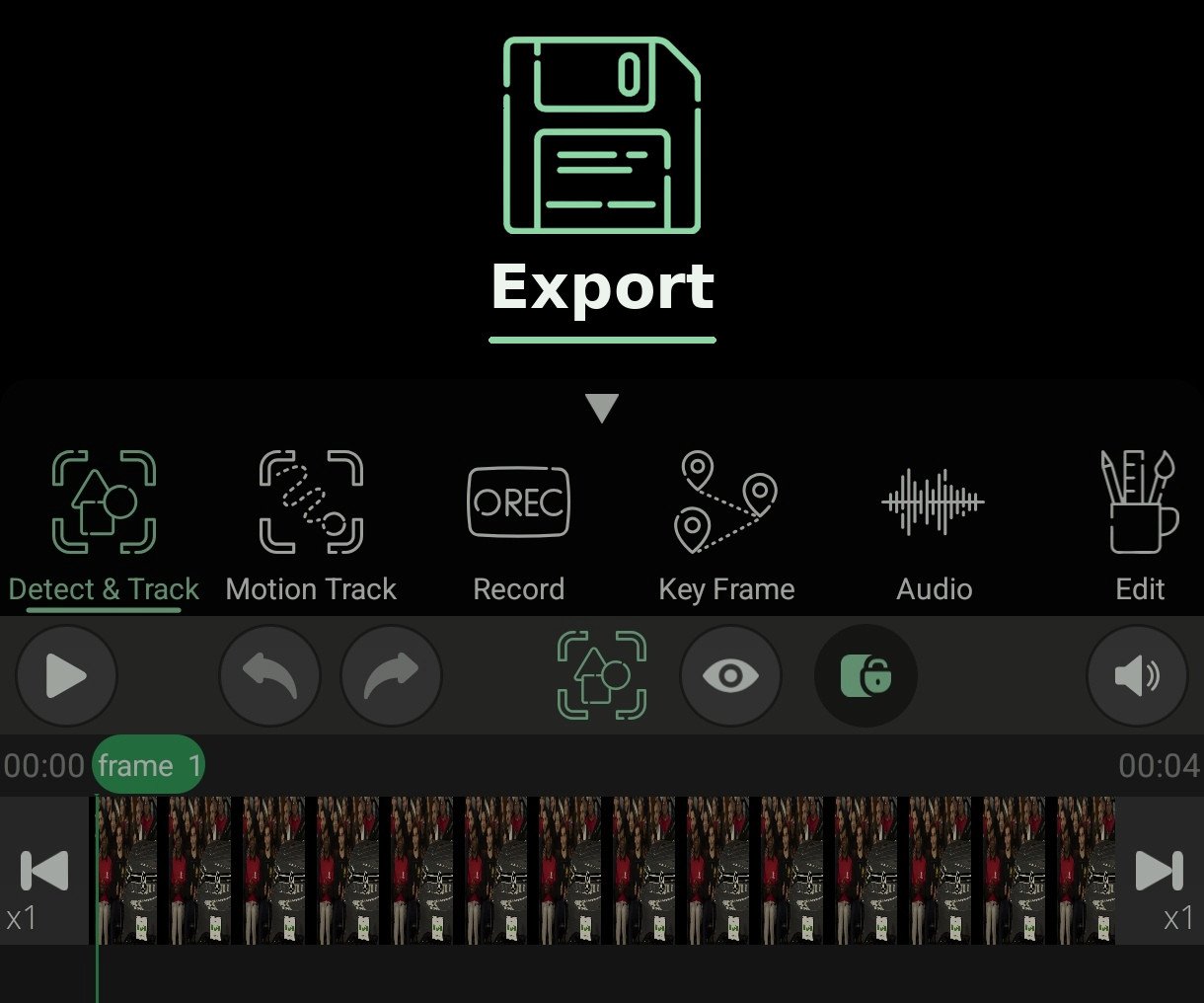
In the main menu, tap Key Frame (1).
Step 2 — Add a filter
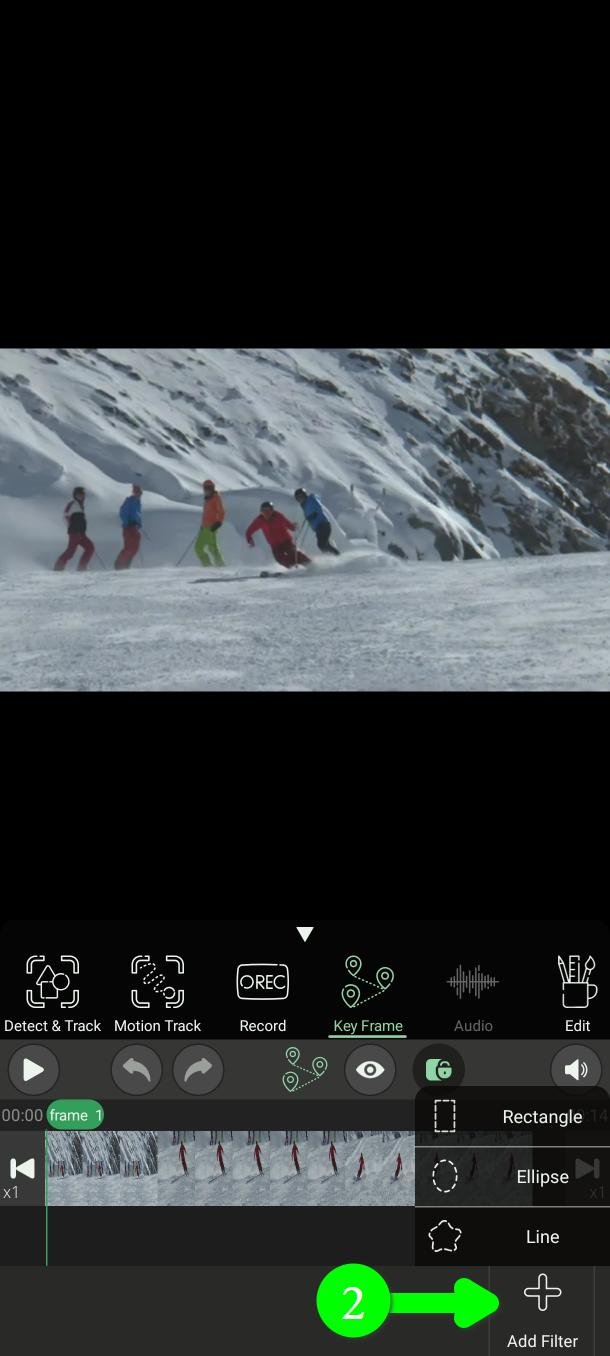
Tap Add Filter (2) and pick a shape.
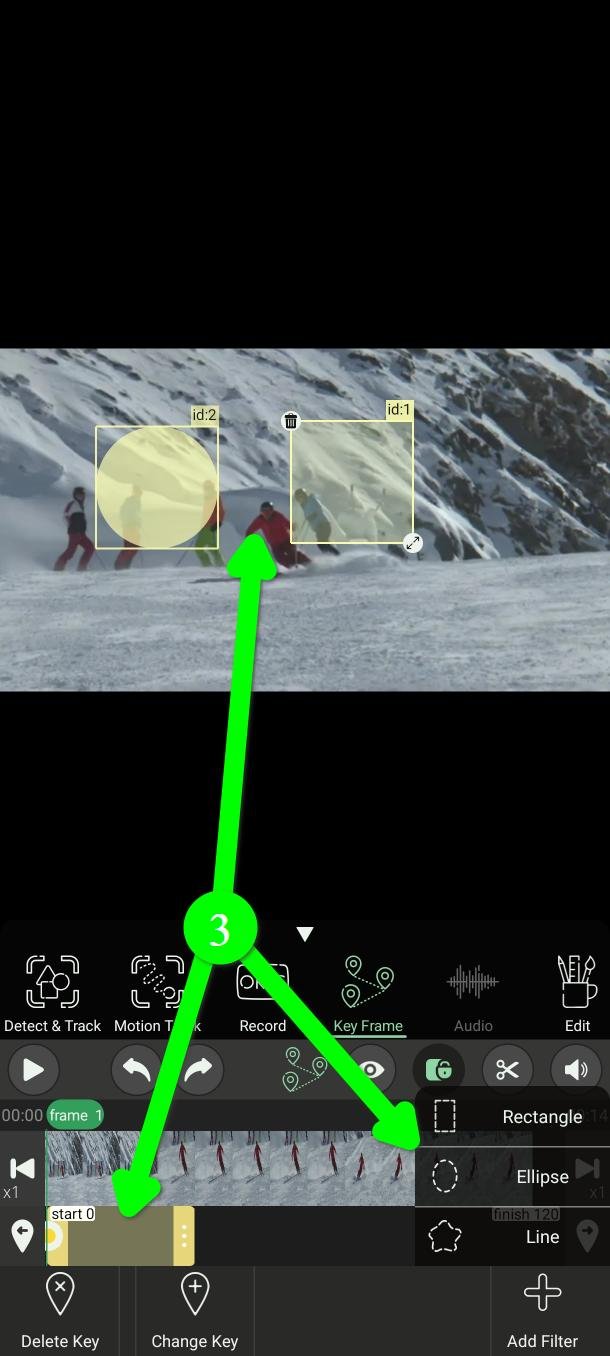
Rectangle or Ellipse puts a ready-made shape on the video (3). It lasts 120 frames by default — you can change that later, and change the default in Settings.
Key Frame filters are yellow, so you can tell them from the green automatic ones and the red recorded ones.
Line (4) lets you draw your own shape instead.
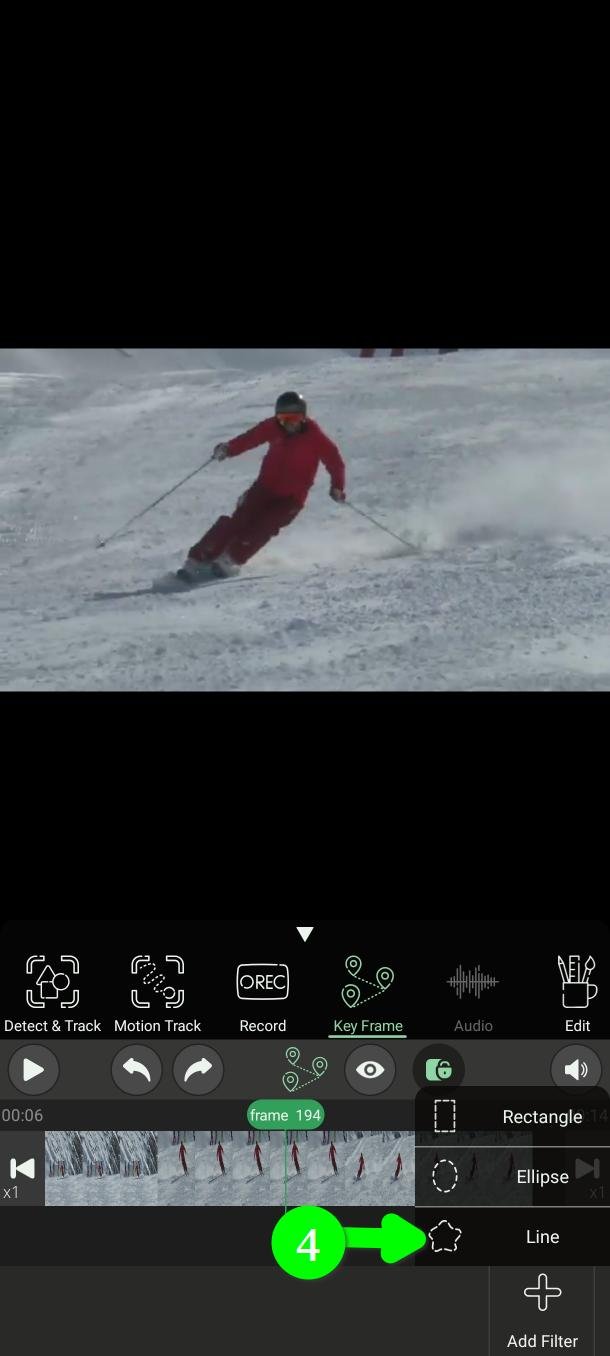
You will see the message You can paint now.
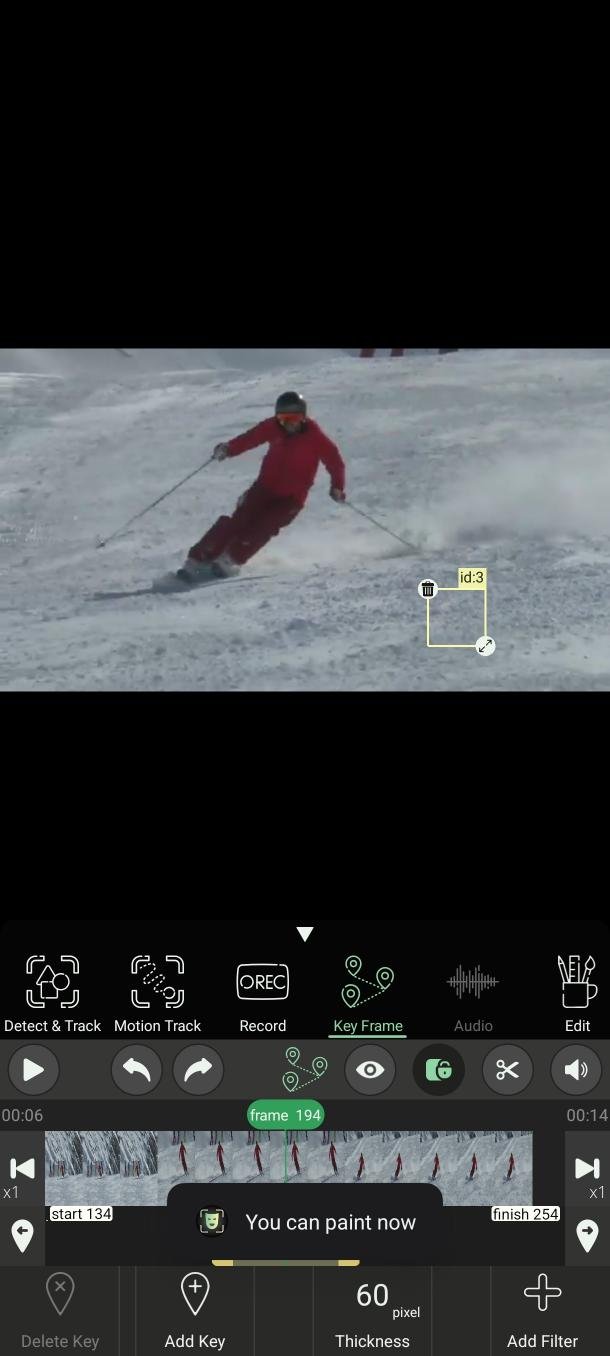
Draw with your finger (5), and set how thick the stroke is with Thickness (6).
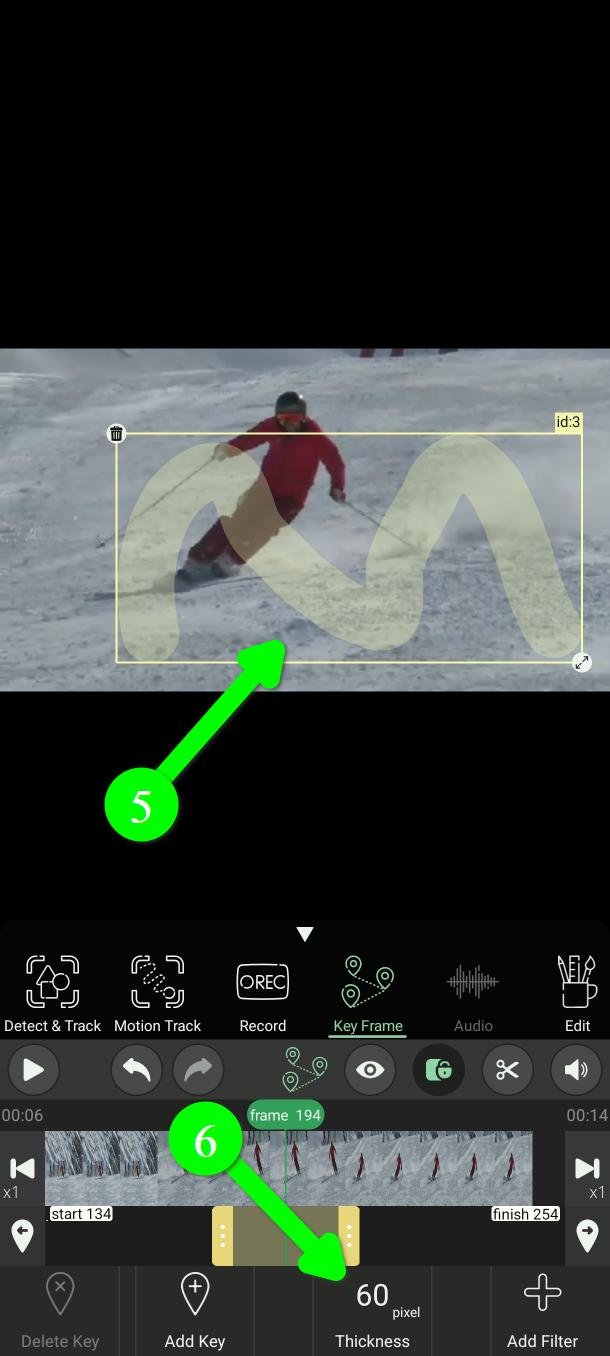
Step 3 — Set when the filter appears and disappears
Two ways, as everywhere else in PutMask.
Quick: drag either end of the filter's bar on the timeline (7).
Exact: go to the frame you want, tap the scissors (8), then Set Start Here or Set Finish Here.
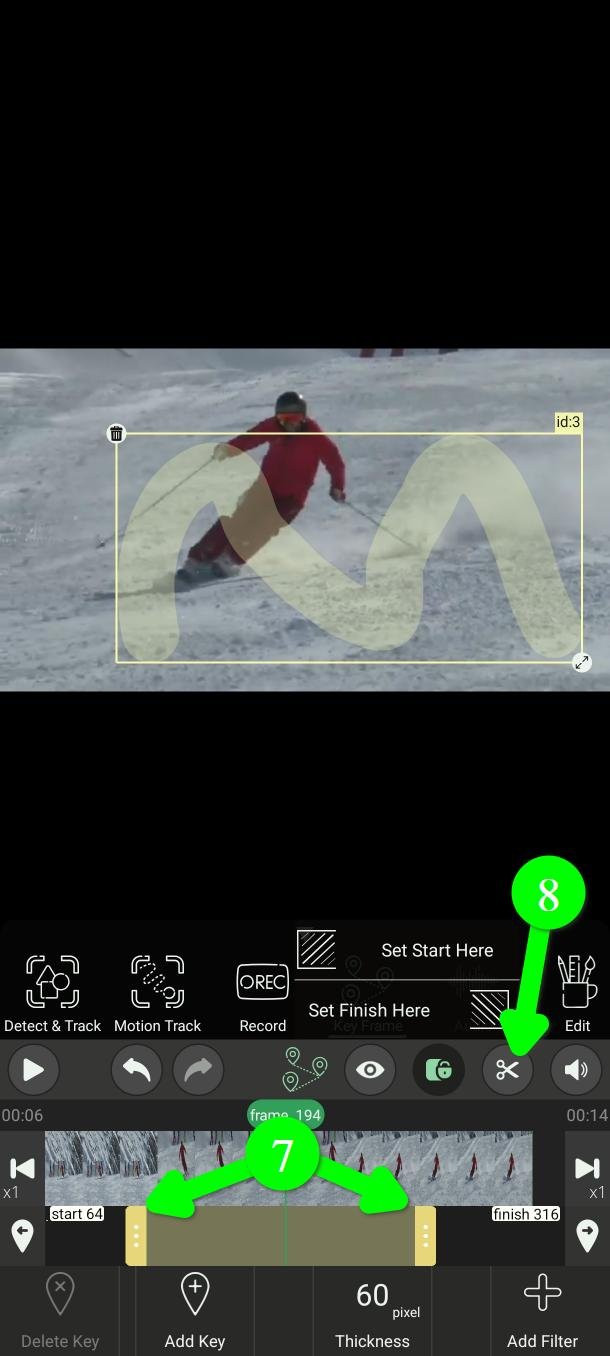
Step 4 — Move one frame at a time
To choose the right moment you need to move frame by frame. The two buttons at either end of the timeline do exactly that (9).
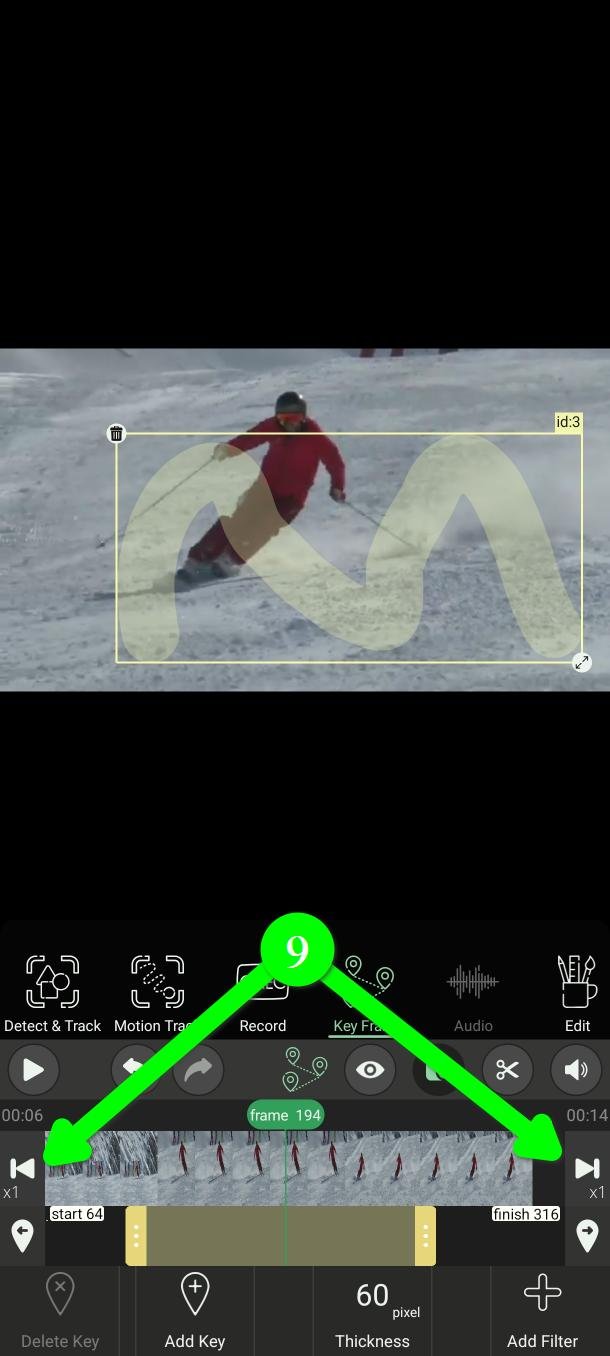
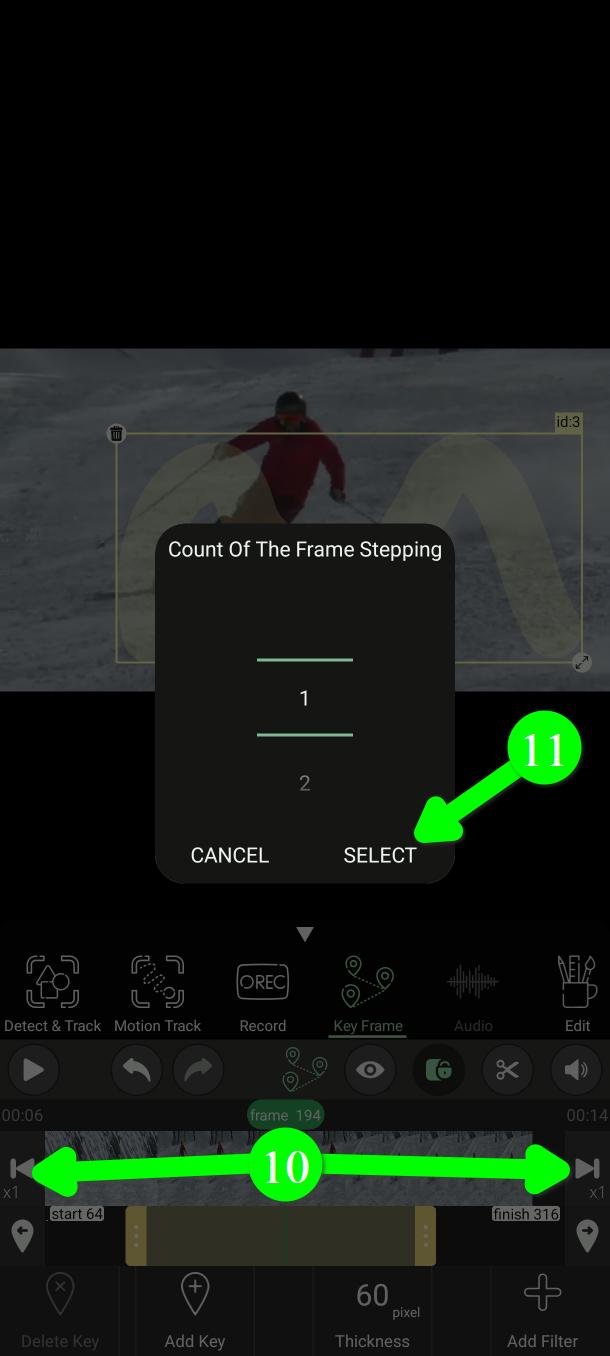
One frame at a time is slow over a long clip. Hold one of those buttons down (10) and a panel appears where you can set the jump from 1 to 30 frames. Choose a number and tap SELECT (11).
Step 5 — Add the key frames
This is the part that surprises people: there is no button to press.
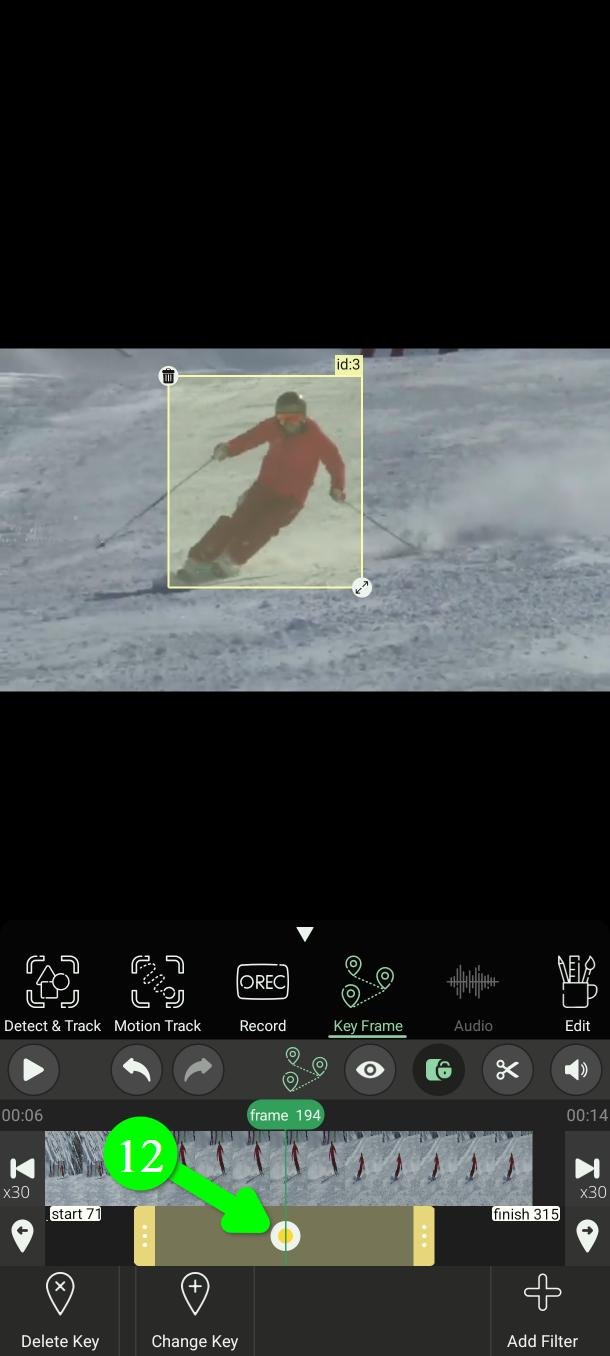
Go to a frame, then move or resize the filter so it covers the object. That is it — a key frame is created automatically at that point, and it appears as a dot on the filter's bar (12).
Do that at the start, at the end, and at any point where the object changes direction. PutMask handles everything in between.
Step 6 — Move between key frames
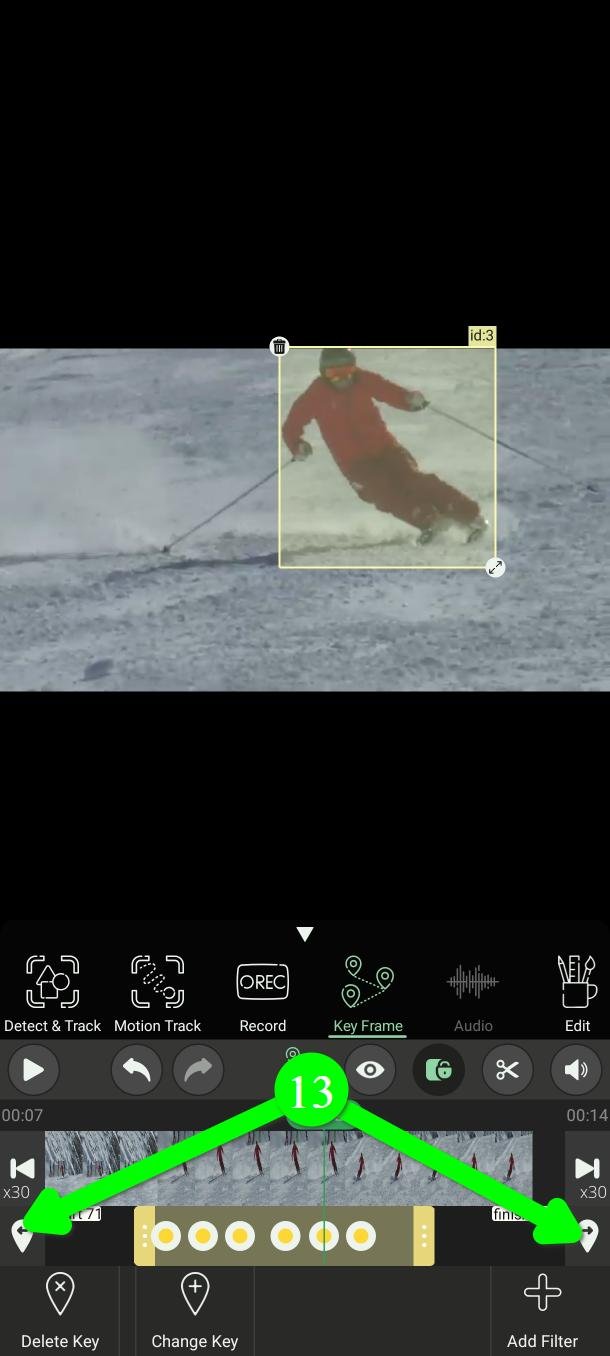
The arrow buttons on either side of the filter's bar jump straight to the previous or next key frame (13). Much faster than scrubbing to find them.
Step 7 — Change or delete a key frame
Jump to the key frame you want, then:
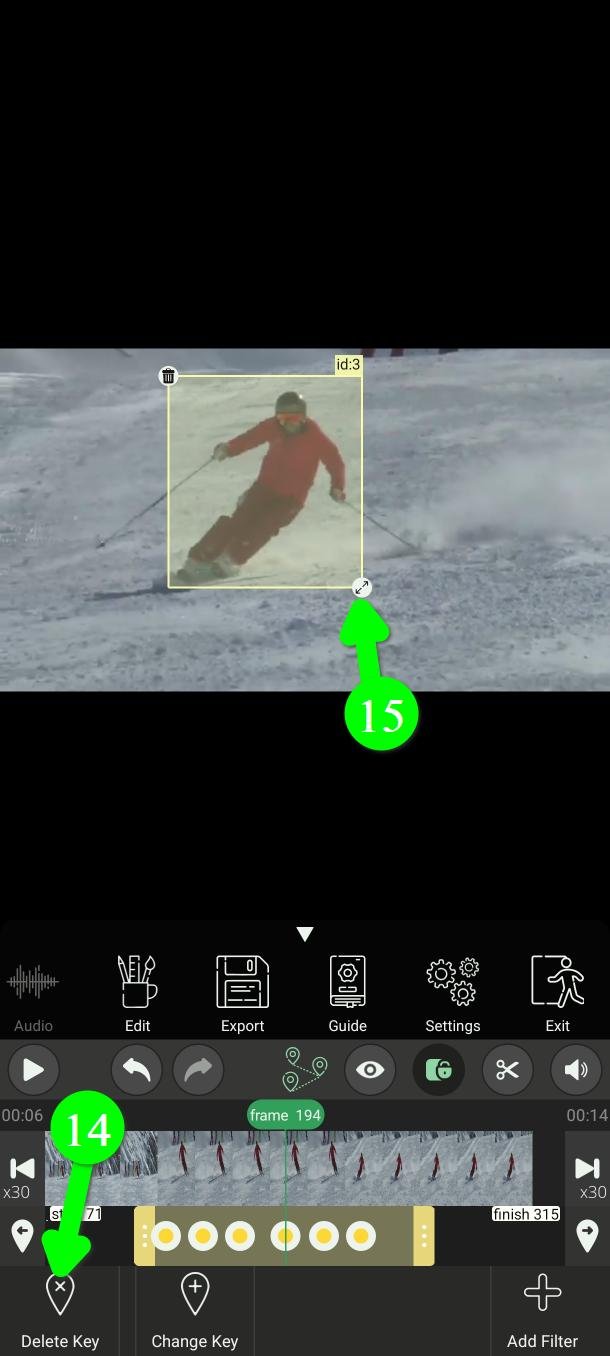
- To delete it, tap Delete Key (14). The filter then moves straight through that point instead of stopping at it.
- To change it, just move or resize the filter again (15). The key frame updates to the new position.
Keep adding key frames until the object is covered at every moment. Then play that stretch back and watch it.
Changing the default length
Every new key frame filter starts out 120 frames long. If that never suits you, change it once instead of adjusting every filter.
In the main menu, tap Settings (15).
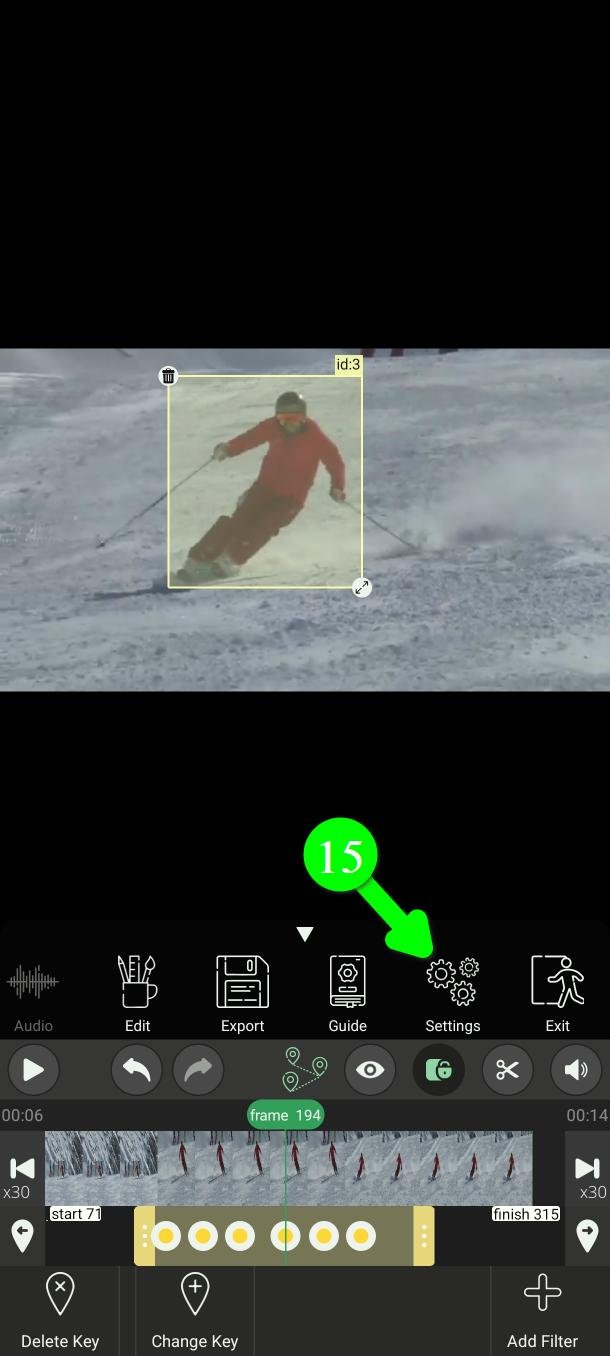
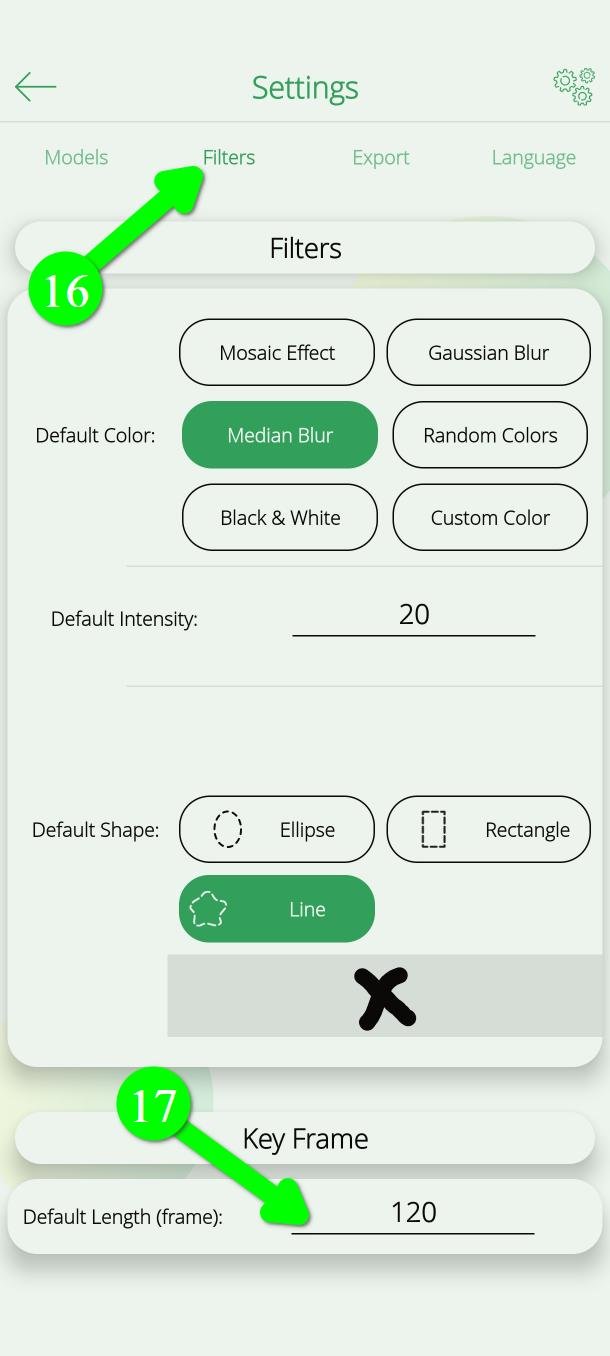
Open the Filters tab (16) and change Default Length (frame) under Key Frame (17).
The same page sets the default shape, colour and strength of every new filter you make.
Questions people ask
Is PutMask free? Are there ads?
Yes, it is free, and there are no ads at all. You can blur videos up to two minutes at a time for free. Some extras are for premium users.
Does my video get uploaded anywhere?
No. Everything happens on your phone, and the app does not need an internet connection to censor your video.
Your privacy is our priority. We do not collect any data about you — and that is also the reason there are no ads. An ad needs your advertising ID, and that ID is what lets ad companies follow you from one app to the next and build a profile of you. We did not want to hand anyone that information about the people using a privacy tool, so we left ads out.
How many key frames do I need?
As few as cover the movement. Two for something moving in a straight line. One more at each change of direction. Adding more than you need is not wrong, only slower.
The filter drifts off between my key frames
That means the object did not move in a straight line between them. Go to the middle of the bad stretch and nudge the filter — that creates a key frame there and fixes the path.
Can I turn a recorded or automatic filter into key frames?
Yes, and it is often the quickest repair. Edit can convert a red Record filter or a green automatic one into a key frame filter, so you adjust a handful of points instead of hundreds of frames.
Can I change the blur to a mosaic or a solid colour?
Yes — shape, colour and strength are all set in Edit, or as defaults in Settings.
Need help?
Write to Support@putmask.com, or leave a message in our Telegram channel.

3 thoughts on “How to Blur Part of a Video Using Key Frames on Android”