Faces and number plates are the easy part — PutMask finds those by itself. But videos are full of other things you might not want to share: a house number, a street sign, a name badge, a tattoo, a phone screen, a logo on a jacket.
Motion Track handles those. You draw a box around anything at all, and PutMask follows it through the video for you, covering it in every frame. It is free, it works offline, nothing is uploaded anywhere, and there are no ads.
Motion Track or Detect & Track?
If what you want to hide is a face, a license plate or a person, do not use this page. Use Detect & Track instead — it finds them all automatically and it is far faster. Motion Track is for everything else.
Step 1 — Open Motion Track
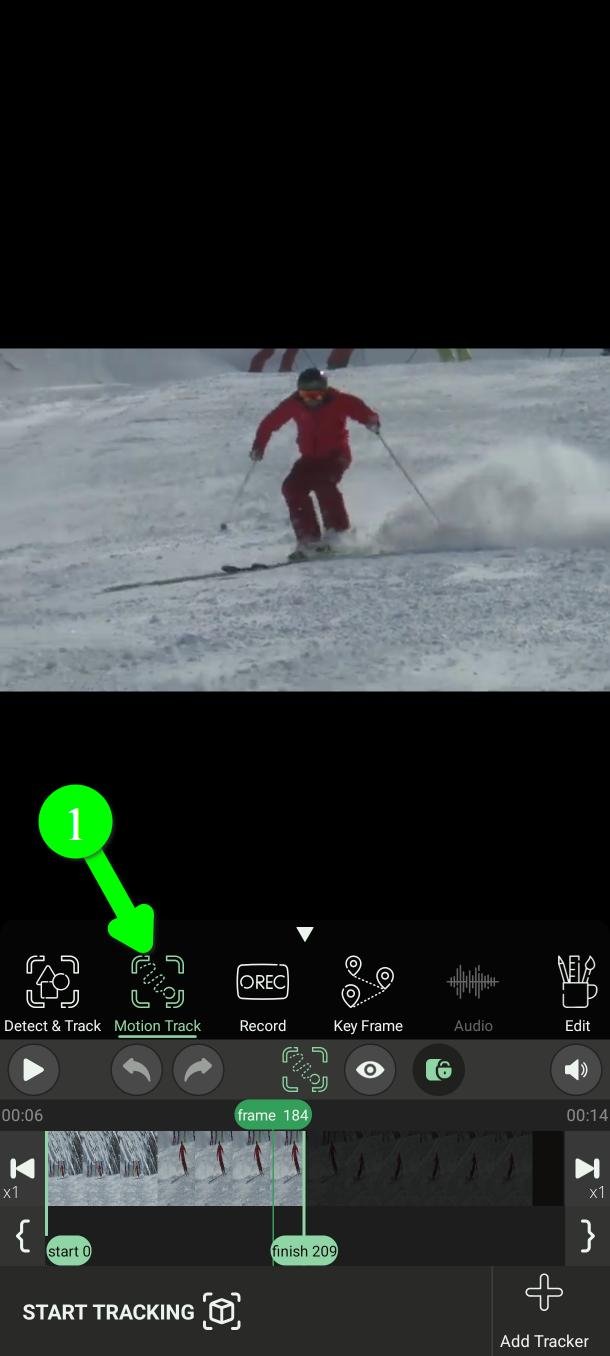
In the main menu, tap Motion Track (1).
Step 2 — Choose the stretch of video
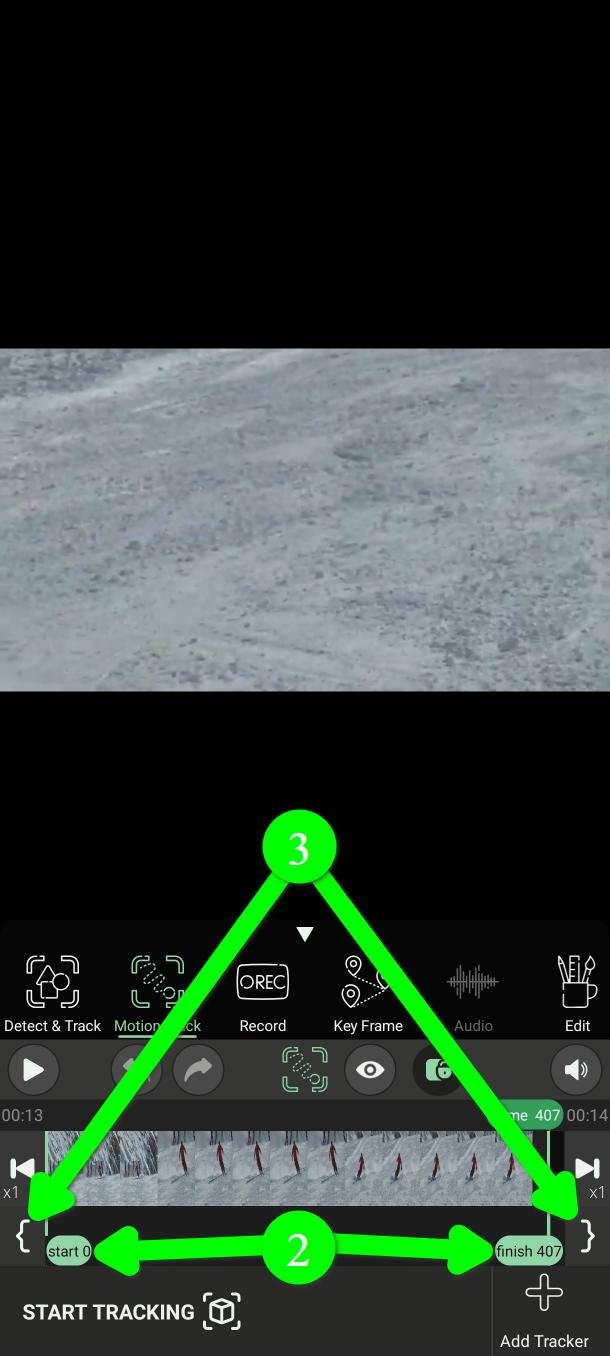
Set where the tracking starts and where it stops, using the start and finish markers (2).
You can drag them along the timeline. For an exact frame, use the two bracket buttons at either end (3) — they drop the marker precisely on the frame you are looking at.
Step 3 — Add a tracker
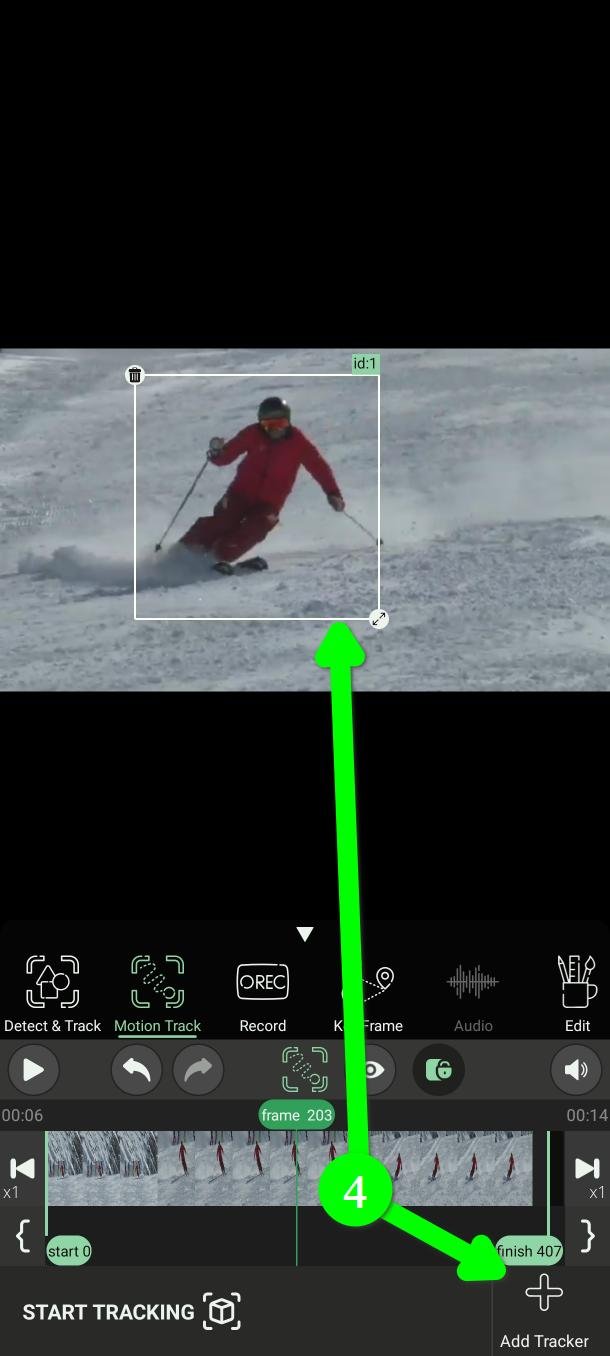
Tap Add Tracker (4). A box appears on the video.
Step 4 — Put the box on the object
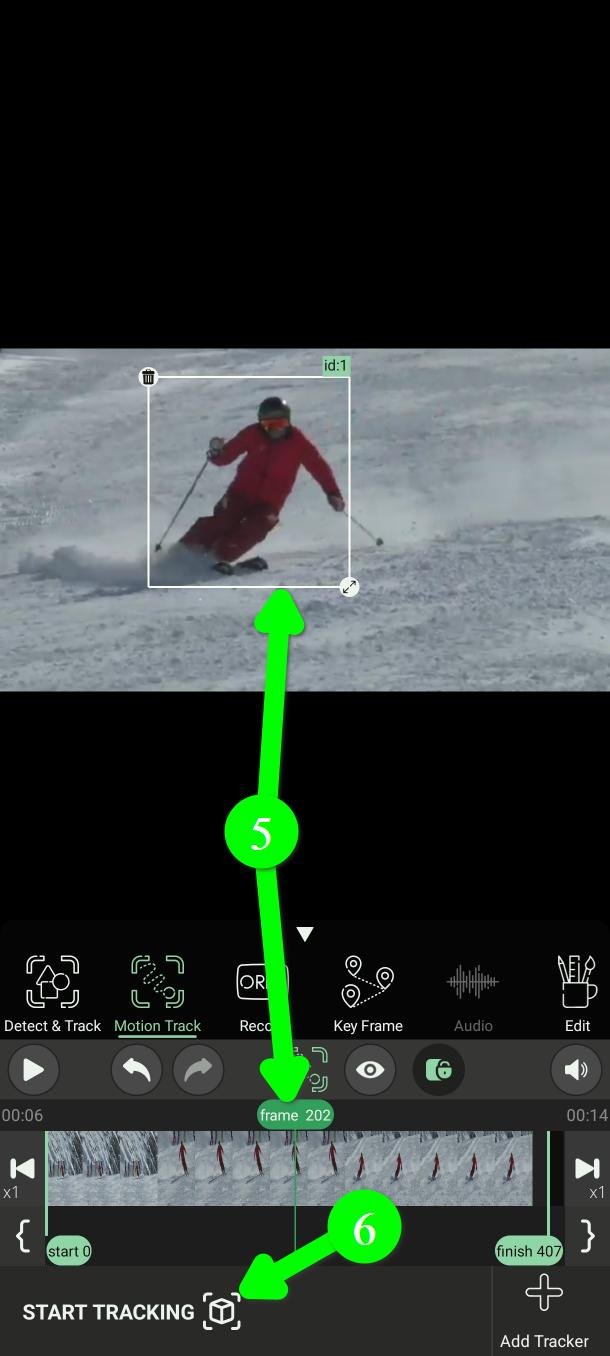
Move to a frame somewhere inside your chosen range where the object is clear and easy to see. Then drag and resize the box so it completely surrounds the object (5).
This step decides how well everything else goes. Two things matter:
- Pick a good frame. Not one where the object is blurred by motion, half out of shot, or in shadow. PutMask learns what to follow from this single frame.
- Surround the whole object, and not much else. A box with a lot of background in it gives the tracker the wrong thing to hold on to.
You do not need to start at the beginning. PutMask works outwards in both directions from the frame you chose, so pick the clearest frame wherever it happens to be.
When the box is right, tap Start Tracking (6).
Step 5 — Watch it work
Tap Preview (7) to see what the tracker is doing.
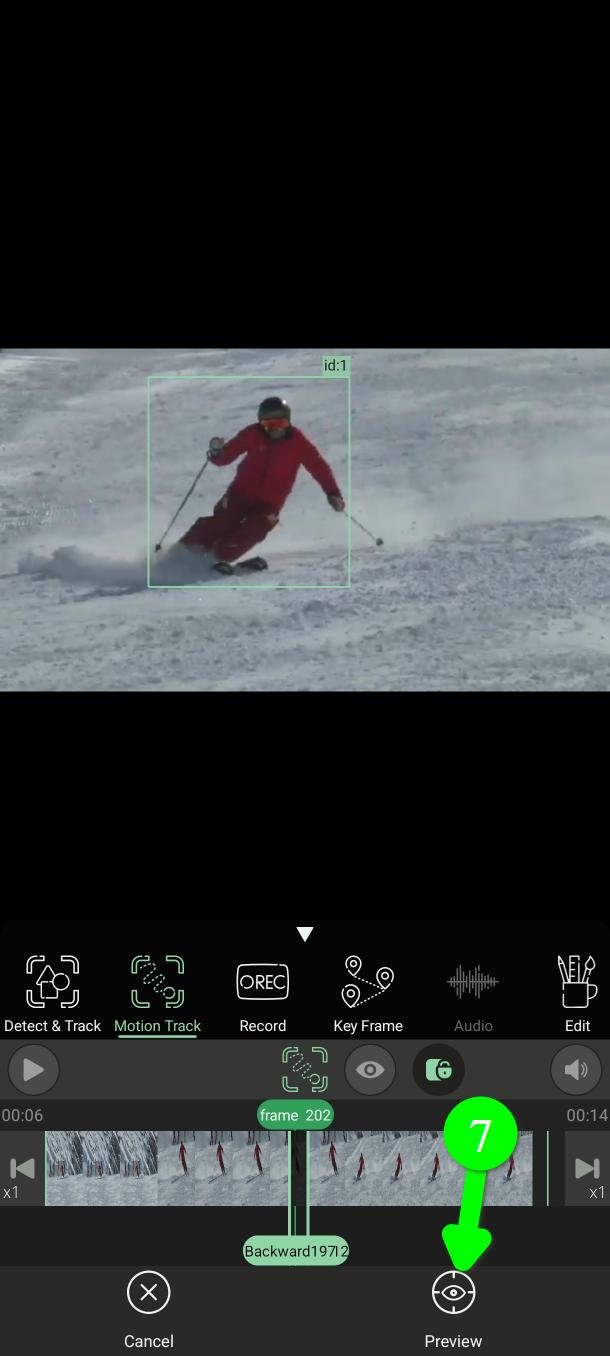
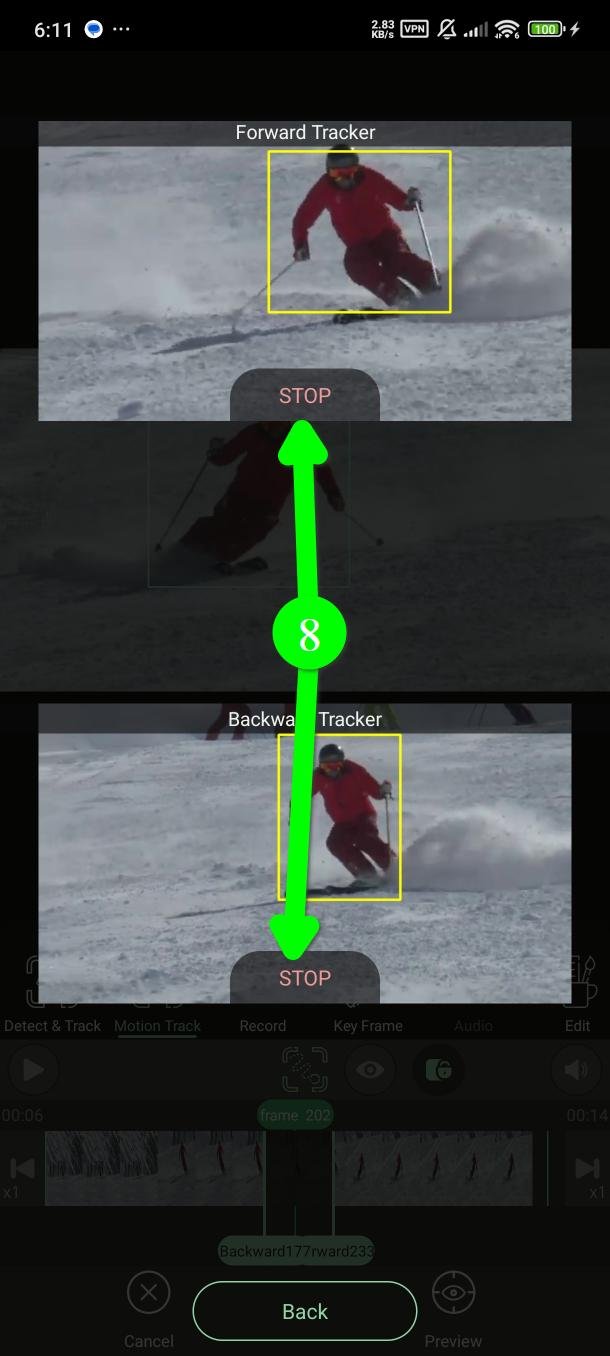
You get two windows, one going forwards and one going backwards. Each has its own STOP button (8), so you can end one direction and let the other carry on.
Stop a direction as soon as the box drifts off the object. Everything after that point is wrong anyway, and stopping saves you the time.
If you do not stop it, tracking runs to the markers you set in step 2.
Watching the preview slows the work down, so turn it on when you want to check, not for the whole run.
Step 6 — Check the result
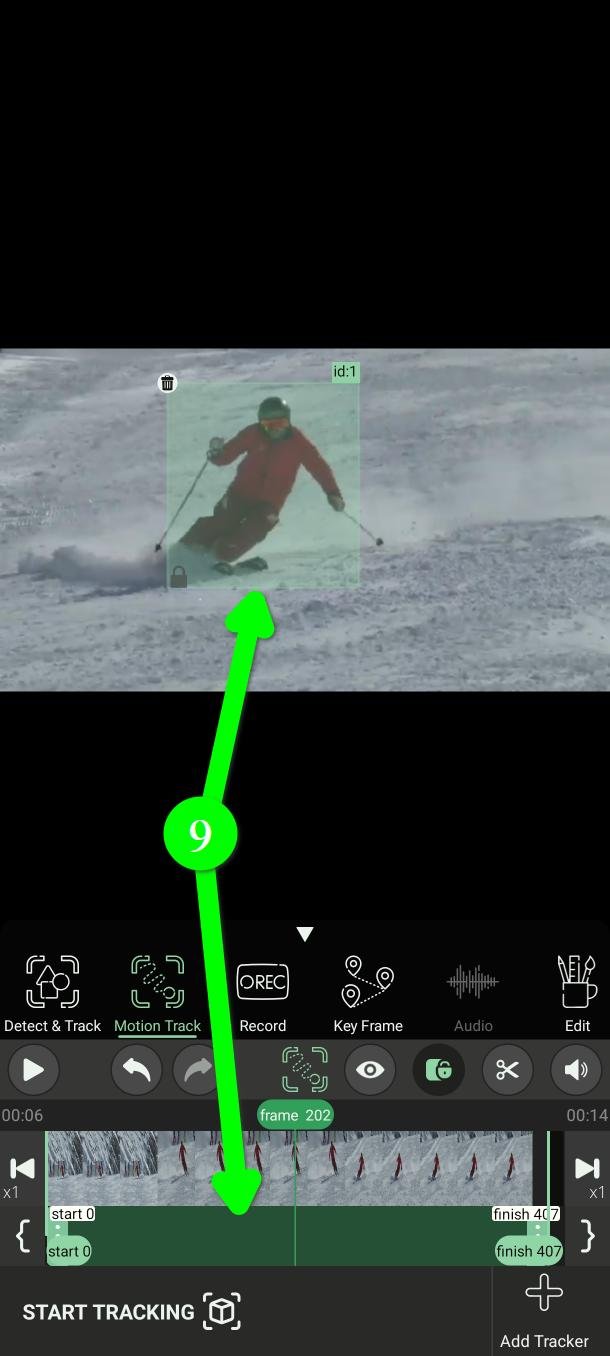
When it finishes you see a green filter over the object, and a bar on the timeline showing exactly which frames it covers (9).
Watch that stretch of video before you export. A tracker can slip off its object without failing outright — and a filter sitting next to the thing you meant to hide is worse than no filter, because you think you are covered.
If it did slip, you can fix it by hand in Edit, or cover the bad stretch with Key Frame.
Things worth knowing
It is slower than Detect & Track
Motion Track is heavier work than the automatic face and plate detection, and it takes noticeably longer. That is the trade for being able to follow anything.
You can add more than one tracker
Several objects can be tracked at once — but each one multiplies the work, and the whole job gets much slower. If you have several things to hide, doing them one at a time is usually less painful.
Tracking stops when the object goes
If your object leaves the frame or is hidden behind something, the tracker ends there. It does not pick the object up again when it comes back. Add a second tracker for the second appearance.
Questions people ask
Is PutMask free? Are there ads?
Yes, it is free, and there are no ads at all. You can blur videos up to two minutes at a time for free. Some extras are for premium users.
Does my video get uploaded anywhere?
No. All the tracking and all the blurring happen on your phone. The app does not need an internet connection to censor your video.
Your privacy is our priority. We do not collect any data about you — and that is also the reason there are no ads. An ad needs your advertising ID, and that ID is what lets ad companies follow you from one app to the next and build a profile of you. We did not want to hand anyone that information about the people using a privacy tool, so we left ads out.
What can Motion Track follow?
Anything you can draw a box around: signs, screens, tattoos, logos, documents, pets, cars, bags. It does not need to know what the thing is.
The tracker keeps sliding off. What do I do?
Start again from a clearer frame, and draw the box tighter around the object. Fast movement, motion blur and objects that change shape are the hard cases. If it still will not hold, use Key Frame or Record and do it by hand.
Can I change how the blur looks?
Yes. The shape, colour and strength are all set in Edit — mosaic, blur, black and white, or a solid colour.
Need help?
Write to Support@putmask.com, or leave a message in our Telegram channel.