
You want to share a video, but there are faces in it. Or a car number plate. Or someone who did not agree to be filmed. Blurring all of that by hand, frame by frame, takes hours.
PutMask does it for you. It is a free Android app that finds faces, license plates and people in your video and covers them with a blur, a mosaic, or a solid colour. Everything happens on your phone. Your video is never uploaded anywhere, it works offline, and there are no ads.
This page shows you Detect & Track — the automatic mode, and the fastest way to censor a video.
What PutMask can hide automatically
- Faces — every face it can find, even in a crowd.
- License plates — car number plates.
- People — the whole person, not just the face.
For anything else — a house number, a tattoo, a screen, a logo — use Motion Track, Record or Key Frame instead. Those have their own guides.
Step 1 — Install PutMask
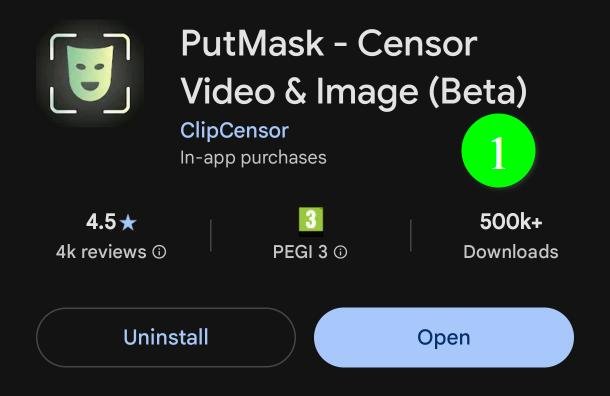
Get the app from the Google Play Store (1), or from our Telegram channel (2).
Open it and allow access to your videos and photos. The app needs this to read the video you pick and to save the finished one.
Step 2 — Open your video
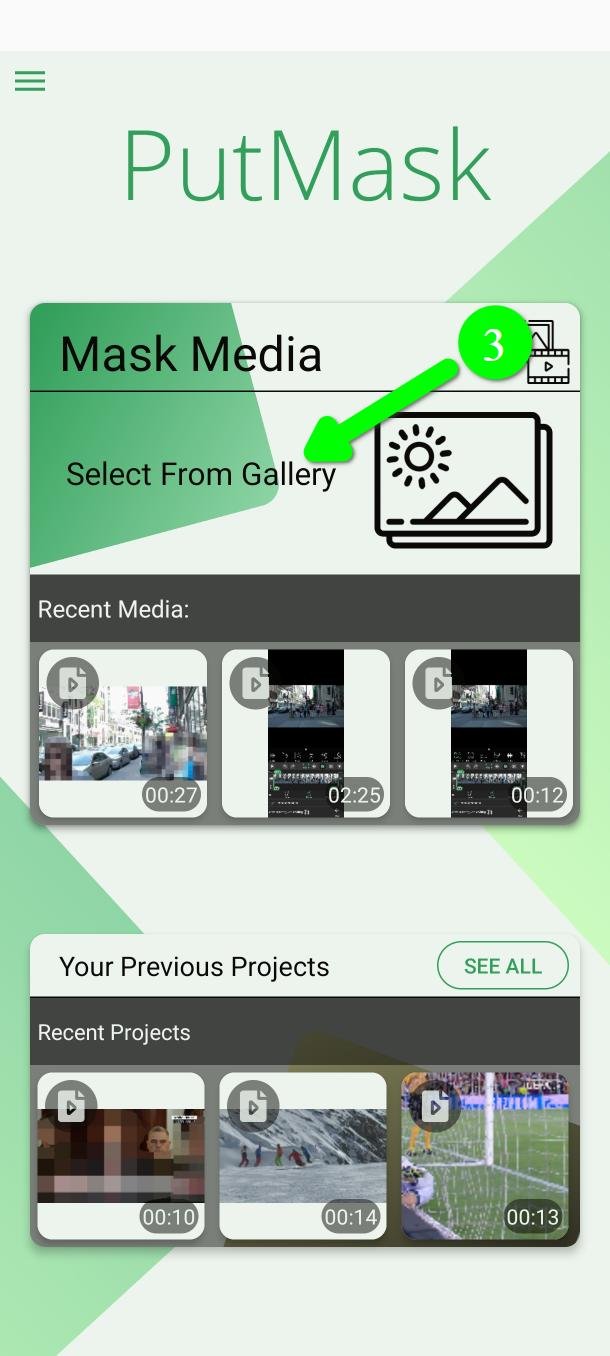
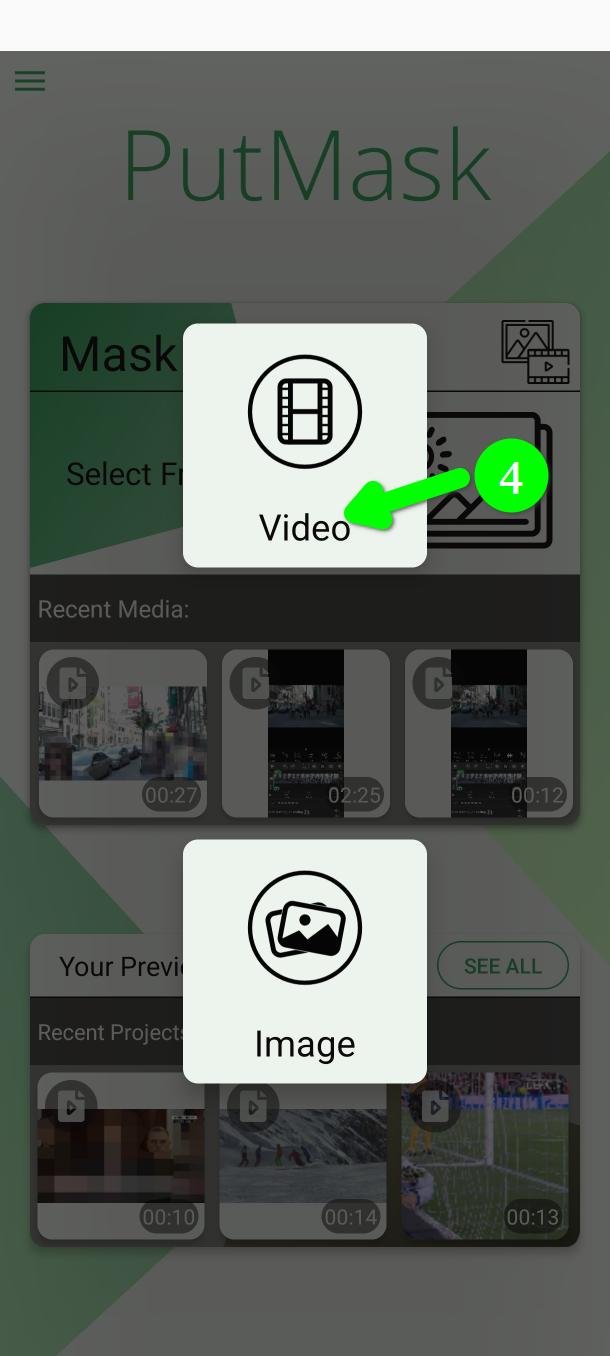
Tap Select From Gallery (3), then tap Video (4). Pick the video you want to censor.
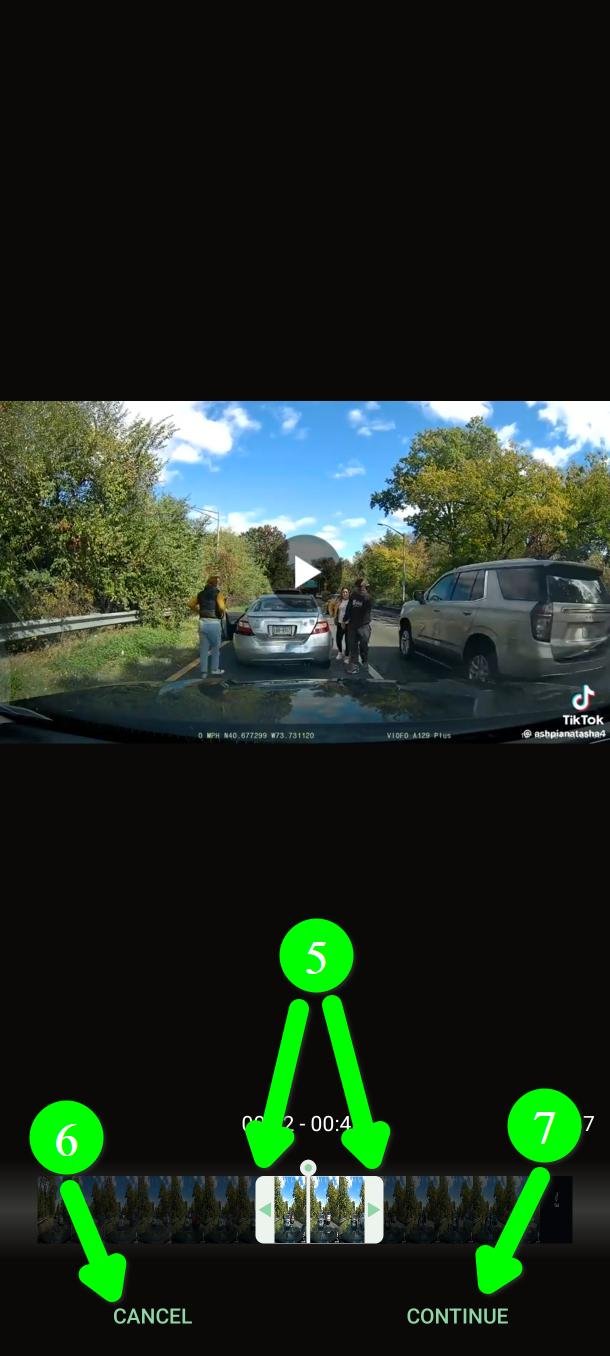
Now choose the part of the video you want to work on (5). Drag the two handles to set the start and the end.
In the free version you can use up to two minutes of video at a time.
When the part looks right, tap Continue (7). If you picked the wrong video, tap Cancel (6).
Step 3 — Choose what you want to hide
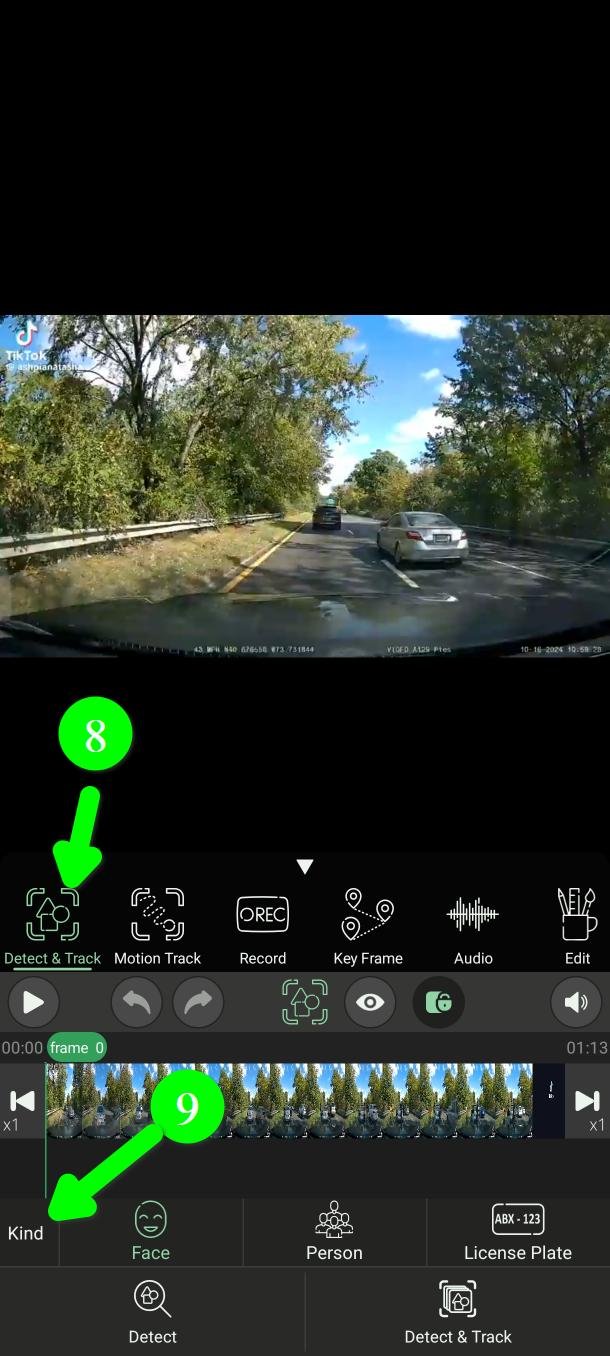
You are now on the main screen. Make sure you are in Detect & Track mode (8). The app usually starts in this mode. If it does not, tap it.
The Kind row (9) is where you say what to look for.
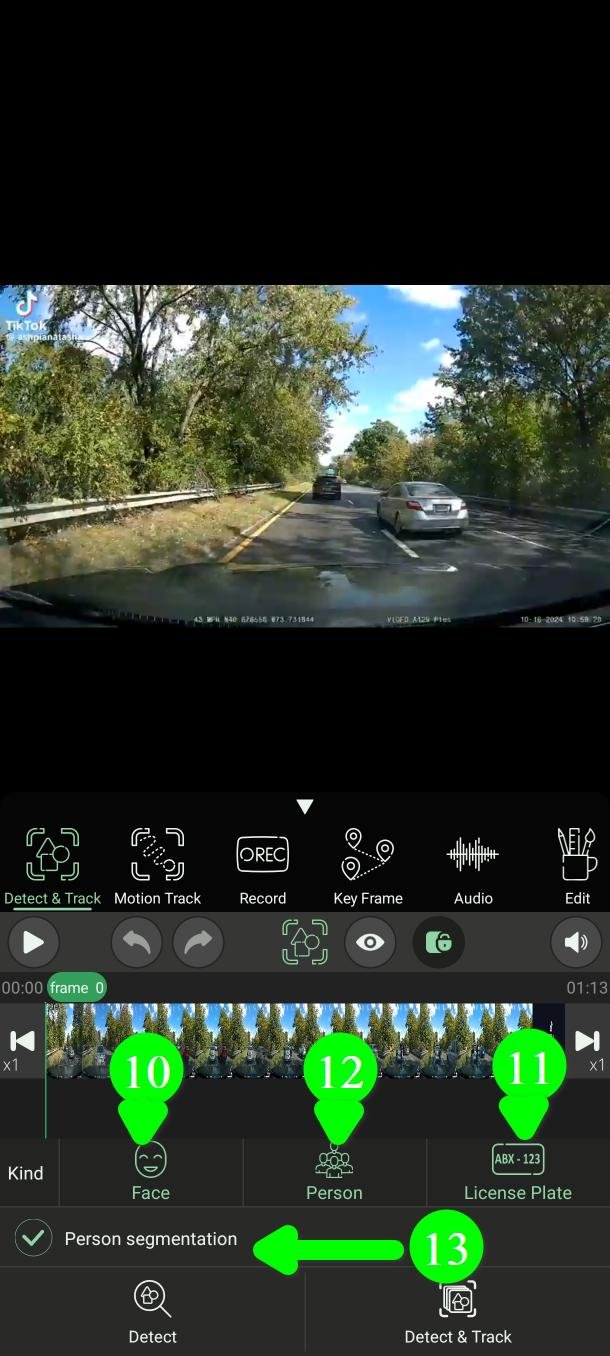
Tap Face (10), License Plate (11) or Person (12). You can pick one, two, or all three.
Pick only what you need. Each extra type makes the job slower. If you only care about faces, choose only Face.
Face and Person together will overlap a lot. Use both only when you want the highest possible safety — which we do recommend if the video matters.
Person segmentation (premium)
Normally a detected person is covered by a rectangle. Turn on Person segmentation (13) and PutMask follows the real outline of the body instead.
Here is the same person both ways:
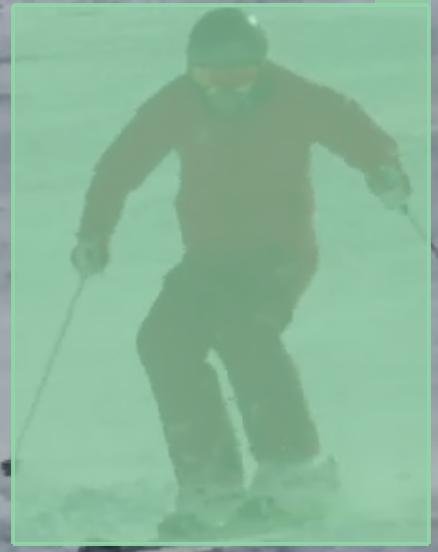
Segmentation off — a plain rectangle covers the person and some of the background with them.
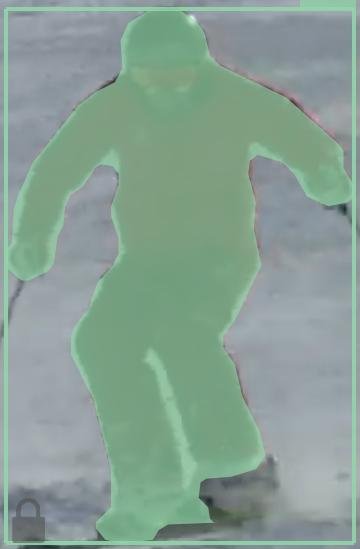
Segmentation on — the filter follows the real outline of the body.
Please read this before you use it. In Detect & Track mode, segmentation is only applied to people who are close to the camera and clearly visible. It is also not perfect — a part of a body can be left uncovered. If your goal is safety rather than a nicer looking video, leave this option off and use the rectangle.
Step 4 — Let the app find everything
At the bottom you have two buttons: Detect (14) and Detect & Track (15).
Detect & Track goes through the whole range you choose and finds everything by itself. This is the one you want.
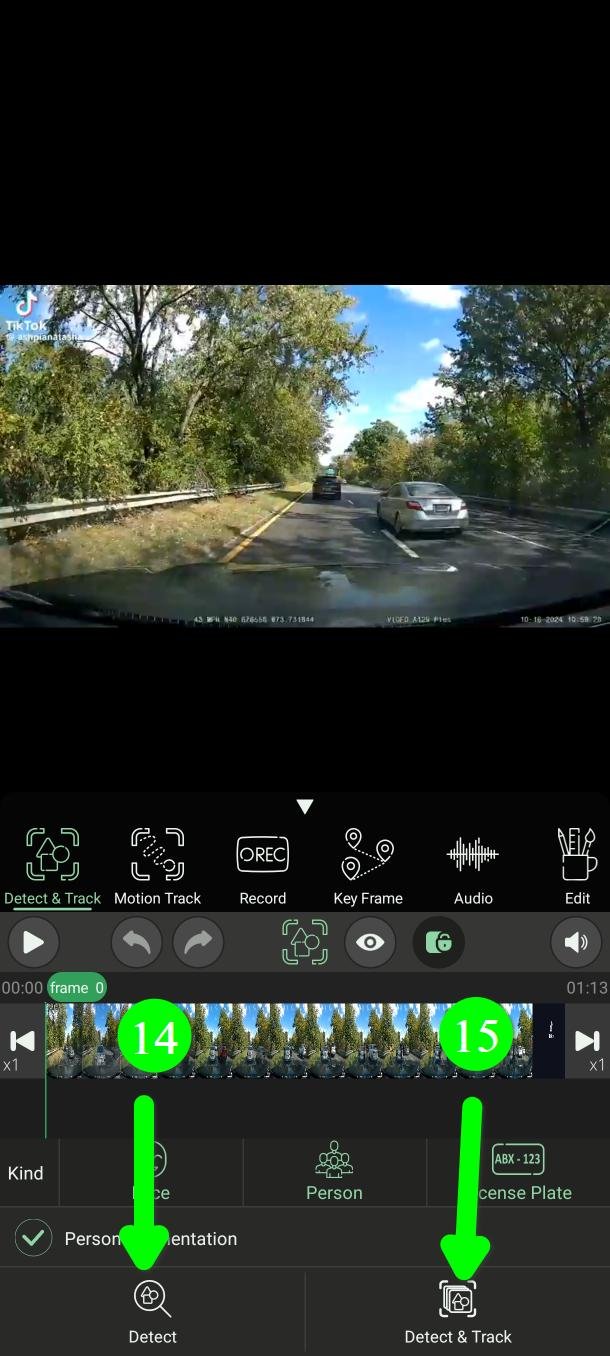
Tap Detect & Track (16).
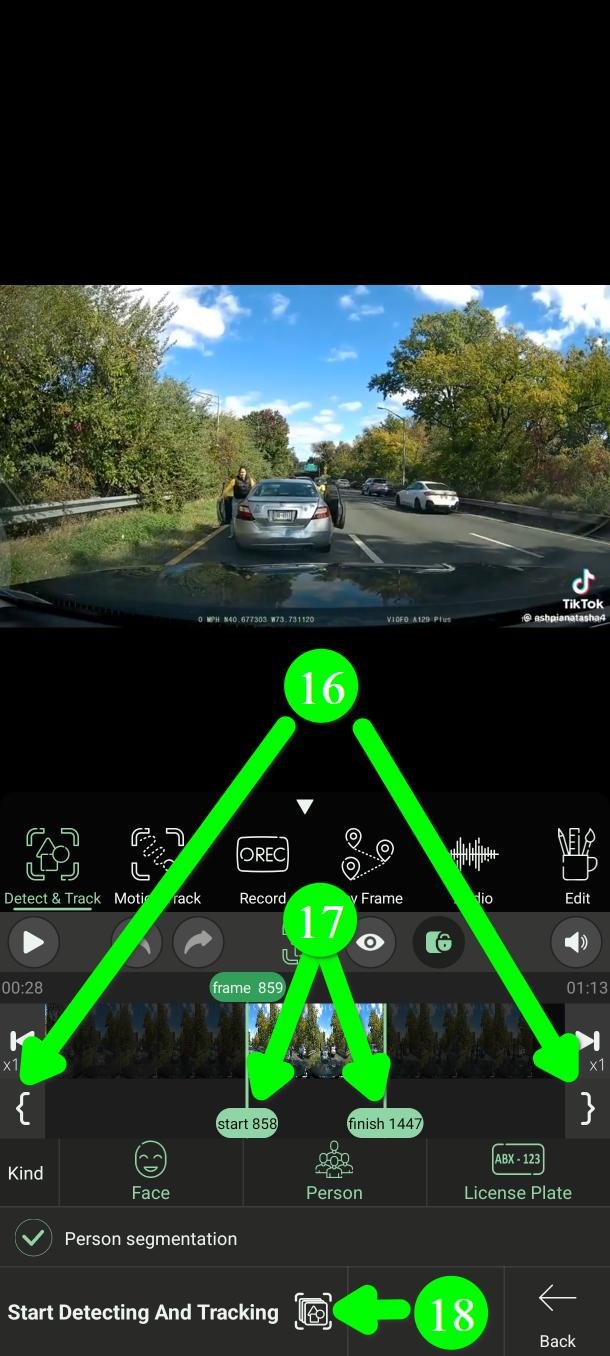
Now set where the work starts and where it stops, using the start and finish markers (17). You can drag them, or use the two buttons next to them to drop a marker exactly on the frame you are looking at. To do the whole video, put start at the beginning and finish at the end.
Then tap Start Detecting And Tracking (18).
While it works you can tap Preview (19) to watch what it is doing, or Cancel (20) to stop everything.
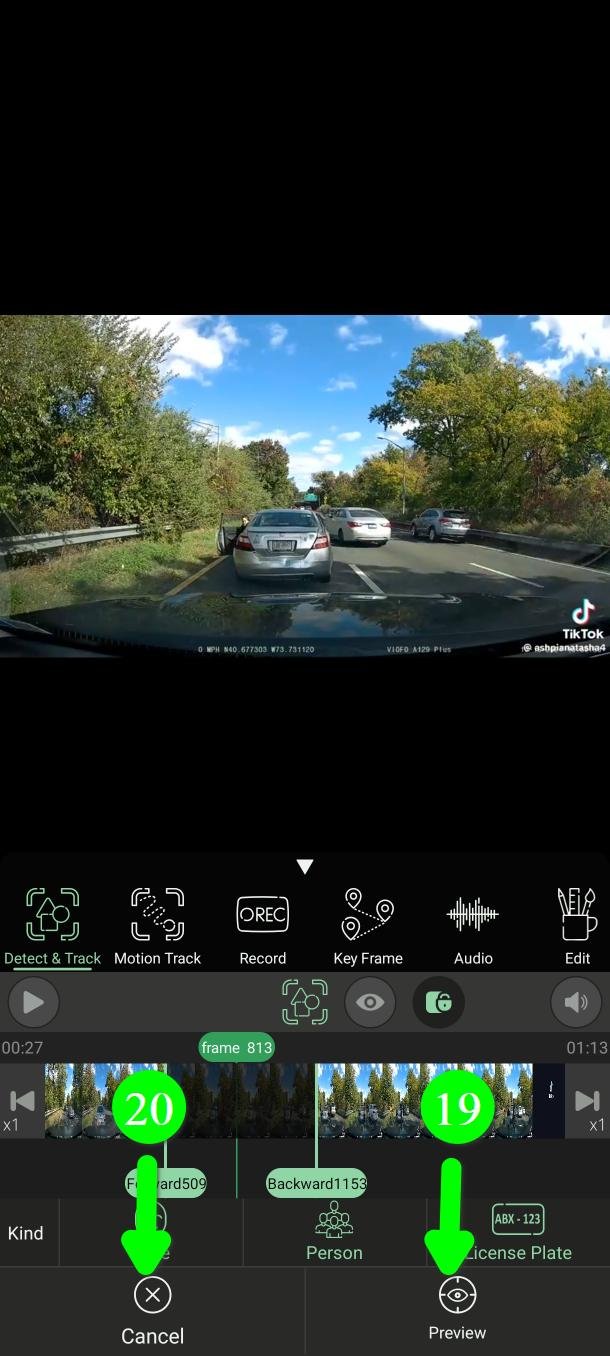
PutMask works forwards and backwards at the same time. In the preview you see both, and you can stop either one on its own (21).
Watching the preview makes the job slower, so turn it on only when you need it.
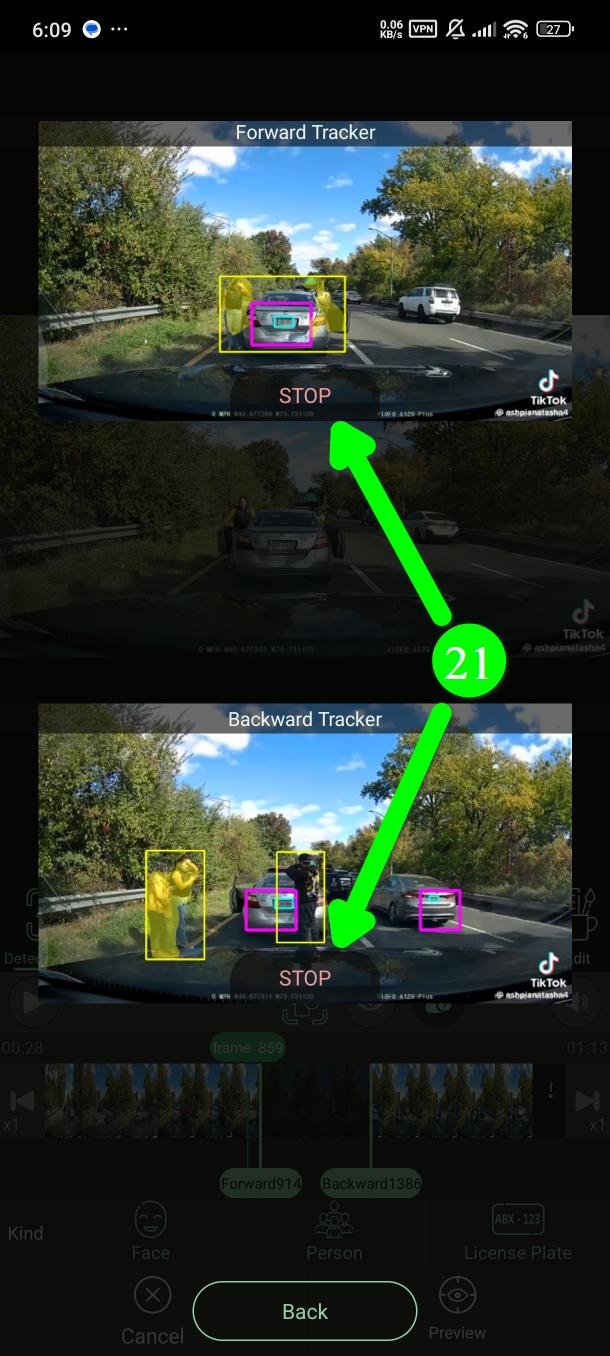
Now wait. How long it takes depends on your phone and on the processing core you picked.
Step 5 — Check the result yourself
When it finishes, everything PutMask found is marked with a green box (22).
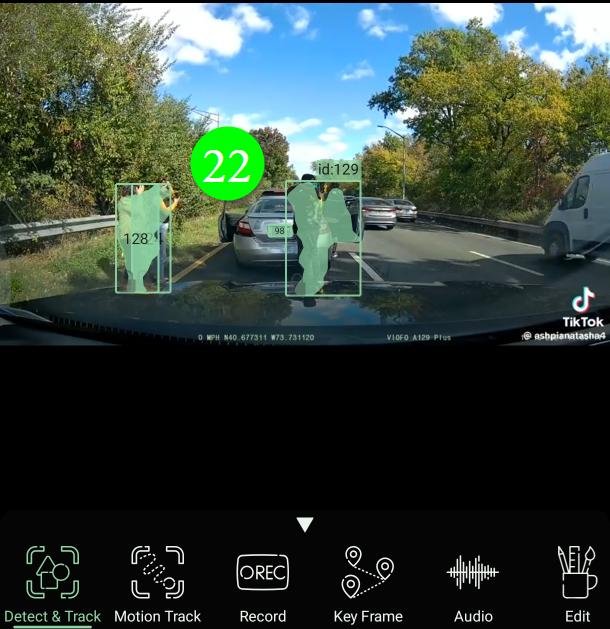
Watch the whole video once, from start to end. This step matters.
No detector is perfect. A face can be clear to you and still be missed by the app — because of the angle, the light, motion blur, or because it was only on screen for a moment. Nothing can replace your own eyes here.
If something was missed, you have three ways to fix it: run Detect on that frame (below), use Motion Track, or cover it by hand with Record or Key Frame.
Step 6 — Detect: fixing one frame by hand
Detect searches one single frame instead of the whole video. Use it when the automatic pass missed something.
Move to a frame where the face or plate is clearly visible (23), then tap Detect (24).
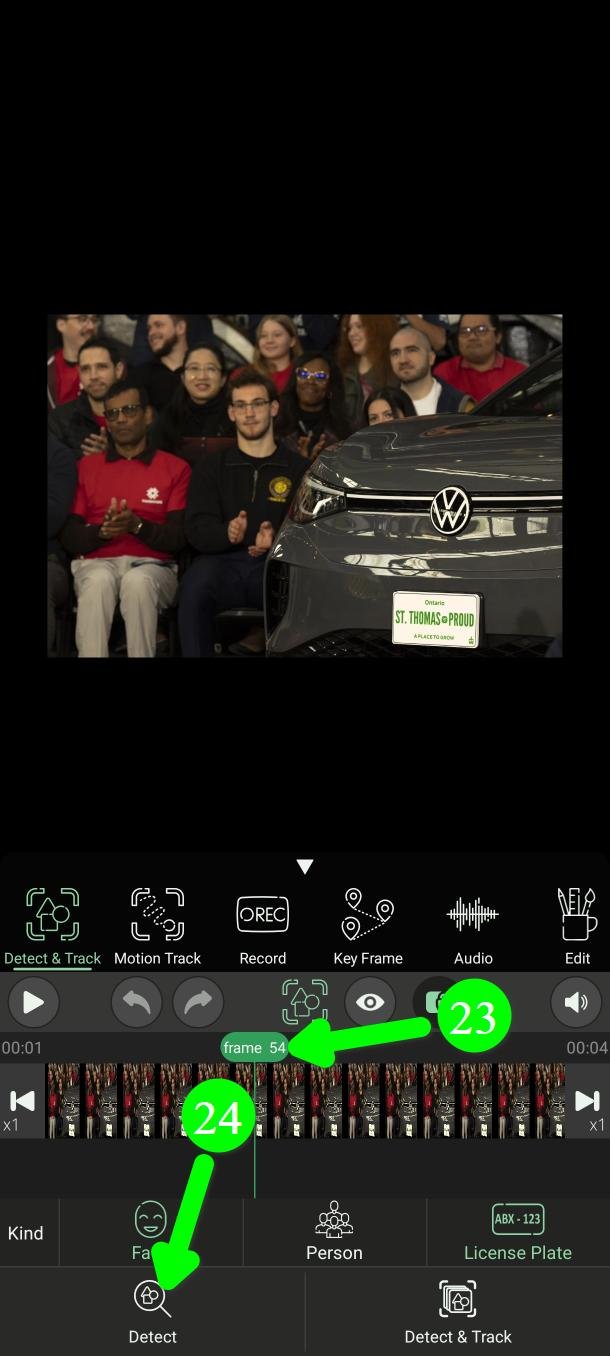
Whatever it finds appears in a list at the bottom (25) and as boxes on the video (26). Tap either one to select it.
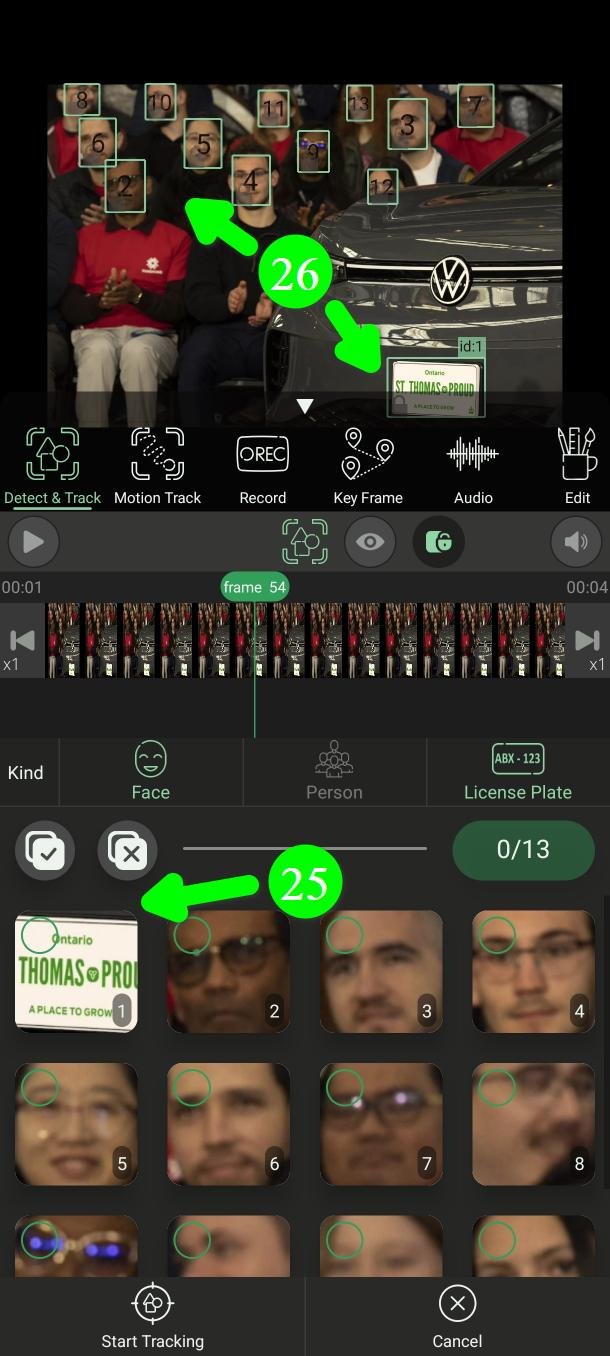
On the right you can see how many were found and how many you have selected (27). On the left you can select or clear all of them at once (28). If the list is too small, drag the bar to make it bigger (29).
When you have chosen what to hide, tap Start Tracking (30).
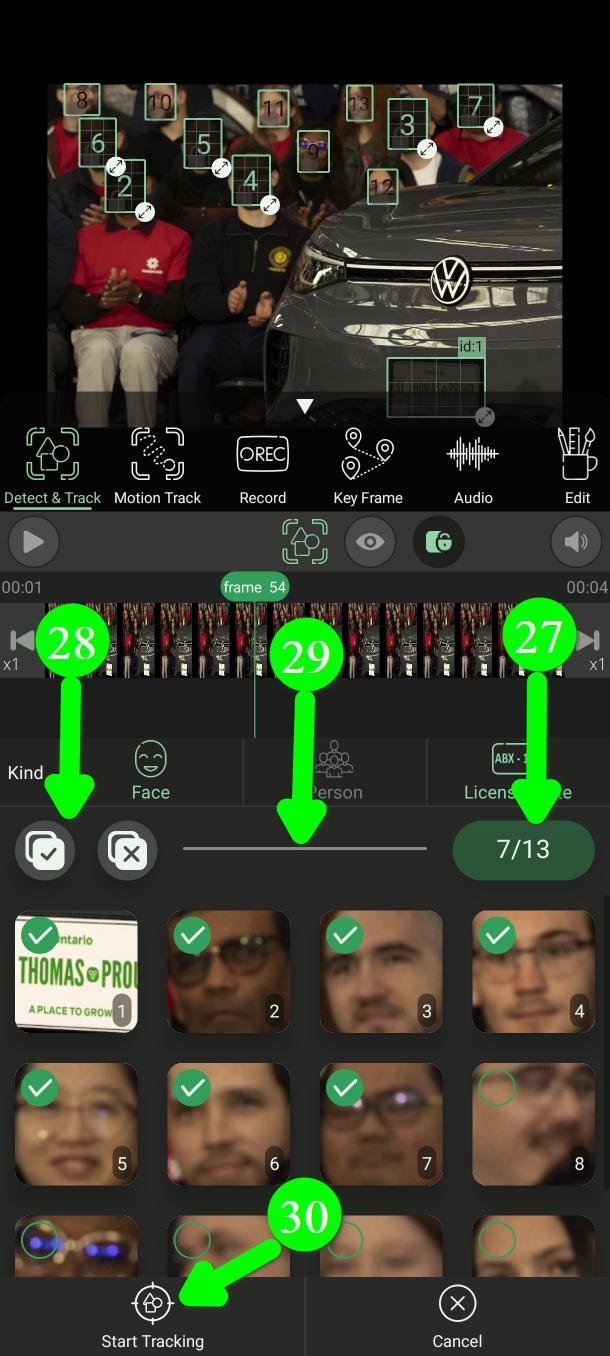
Again, you can watch it with Preview (31) and stop it whenever you want (32).
Tracking stops on its own as soon as the object can no longer be recognised — even if it comes back into the video later.
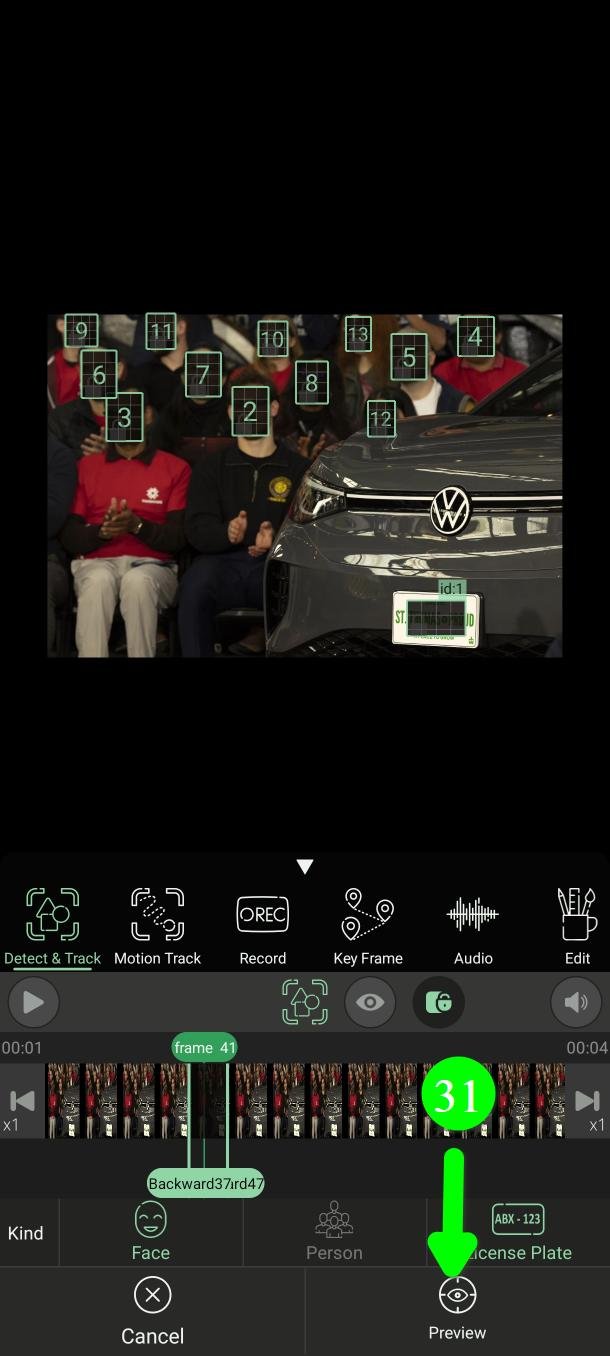
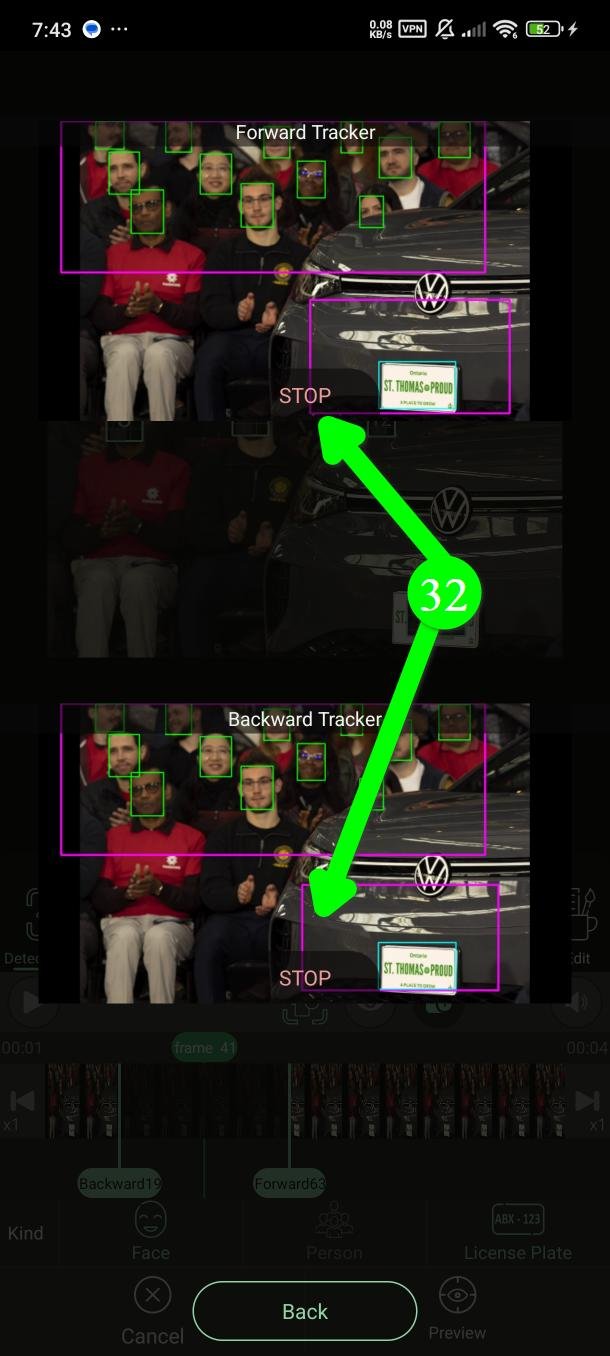
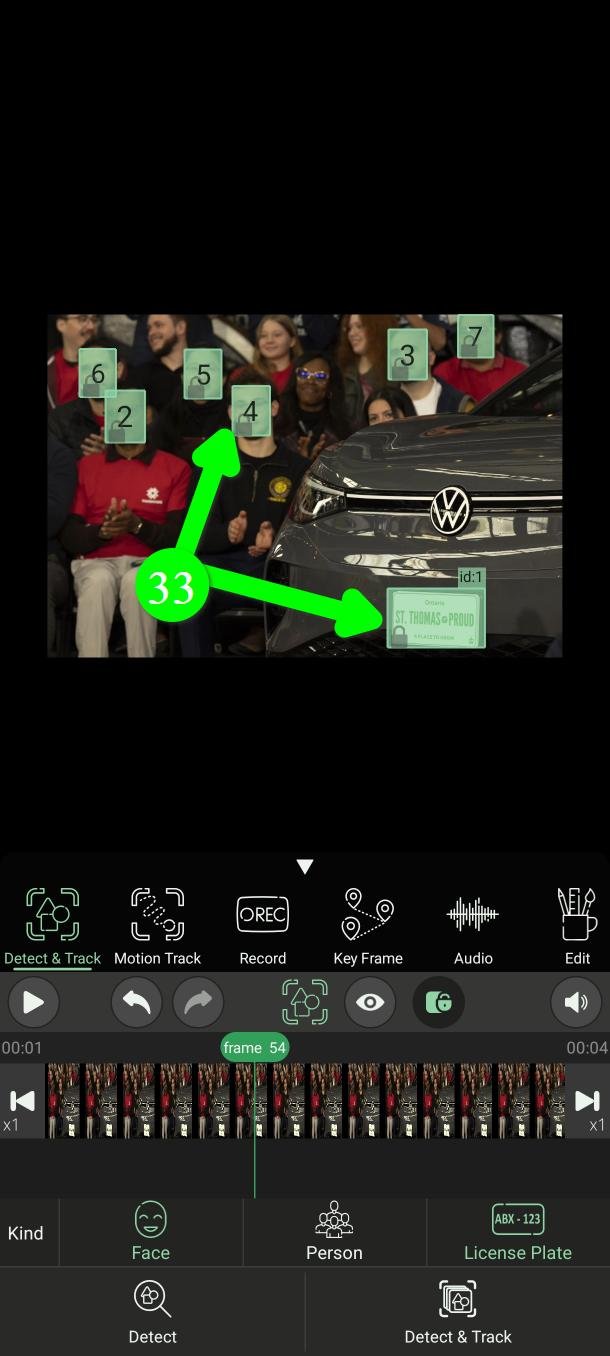
When it is done, you see the new green boxes on the video (33).
Settings that make detection better
If PutMask is missing things, open Settings (34). Scroll the main menu to find it.
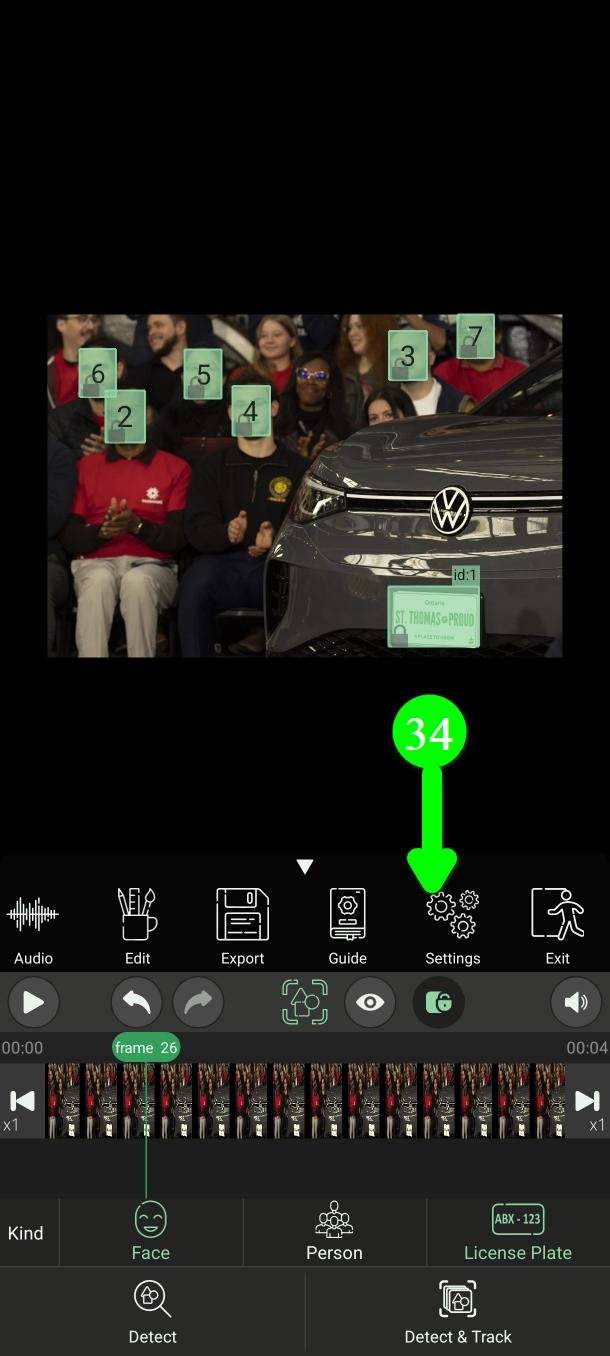
Each detector has its own section on the Models tab.
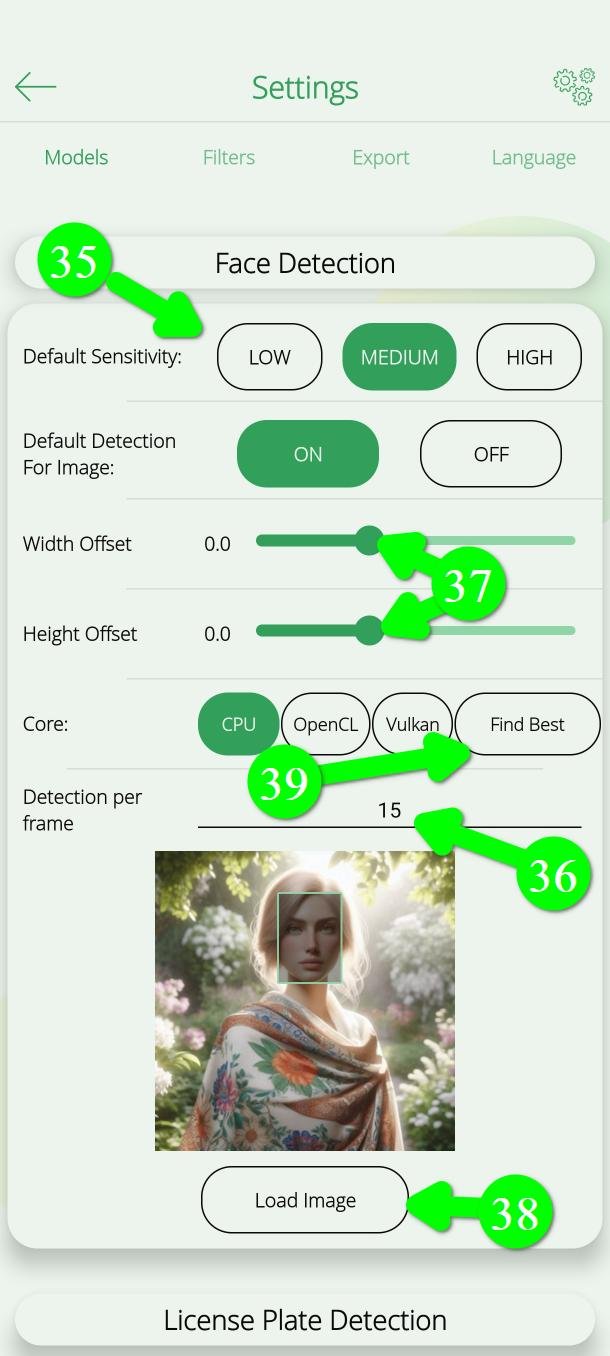
Sensitivity (35)
Higher sensitivity finds more, but it is slower. Setting High for license plates or people makes detection about four times slower.
Detection per frame (36)
This is how often PutMask stops to look for new objects during Detect & Track. If it is 10, the app searches every 10th frame and follows what it found in between. So anything that appears and disappears within 10 frames can be missed.
A lower number finds more, but it is much slower. If your scene is still and nothing moves much, leave it as it is.
Width and height offset (37)
If the boxes are a little too small and you can still see an edge of a face, grow them here.
Load Image (38)
Try your settings on any picture, so you can see the result straight away instead of guessing.
Core (39)
This is the part of your phone that does the work — CPU, OpenCL or Vulkan. Tap Find Best and PutMask will test them on your own device and tell you which is fastest.
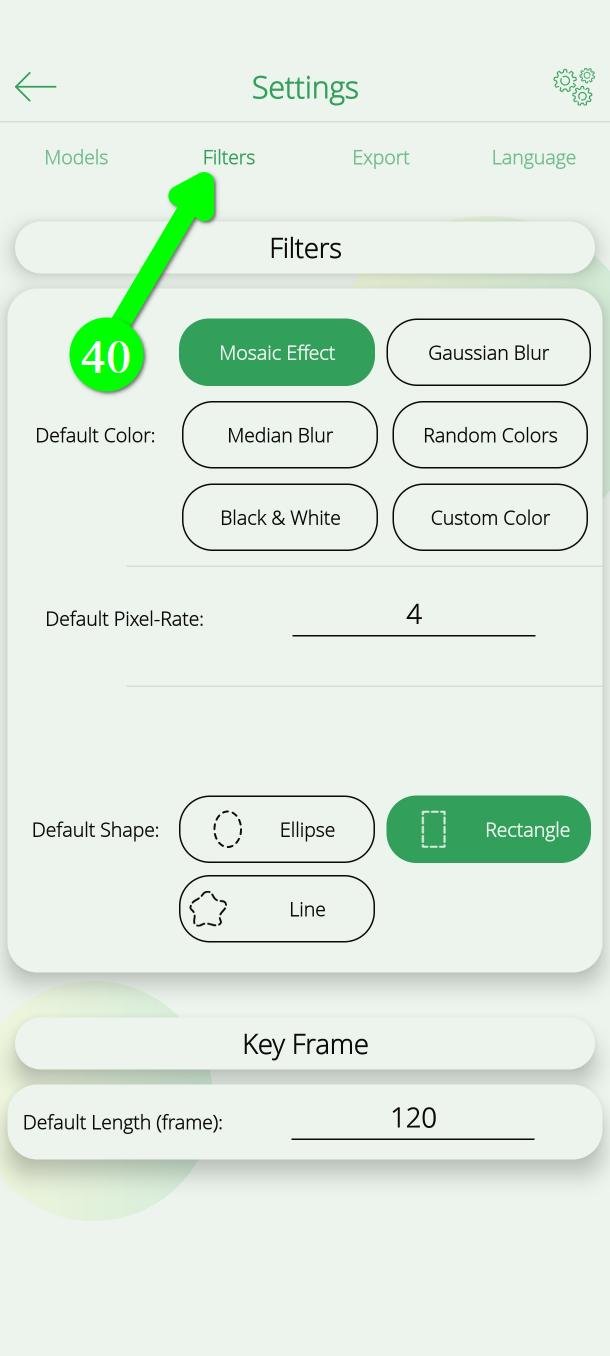
Filter look
Every new detection is covered by a rectangle by default. To change that, open the Filters tab (40) and pick another shape and colour. Your choice applies to new detections, not to ones you already made.
Step 7 — Export your video
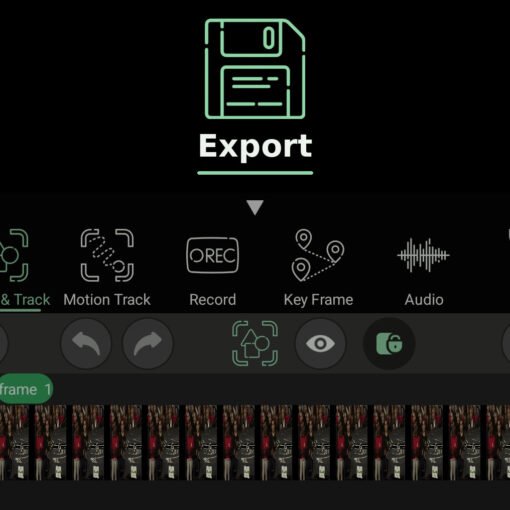
When you are happy that everything is covered, scroll the main menu and tap Export (41), then tap the Export button at the bottom.
Stay in the app until it finishes.
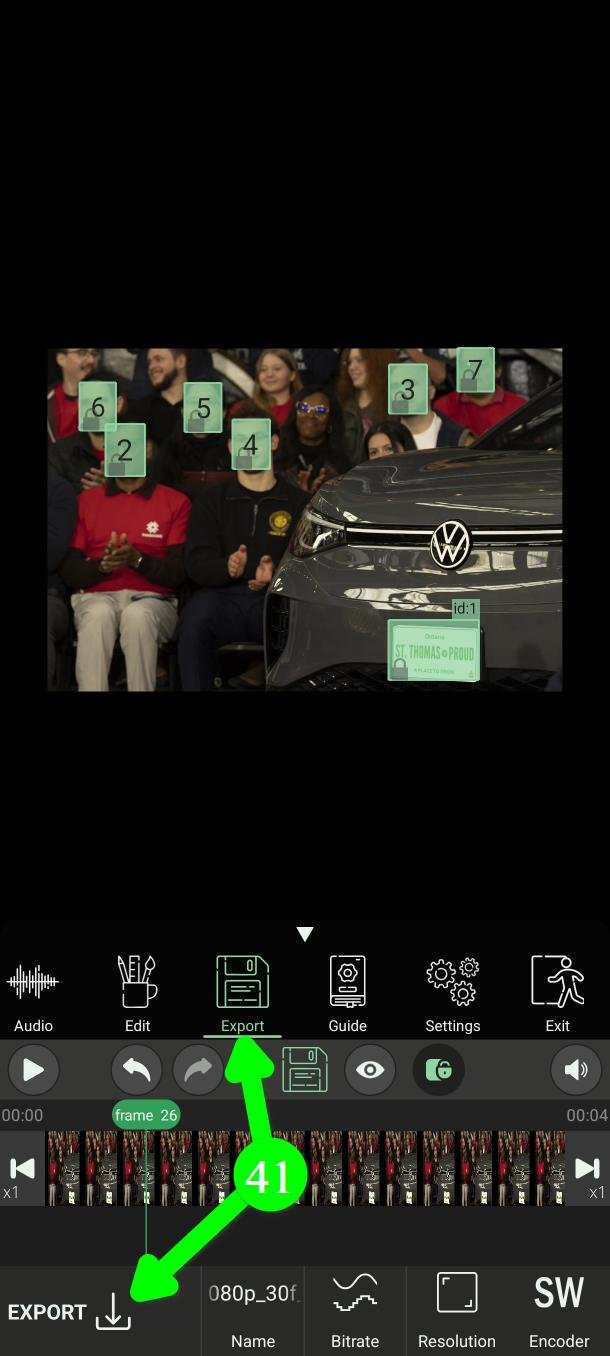
Your original video is not changed. PutMask saves a new one.
If the exported video looks soft or low quality, that is a settings question — resolution and bitrate. The Export guide explains it.
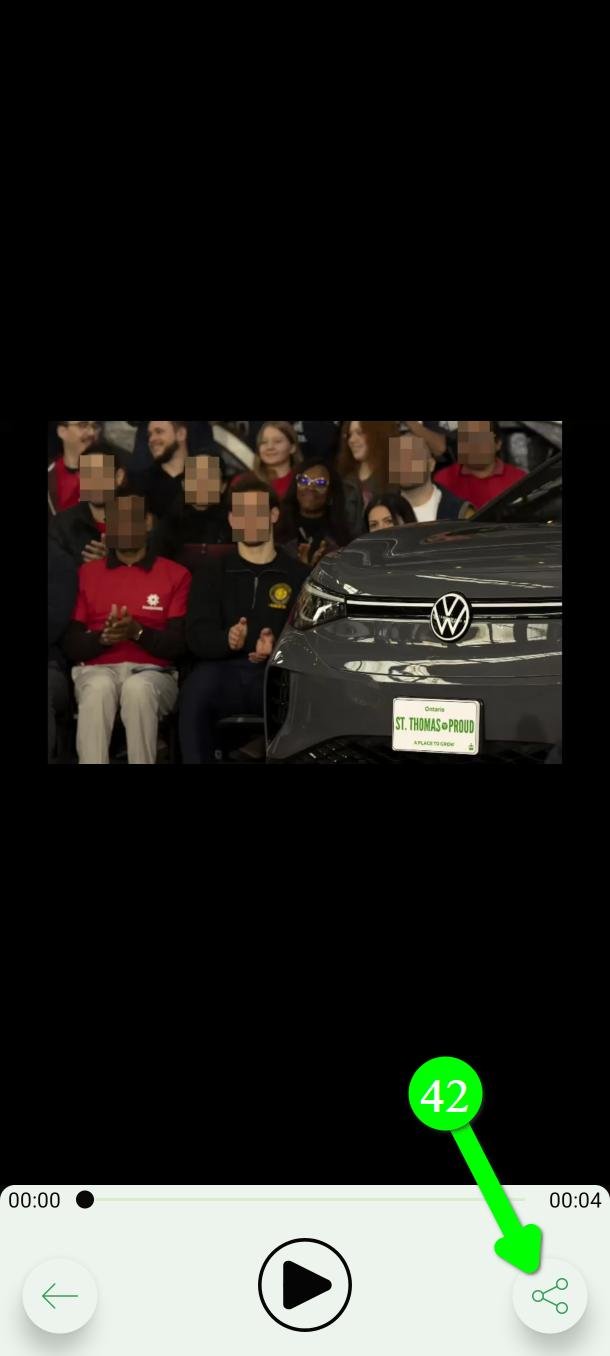
When it is done you can watch the result and tap Share (42) to send it anywhere.
Changing something later
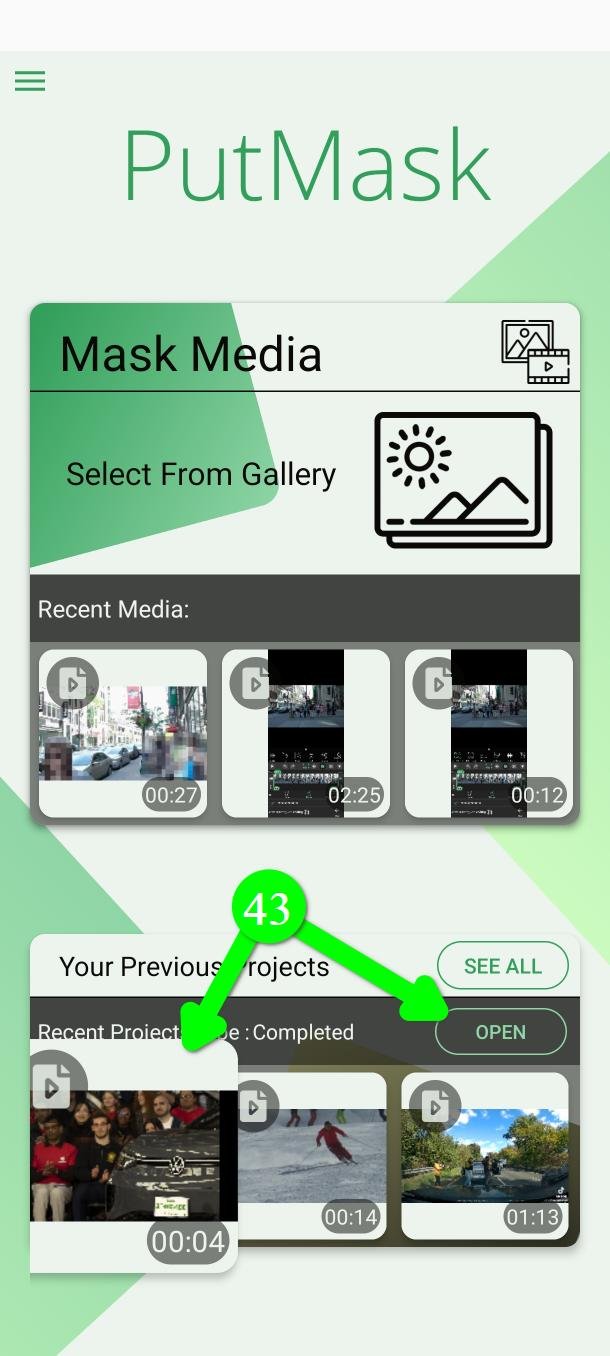
Nothing is lost. Open Your Previous Projects and tap Open on the project (43). Everything you did is still there, and you can edit it and export again.
Questions people ask
Is PutMask free? Are there ads?
Yes, it is free, and there are no ads at all. You can blur faces, license plates and people for free, in videos up to two minutes at a time. Some extras — person segmentation, higher export resolutions and frame rate options — are for premium users.
Does my video get uploaded anywhere?
No. All the detection and all the blurring happen on your phone. The app does not need an internet connection to censor your video.
Your privacy is our priority. We do not collect any data about you — and that is also the reason there are no ads.
Most free apps pay for themselves with ads, and an ad needs your advertising ID. That ID is what lets ad companies follow you from one app to the next and build a profile of you. Other apps in this category do exactly that. We did not want to hand anyone that information about the people using a privacy tool, so we left ads out.
Can it blur faces in a crowd?
Yes. It finds every face it can, one filter each. If it misses one, add it yourself with Detect, Motion Track, Record or Key Frame.
Can I blur something that is not a face, plate or person?
Yes, but not in this mode. Use Motion Track to follow any object automatically, or Record and Key Frame to cover it by hand.
Can the blur be removed by someone else?
A mosaic or a blur destroys the picture in that area, but a very light mosaic can still leave a shape you can guess at. If the video is sensitive, use Custom Color — a solid block that leaves nothing behind.
Why did it miss a face?
Usually the angle, poor light, motion blur, or a face that was too small or on screen for only a moment. Raise Sensitivity, lower Detection per frame, and always watch the finished video yourself.
Need help?
Write to Support@putmask.com, or leave a message in our Telegram channel. Tell us what happened and we will look at it.

3 thoughts on “How to Blur Faces, License Plates and People in a Video Automatically on Android”