A face is not the only thing that gives someone away. A voice does it just as well — and so does a name said out loud, an address, or a phone number read from a screen.
PutMask can mute the sound, beep over a few words, or change a voice so it no longer sounds like the person who spoke. It is a free Android app, it works offline, nothing is uploaded anywhere, and there are no ads.
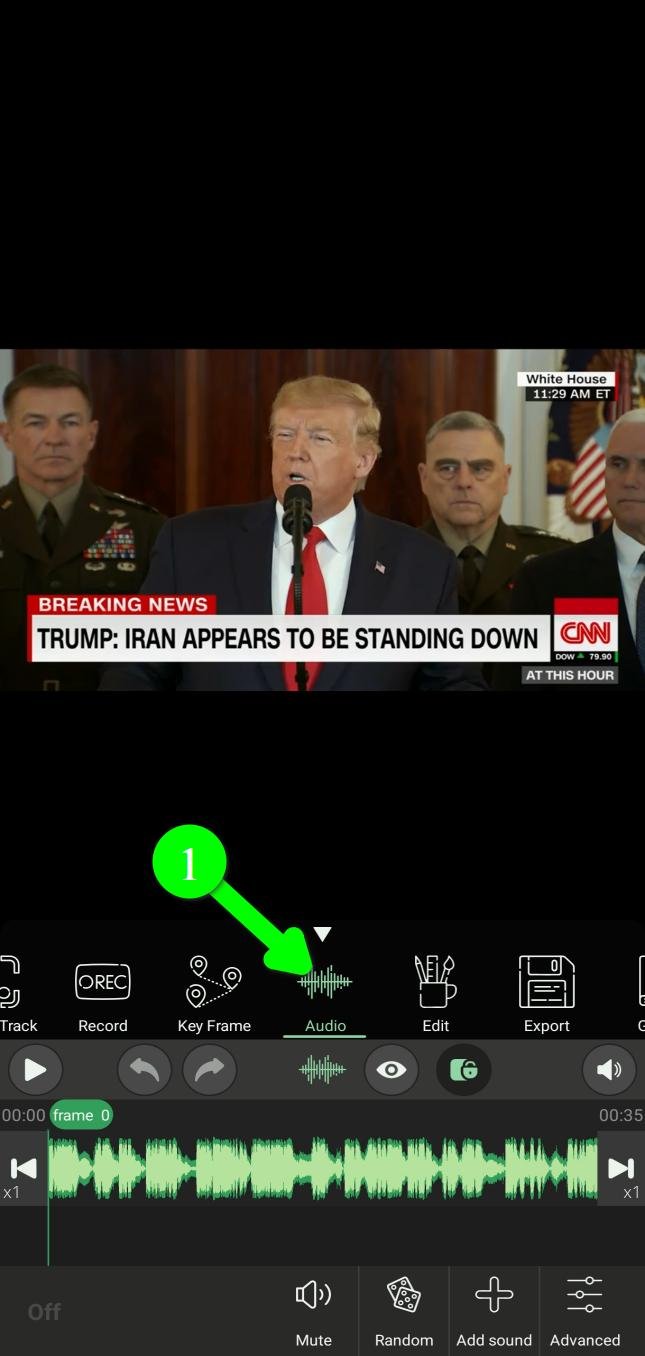
Open the Audio tools
In the main menu, tap Audio (1).
The button only works if your video actually has a sound track.
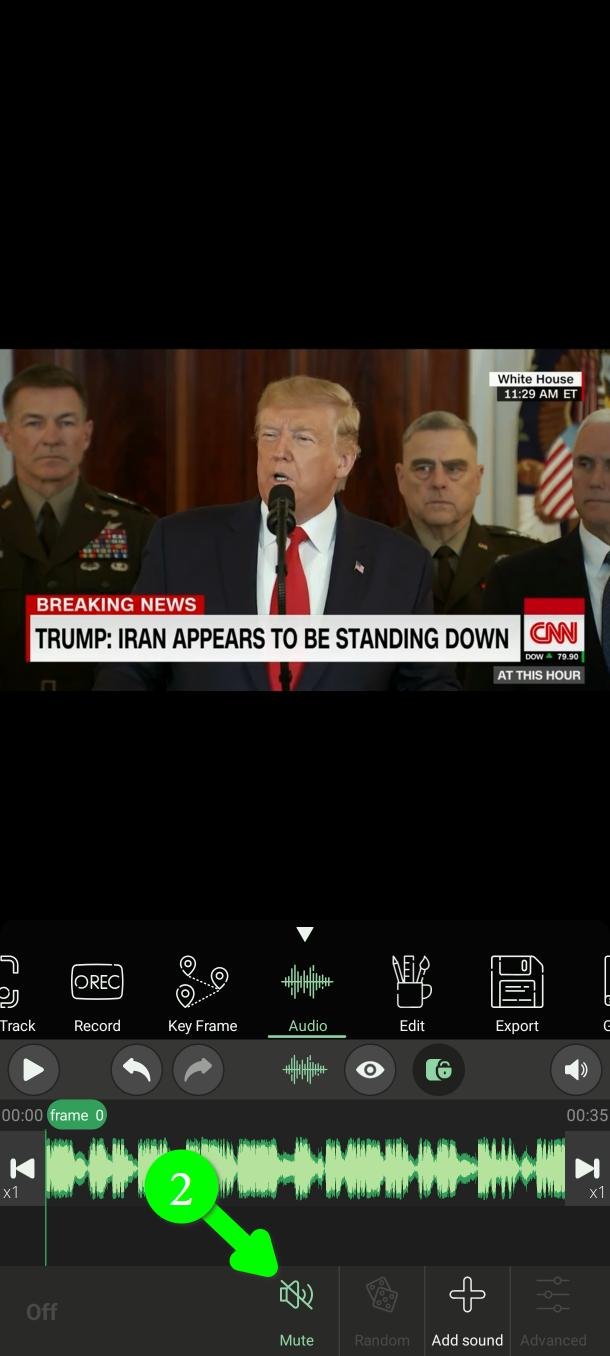
The safest option: mute everything
Tap Mute (2) and the whole sound track is removed from the exported video.
This is the strongest thing on this page. Nothing is left to analyse, so nothing can be recovered. If the sound does not matter to you, stop here.
Silence or beep just one part
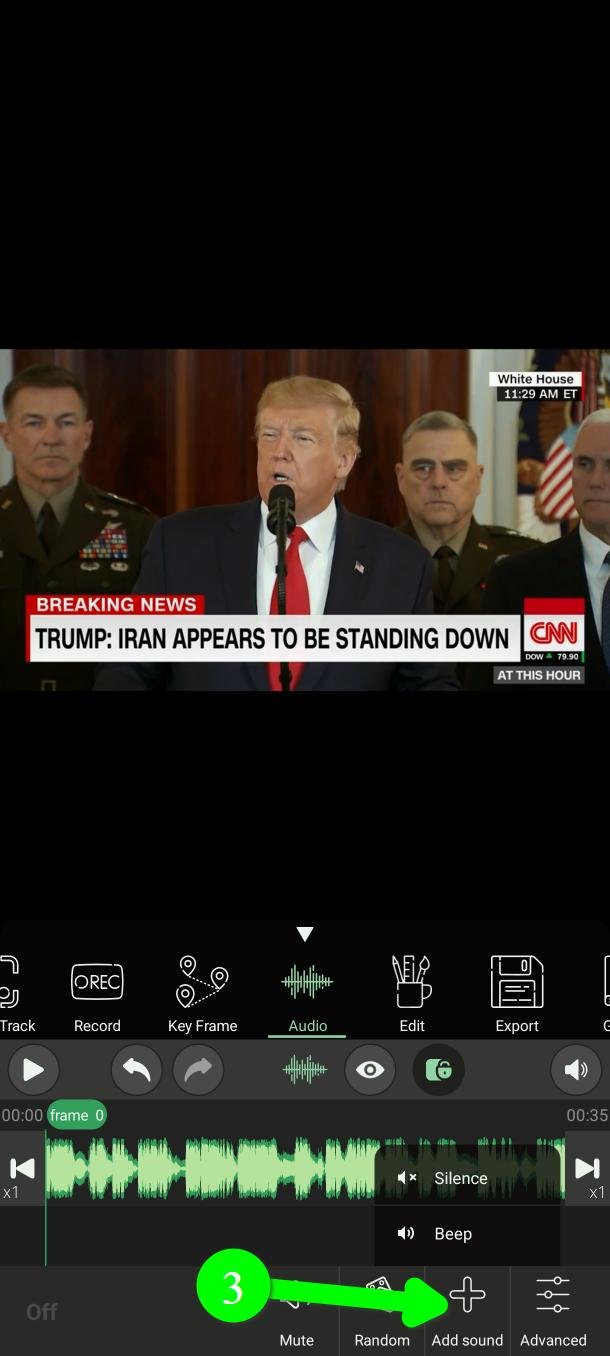
Usually you only need to remove a few seconds — a name, an address, a number. Tap Add sound (3) and a small menu appears.
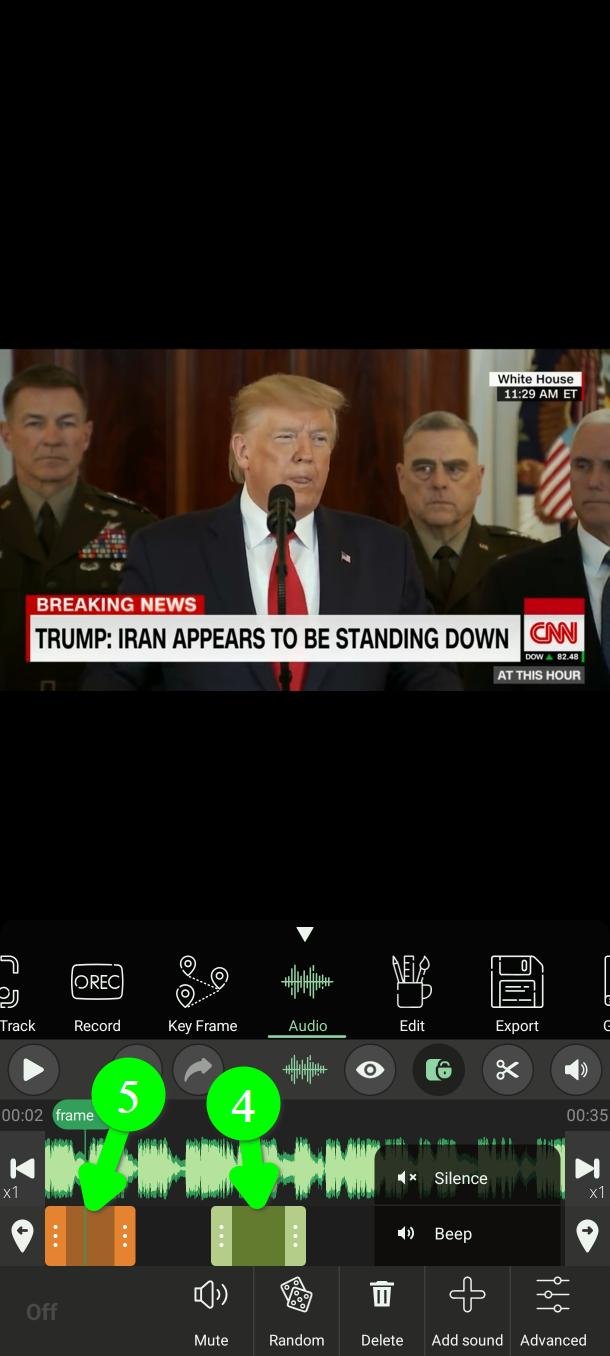
Silence (4) removes the sound for that stretch. It shows as a green block.
Beep (5) plays a beep over it instead. It shows as an orange block.
Both start out 2 seconds long. A beep is useful when you want the listener to notice that something was removed; silence is quieter and less obvious.
Move it to the right place
Now set where the block starts and ends. There are two ways.
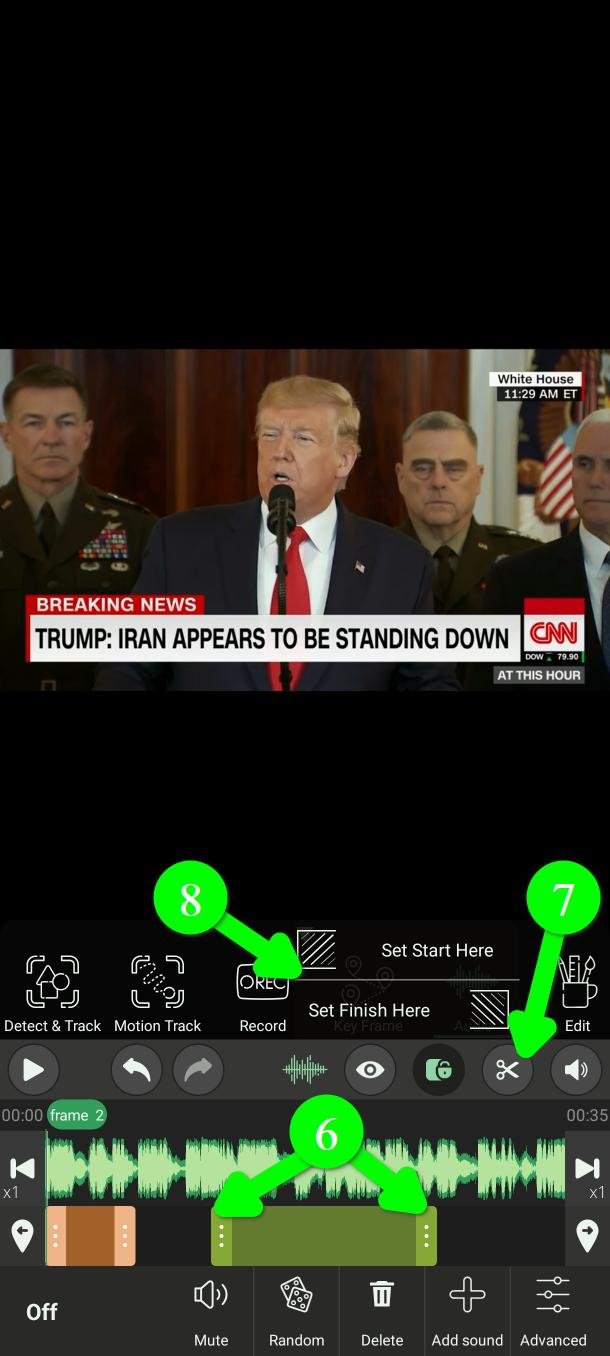
Quick way: drag either end of the block along the timeline (6).
Exact way: go to the frame you want, tap the scissors button (7), then tap Set Start Here or Set Finish Here (8). The block's edge jumps to the frame you are on.
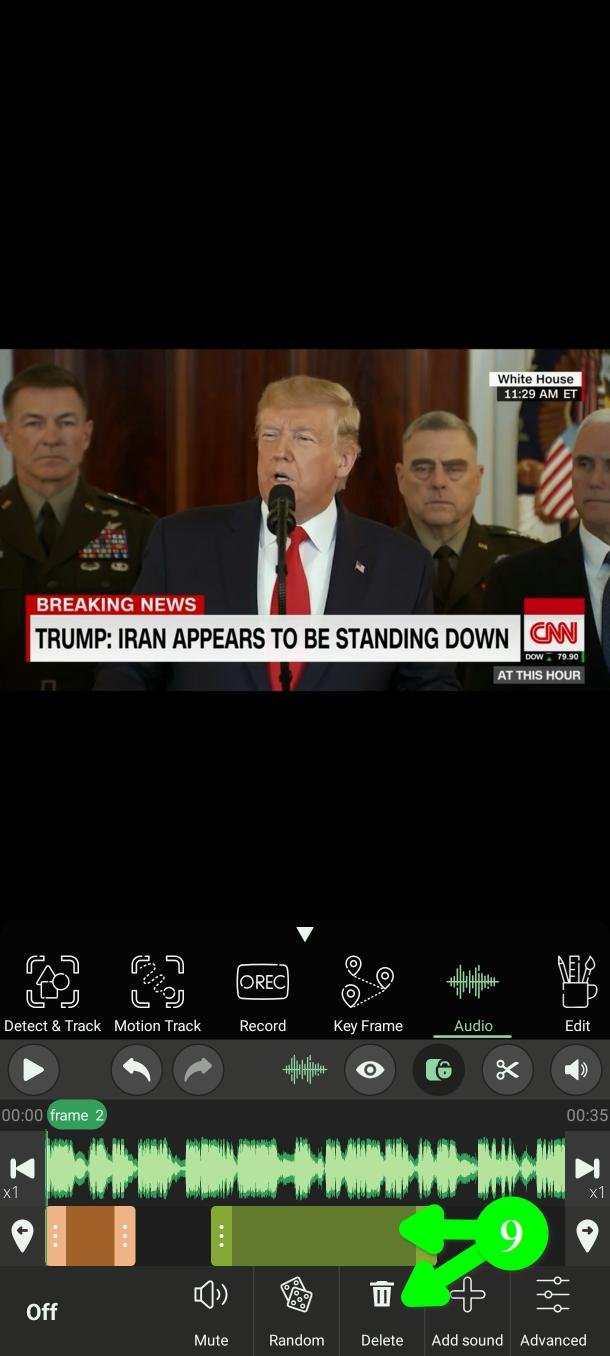
To remove a block you added, tap it, then tap Delete (9).
Change the voice
Once the sensitive words are gone, you can also change how the voice itself sounds.
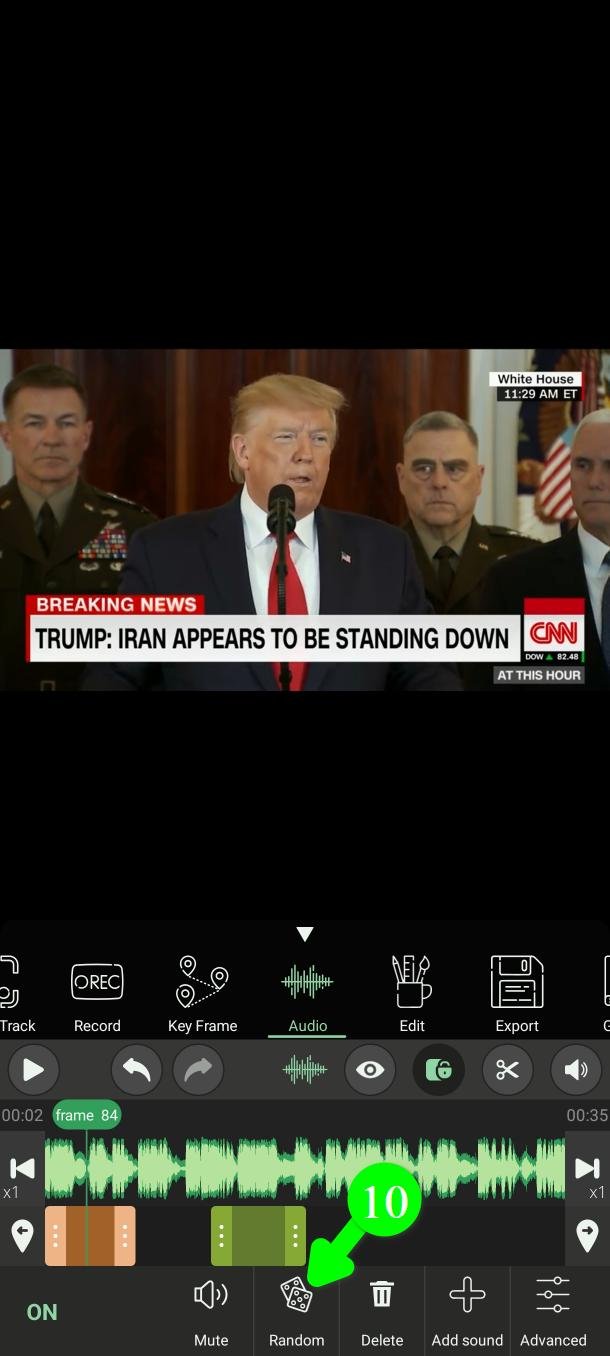
Tap Random (10). PutMask picks a new set of voice settings for you.
This is the way we recommend using it. A random setting you did not choose is harder for anyone to reason about than one you picked on purpose, and it takes a second instead of ten minutes.
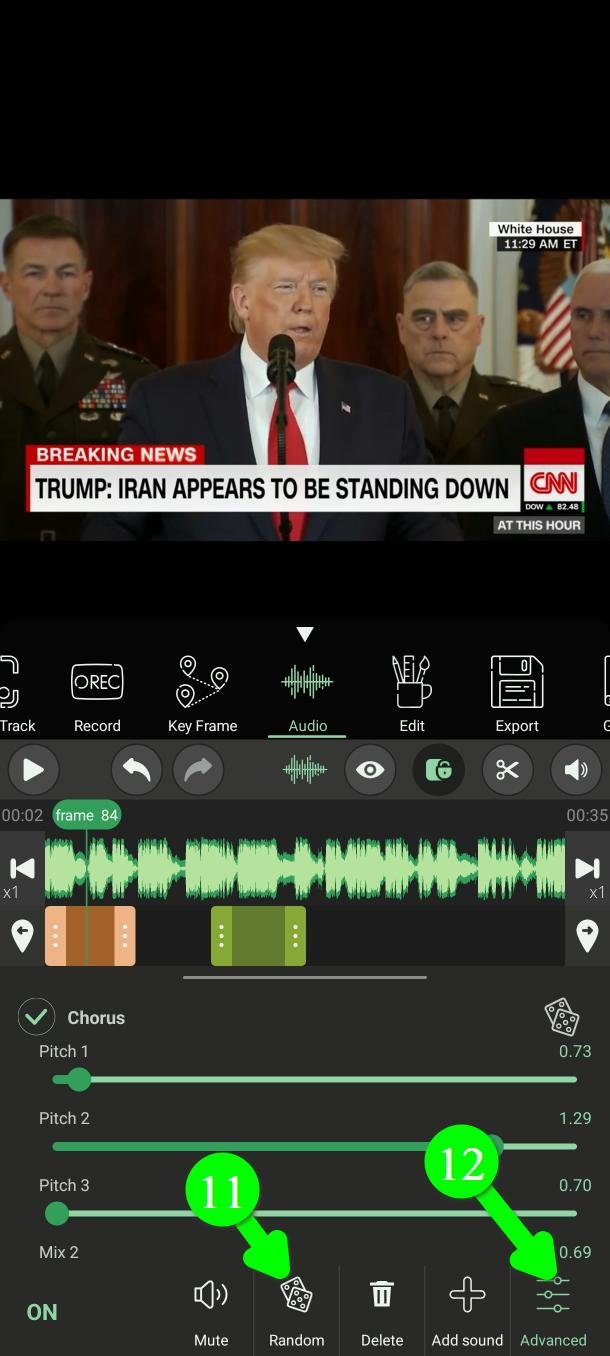
Do not like the result? You have two choices: tap Random (11) again for a completely new one, or tap Advanced (12) to set everything by hand.
We suggest sticking to Random. It gives a wider spread of settings than most people would choose by hand, and a wider spread is harder to undo.
Listen before and after
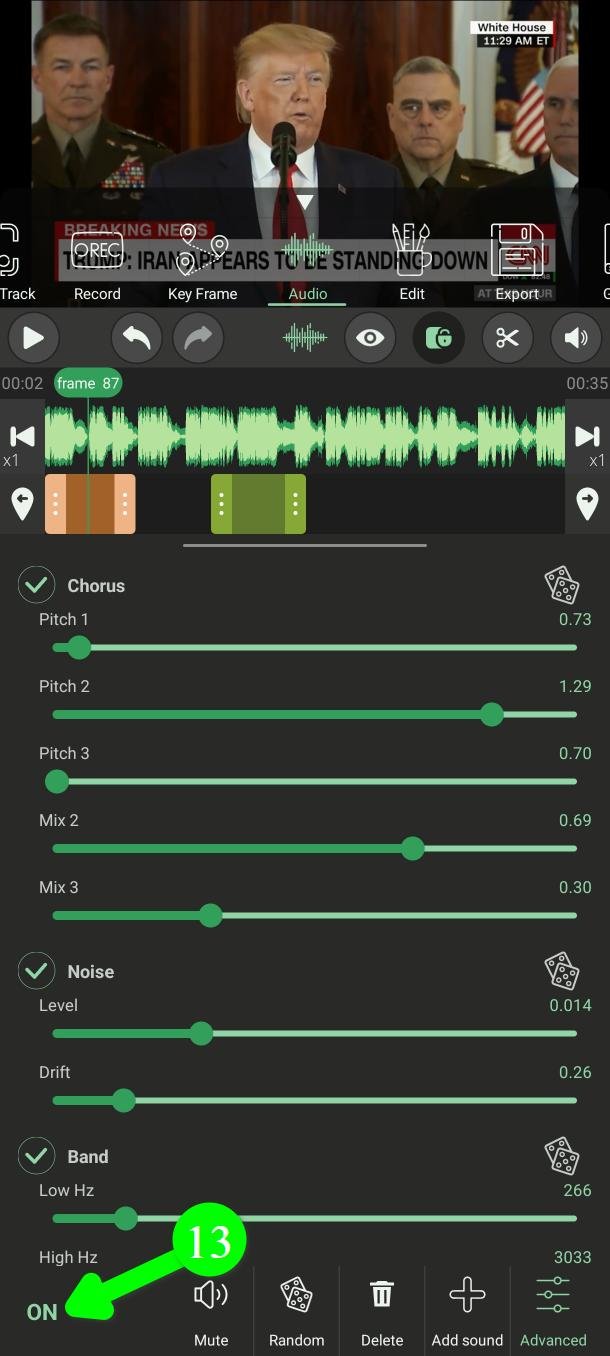
After any change, the button at the bottom left reads ON instead of OFF. Tap it (13) to switch between the original voice and the changed one.
Use this. Switching back and forth is the fastest way to hear how much has really changed. If the two sound similar, your setting is too light.
The Advanced tools, one by one
You do not need any of this if you use Random. It is here for people who want to know what the sliders actually do.
First, the thing that makes voice disguise harder than it looks. Most people think a voice is recognised by how high or low it is. It is not, mostly. What identifies you is the shape of your throat, mouth and nose — they emphasise certain frequencies, and that pattern is your fingerprint. Two people singing the same note still sound like two different people.
This is why the obvious trick fails: simply making a voice deeper or squeakier does not hide it. That moves the note but leaves the fingerprint where it was, and anyone can move the note back.
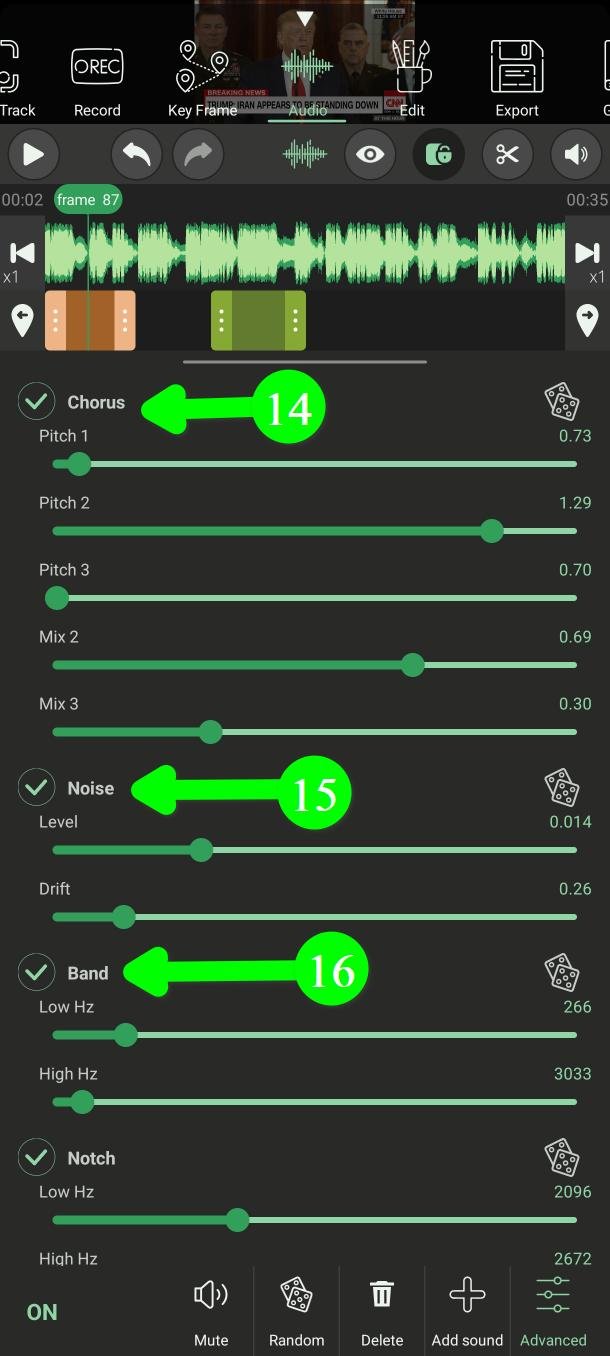
Chorus (14) — the one that matters
Makes several copies of your voice at slightly different pitches and plays them together as one voice.
It works because of how it changes the pitch: it stretches the sound, which moves your voice fingerprint along with the note instead of leaving it behind. Then it goes further — with several copies overlapping there is no single pitch or fingerprint left to find, so there is nothing to shift back.
This is the control that actually protects you. Everything below is support. Large settings start to sound obviously processed.
Noise (15) — buries the fine detail
Adds a quiet hiss, like an old or badly made recording.
The useful part: quiet detail that falls below the hiss is not hidden, it is gone. Noise-removal software cannot bring it back, because there is nothing left to recover.
Two things make the hiss hard to strip out. Its level drifts at irregular intervals, and its character shifts — sometimes duller, sometimes brighter. Noise removal works by learning what the noise sounds like and subtracting it, so a profile learned from one moment is wrong for the next.
Band (16) — narrows the channel
Removes the very low and very high frequencies and keeps the middle, where speech lives.
Those extremes carry little speech but plenty of personal detail — chest resonance at the bottom, breath and sibilance at the top. It also makes the result sound like it came through a phone or a radio, which is a helpfully ordinary thing for a recording to sound like. Speech stays clear.
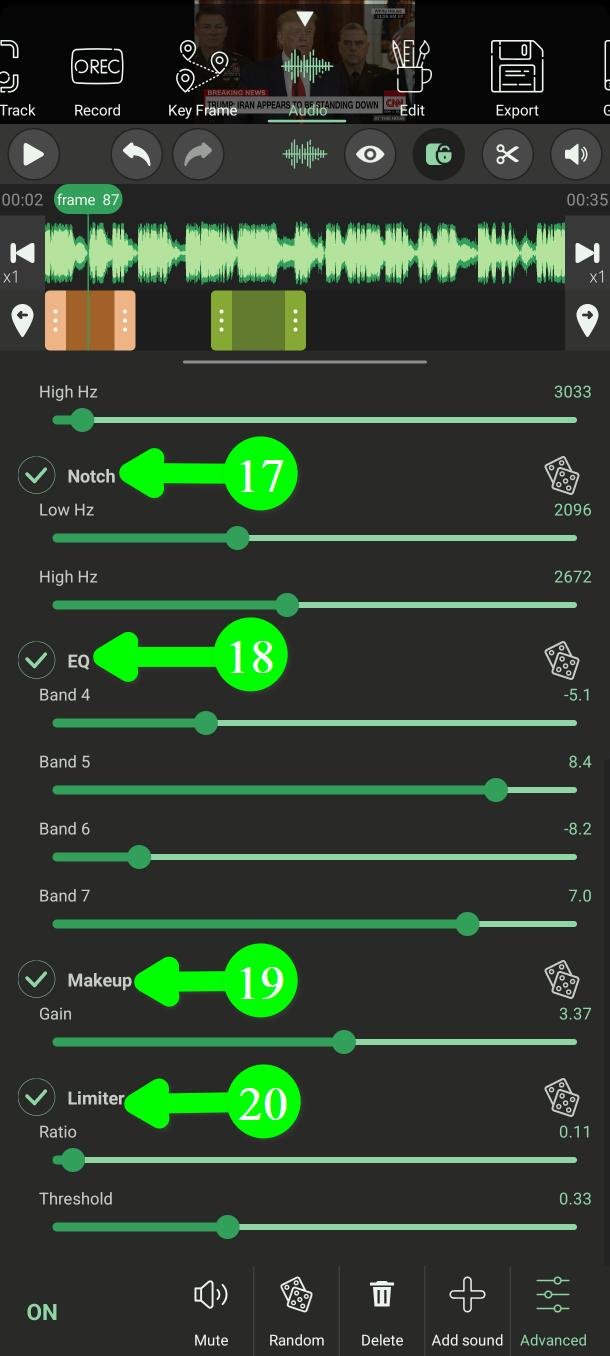
Notch (17) — removes one telling region
Cuts a single narrow band out of the middle, aimed at a region that is strongly personal but adds almost nothing to understanding the words. Cheap to remove, and it takes away a useful clue.
EQ (18) — reshapes the balance
Turns four frequency ranges up or down, changing where the voice sounds full and where it sounds thin.
On its own this is the weakest tool here — the changes are broad and fairly easy to undo. Alongside Chorus it adds another layer of difference.
Makeup (19) — volume
Not disguise. Band removes some loudness; this puts it back. Adjust it if the result comes out too quiet.
Limiter (20) — keeps it listenable
Also not disguise. It stops the loudest parts from distorting and keeps the overall level steady whatever the other settings are doing. Without it some settings would come out far louder than others. Leave it on.
The three small controls
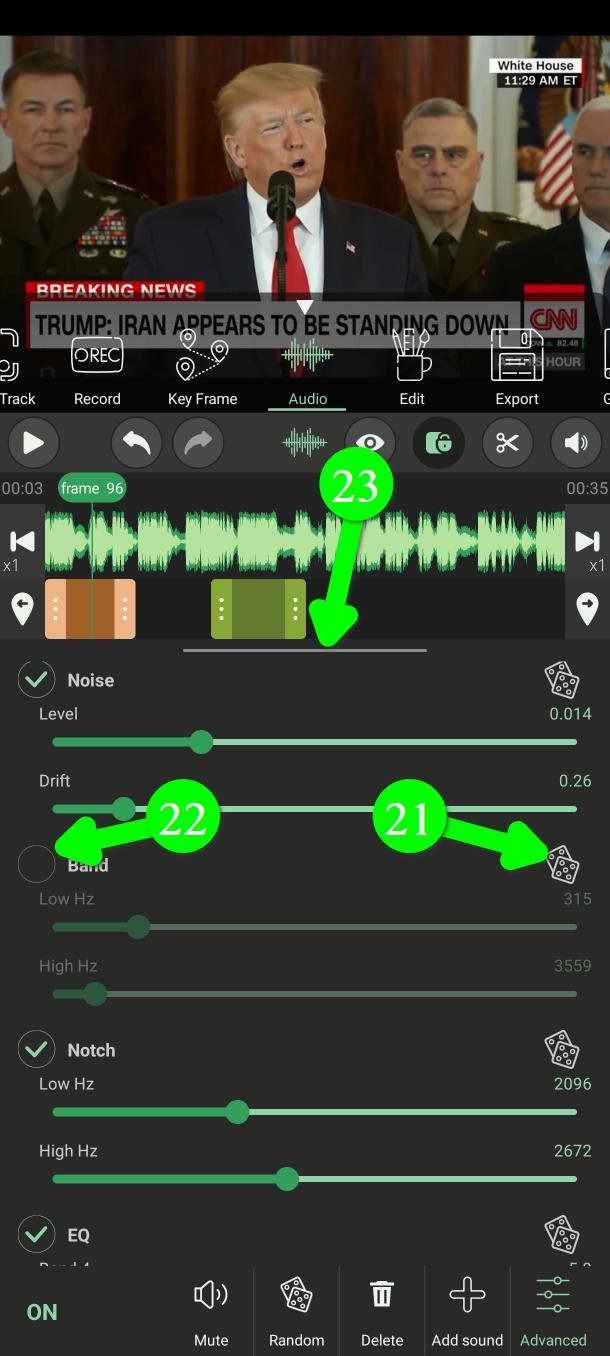
Each effect has a dice button (21) that rerolls only that effect, so you can change one thing and keep the rest.
The tick box next to each name (22) switches that effect off. A switched-off effect passes the sound through untouched.
Drag the handle at the top of the panel (23) to make it taller or shorter while you work.
Please read this before you rely on it
Changing a voice is not the same as removing it. These tools change how a voice sounds, and that is usually enough to stop an ordinary listener recognising it. They do not make the original voice impossible to recover. Only Mute and Beep do that.
A few things worth knowing:
- Your words are untouched. What you say, the phrases you use, your accent, and things only you would know are all still there. This is very often how people are identified, and no audio tool changes it.
- Background sound helps an attacker. A car horn, a dog, a doorbell — anything with a known sound gives them a reference to work back from.
- Anyone holding the original file can compare the two and learn everything.
- Light settings are easier to undo than heavy ones. Use the ON / OFF button and be honest with yourself about how different it really sounds.
For anything that actually matters: mute it, beep it, or re-record the words yourself. Treat the voice changer as one layer among several, not as protection on its own.
Questions people ask
Is PutMask free? Are there ads?
Yes, it is free, and there are no ads at all. Some extras are for premium users, but muting, beeping and changing a voice are not among them.
Does my audio get uploaded anywhere?
No. Everything happens on your phone, and the app does not need an internet connection to do any of it.
Your privacy is our priority. We do not collect any data about you — and that is also the reason there are no ads. An ad needs your advertising ID, and that ID is what lets ad companies follow you from one app to the next and build a profile of you. We did not want to hand anyone that information about the people using a privacy tool, so we left ads out.
Can I beep out just one word?
Yes. Add a Beep, then use the scissors button with Set Start Here and Set Finish Here to place both edges exactly on the frames you want.
Can someone undo the voice change?
Possibly, with effort — that is why we say to mute or beep anything that really matters. A light setting is much easier to undo than a heavy one, and someone who already has your original recording can compare the two regardless.
Can I use it as a voice changer, just for fun?
Yes. Tap Random until you find one you like, then export.
The Audio button does nothing
Your video has no sound track. The Audio tools need one to work on.
Need help?
Write to Support@putmask.com, or leave a message in our Telegram channel.