How To Work With
Object Track
In PutMask App
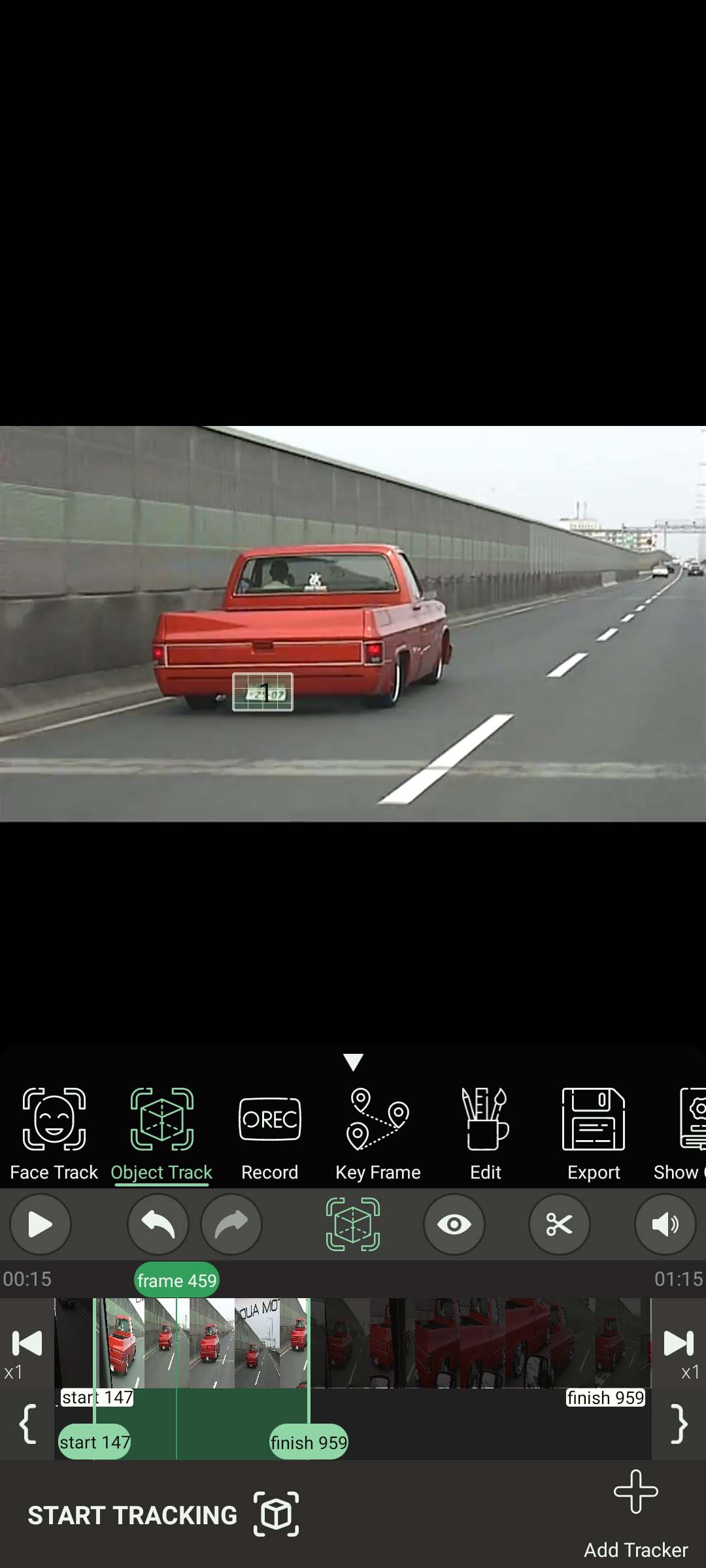
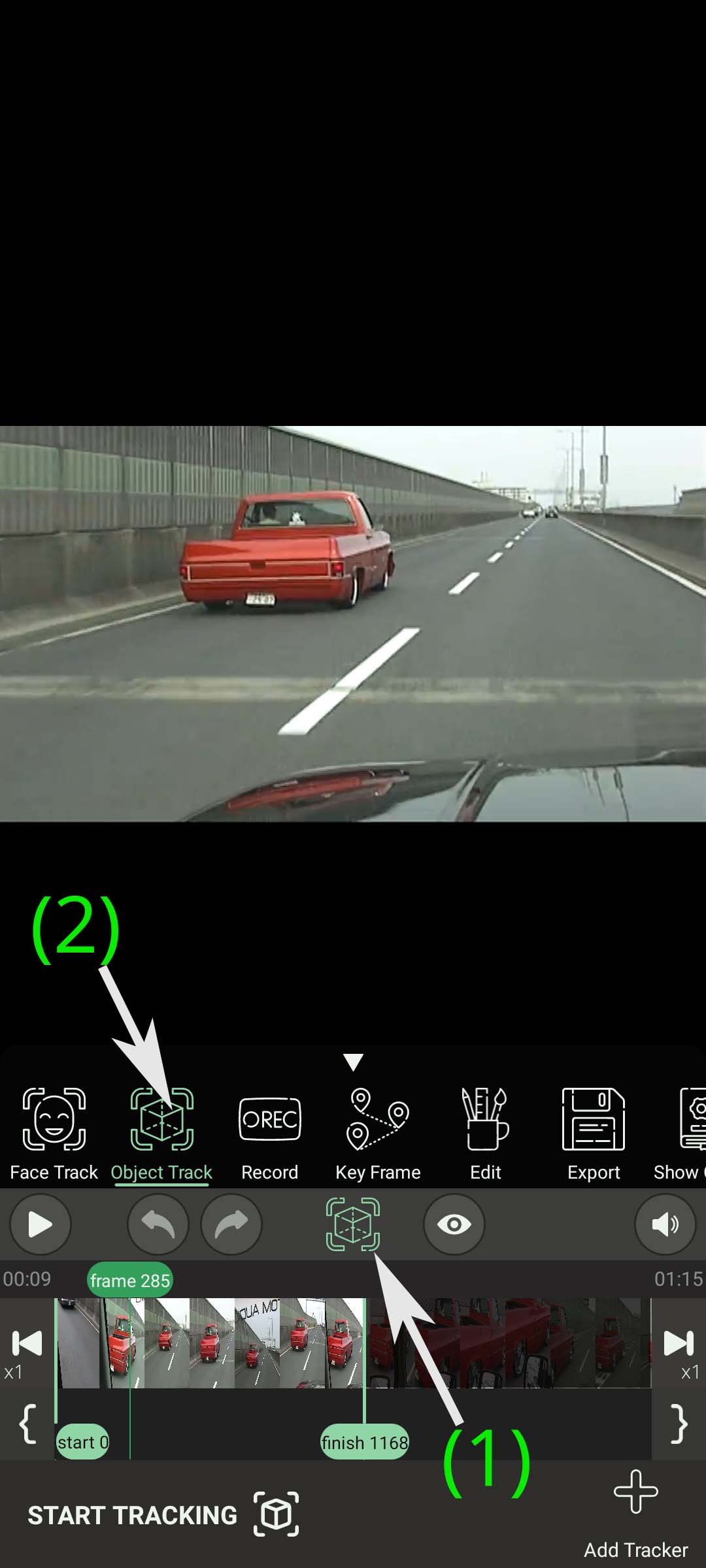
For using the object track feature, you first need to click on Icon State to open the states menu (1), and then you have to click on the “Object Track” Button to change the state of PutMask to Object Track (2).
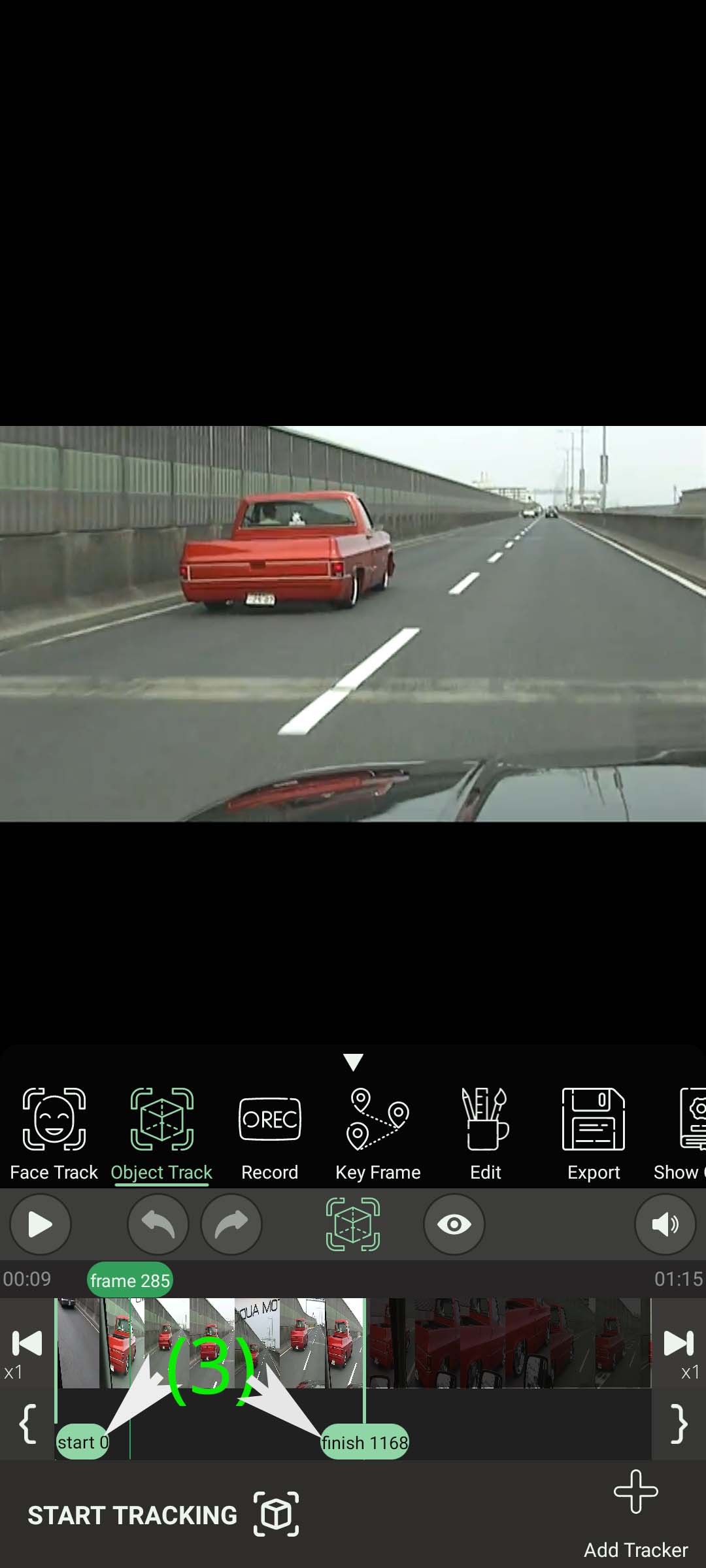
Now change the “finish” location and “start” to indicate the time interval when you want to obscure an object. (3) (Hint: start must be the frame that the object appears and finish must be the frame that the object disappears) It’s just like Record state!
With the help of the two buttons located at the bottom of the frame stepping buttons, you can set the start & finish position to the current position. Click the left button to make the start equal to the current position(4), and click the right button to make the finish position equal to the current position of the video. (5)
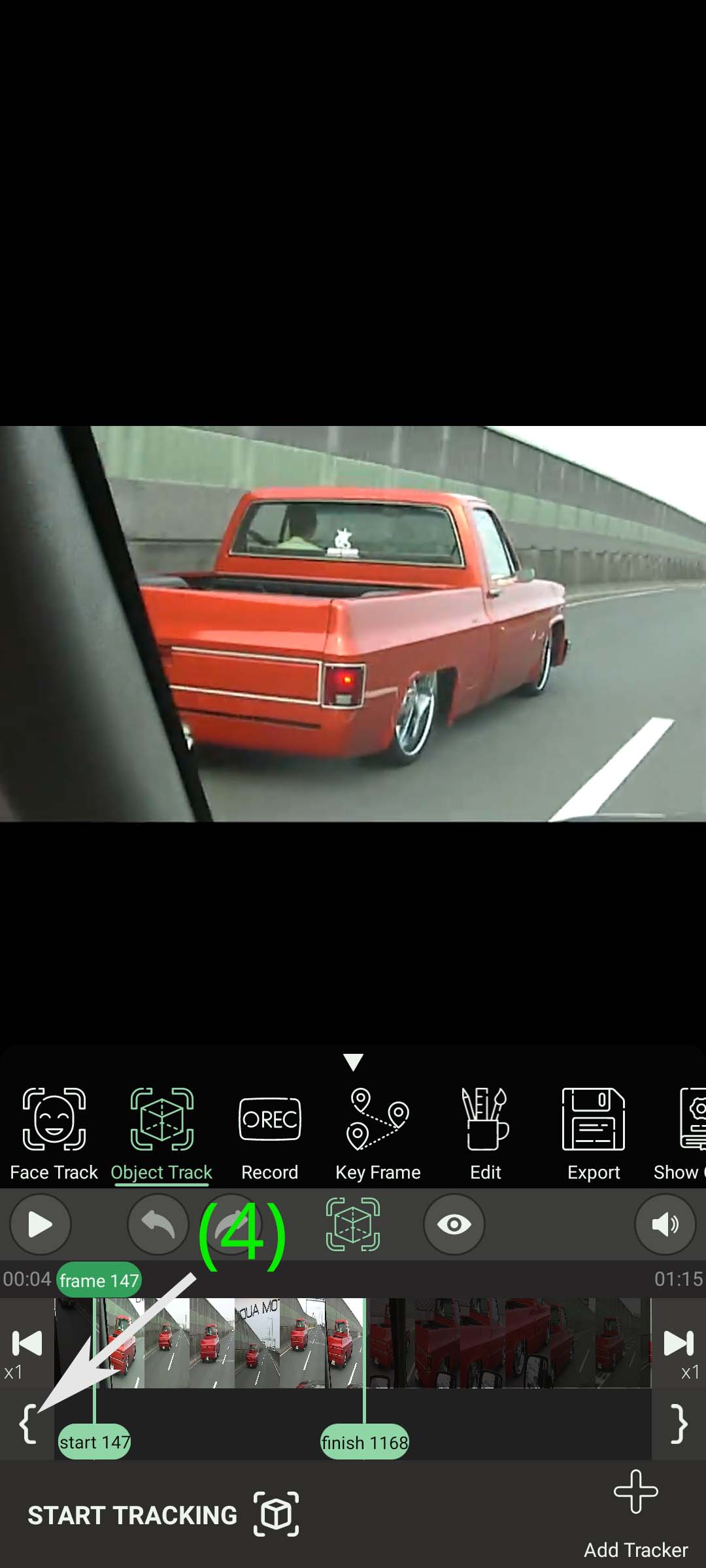

Once you have selected the desired time range, go to the frame where the object you want obscure has the best resolution (obviously this position should be between the start and the finish). Then click the “Add Tracker” button to add a tracker (6).

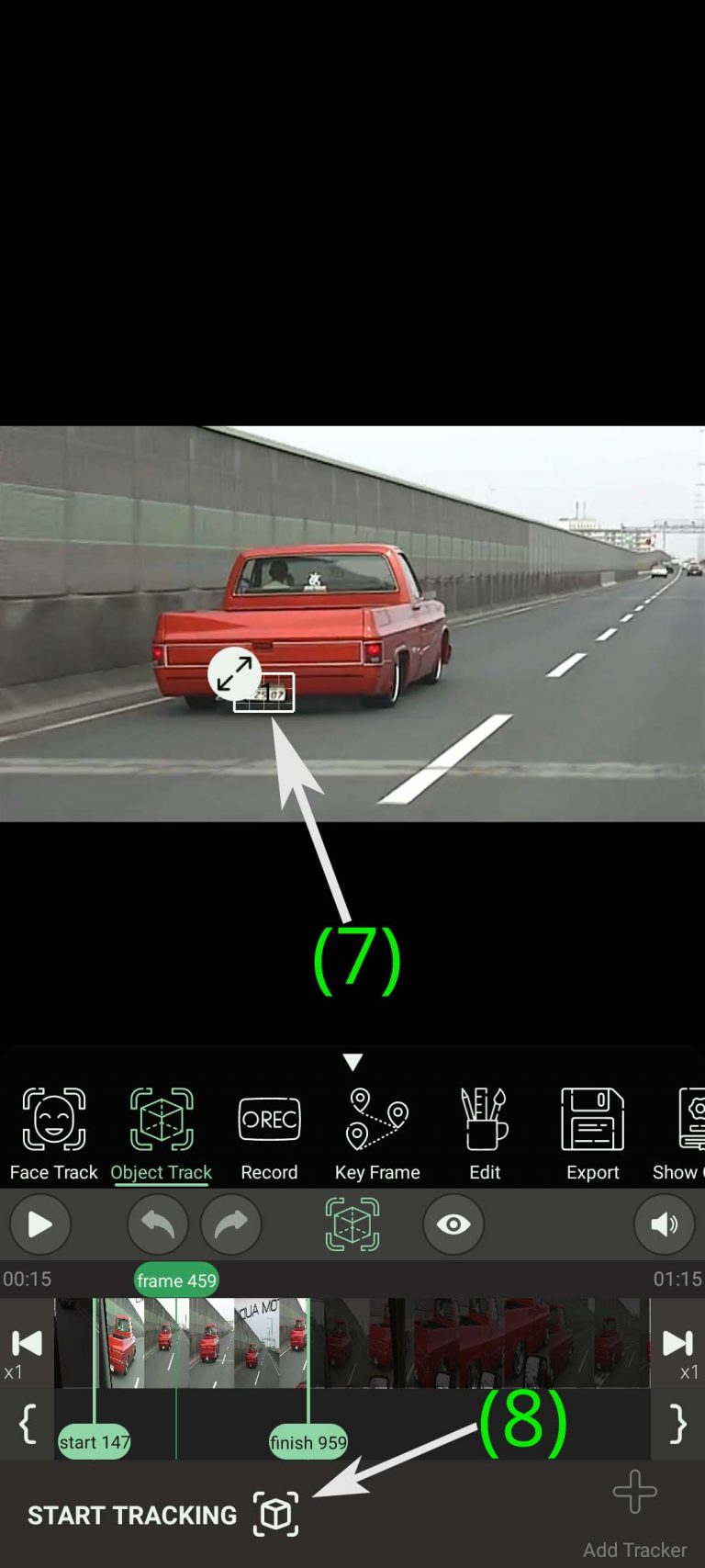
Currently, you can only add one tracker. Then adjust the tracker to completely enclose the object. (7) After you put the tracker in the right position, click the “Start Tracking” button. (8) PutMask will start Tracking the object from the desired position by clicking this button and will continue to do so until it reaches the start and finishes positions.
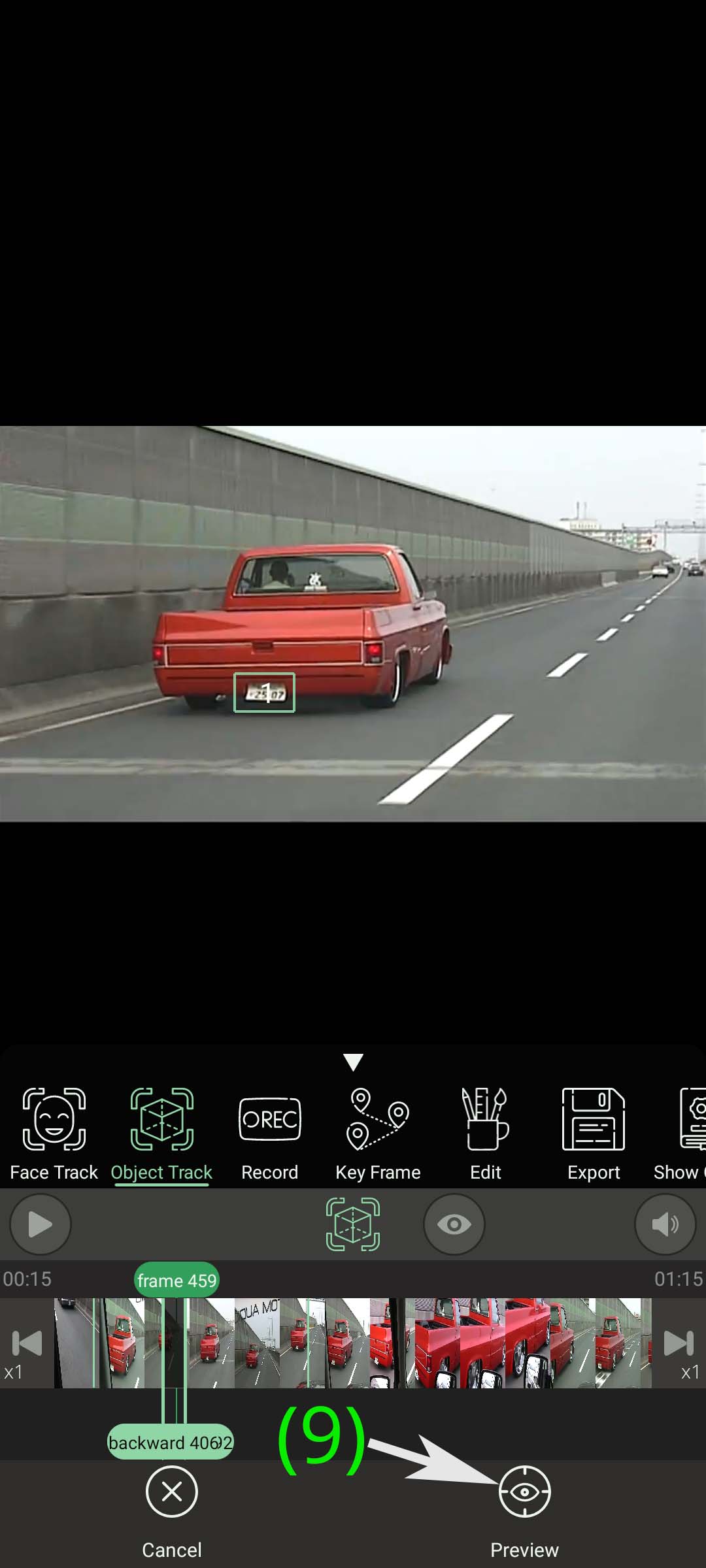
The accuracy of the object tracking algorithm is not as accurate as of the face tracking accuracy, which is why we have provided you with the ability to monitor the results generated by the tracker: to do this while PutMask is tracking the object Click on the “Preview” button. (9)
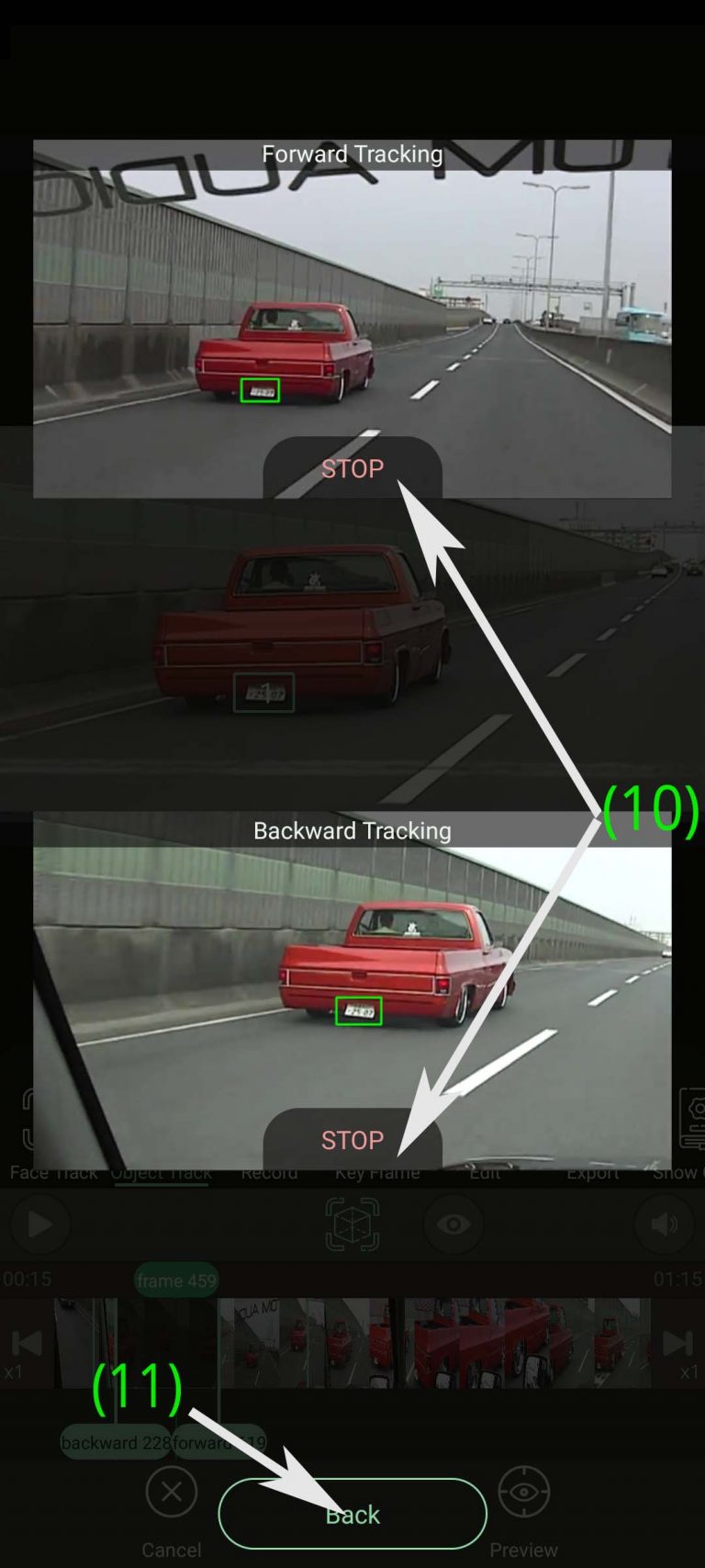
You can see the object tracking process separately for both forward and backward trackers by clicking on this button. Whenever you feel that the results obtained are not to your liking, click the “STOP” button to stop the activity of the desired tracker. (10) (Note that monitoring the object tracking process slows down the speed of object tracking. ) Clicking the “Back” button closes the preview page and speeds up the object tracking process again.(11)
You can also completely stop the object tracking process by clicking the “Cancel” button (both forward and backward) (12)