
Sometimes the automatic tools cannot help. The thing you want to hide changes shape, disappears behind something, or is simply not the kind of object any tracker will hold on to.
Record is the answer to that. You put a filter on the thing, press record, and keep your finger on it while the video plays. PutMask remembers where your finger was in every frame. It is free, it works offline, nothing is uploaded anywhere, and there are no ads.
Which tool should you use?
PutMask has two ways to hide something by hand: Record and Key Frame. Record is faster and feels natural — you follow the object in real time. Key Frame is slower but exact, because you place the filter at a few chosen frames and PutMask fills in the movement between them. Use Record for a moving object you can follow; use Key Frame when you need precision.
And if what you want to hide is a face, a license plate or a person, neither of these is the fast way — use Detect & Track instead.
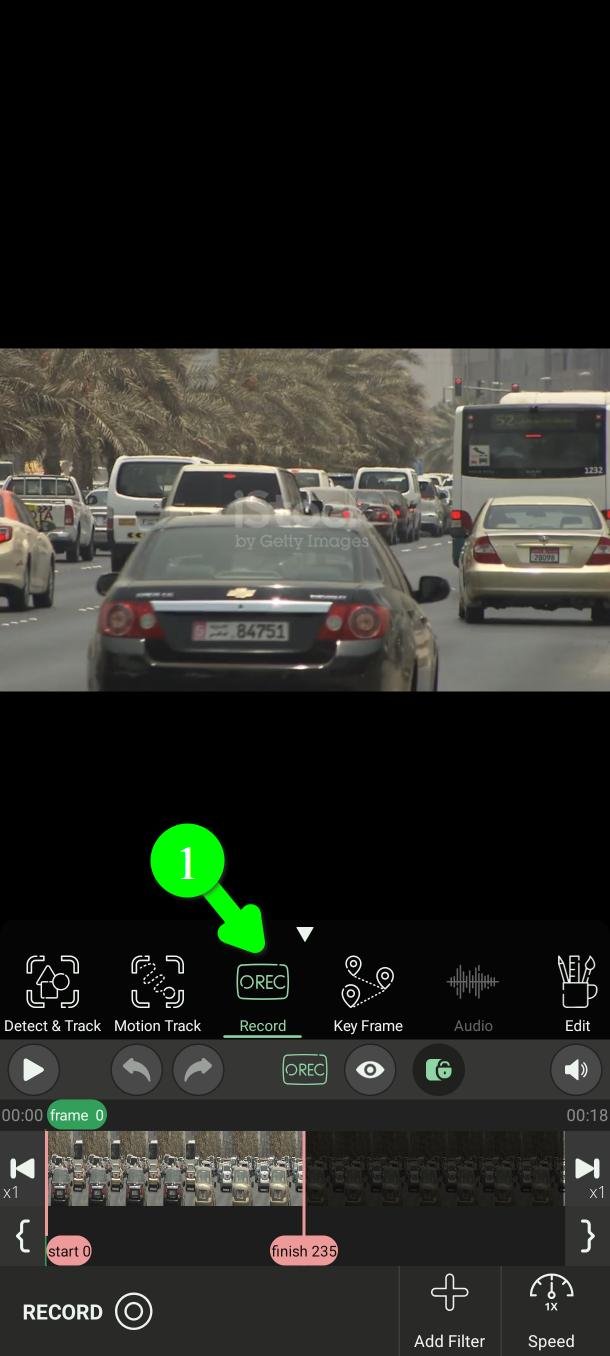
Step 1 — Open Record
In the main menu, tap Record (1).
Step 2 — Choose the stretch of video
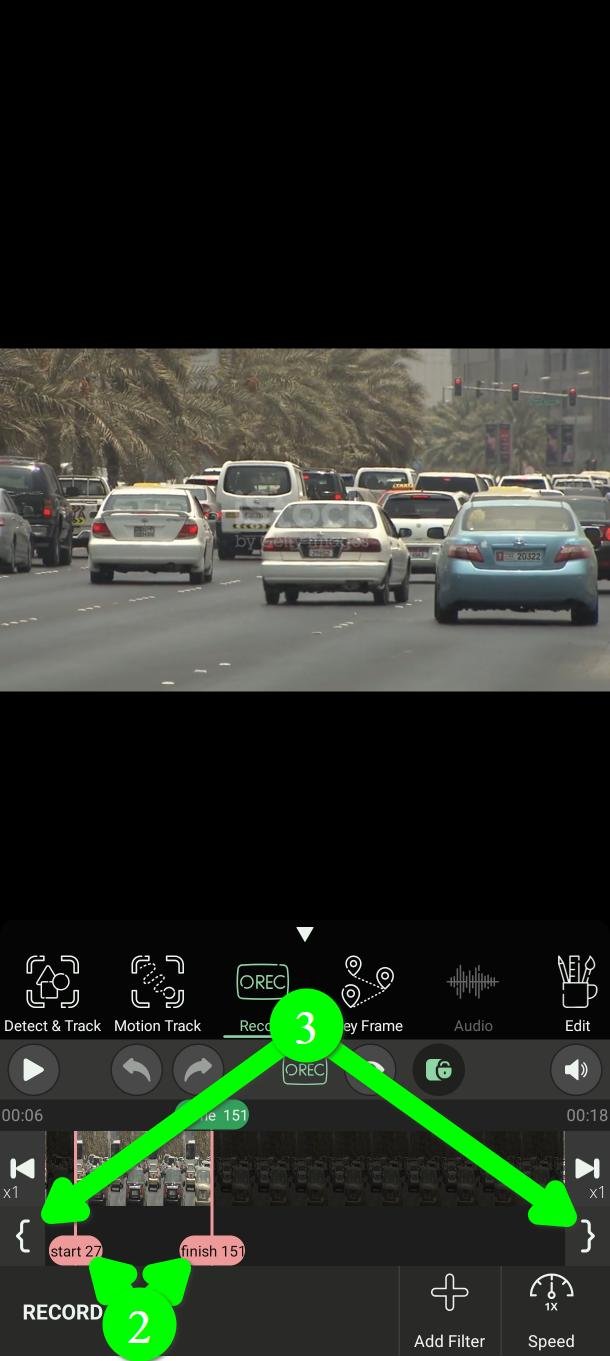
Set where the filter should appear and disappear with the start and finish markers (2).
Drag them along the timeline, or use the two bracket buttons at either end (3) to drop a marker exactly on the frame you are looking at.
Step 3 — Add a filter
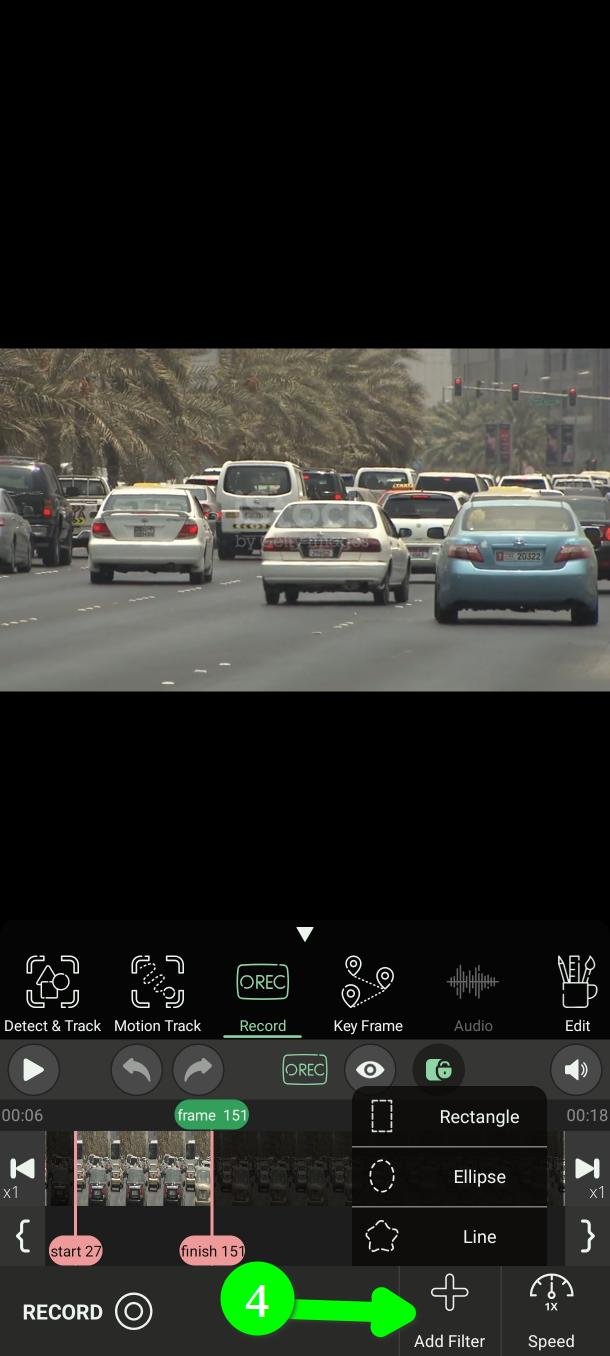
Tap Add Filter (4). A menu offers three shapes.
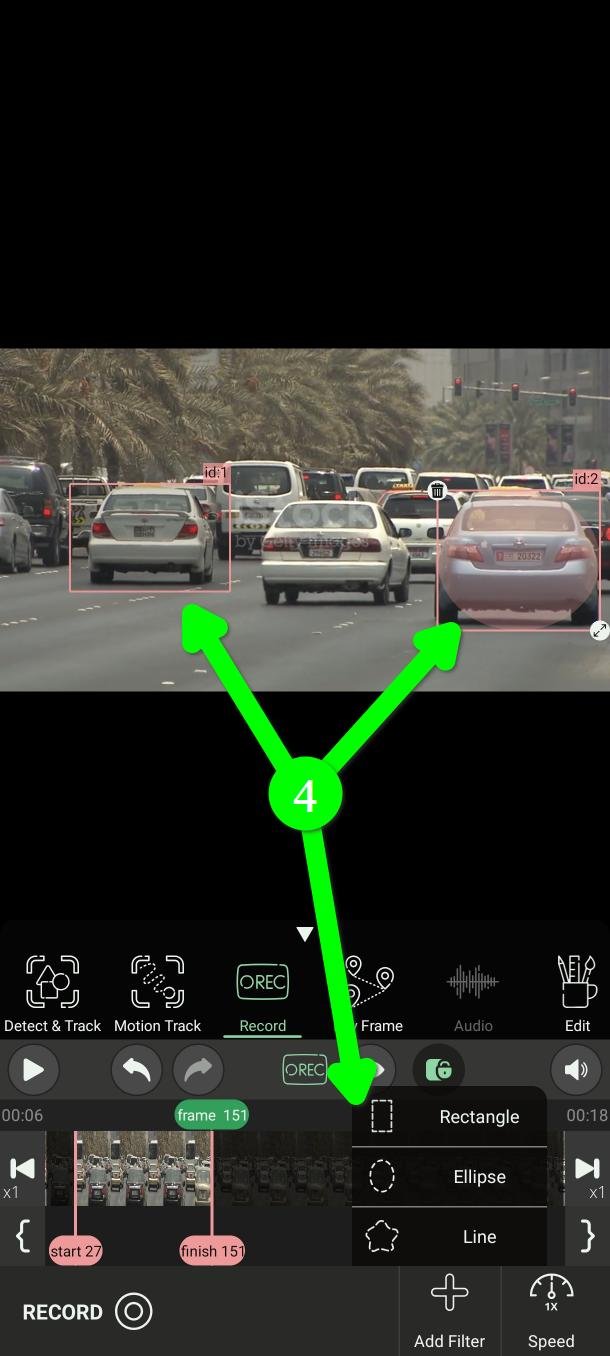
Rectangle or Ellipse drop a ready-made shape straight onto the video (4). Drag it and resize it to cover what you need.
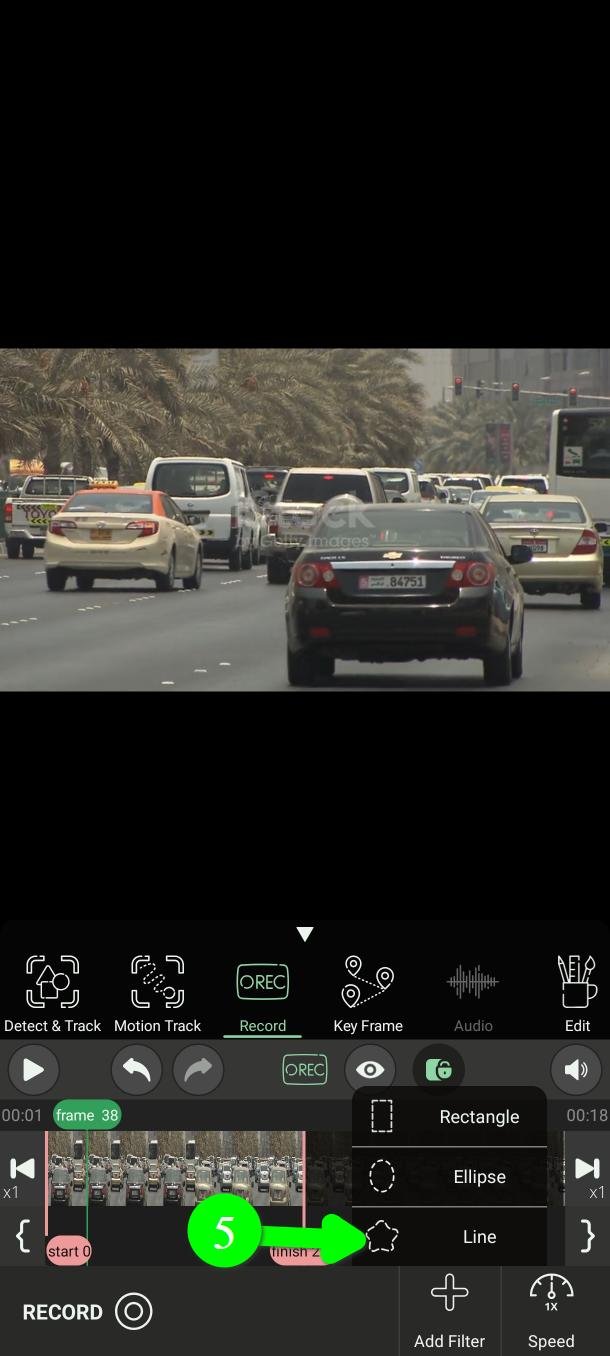
Line (5) lets you draw your own shape instead. You will see the message you can paint now.
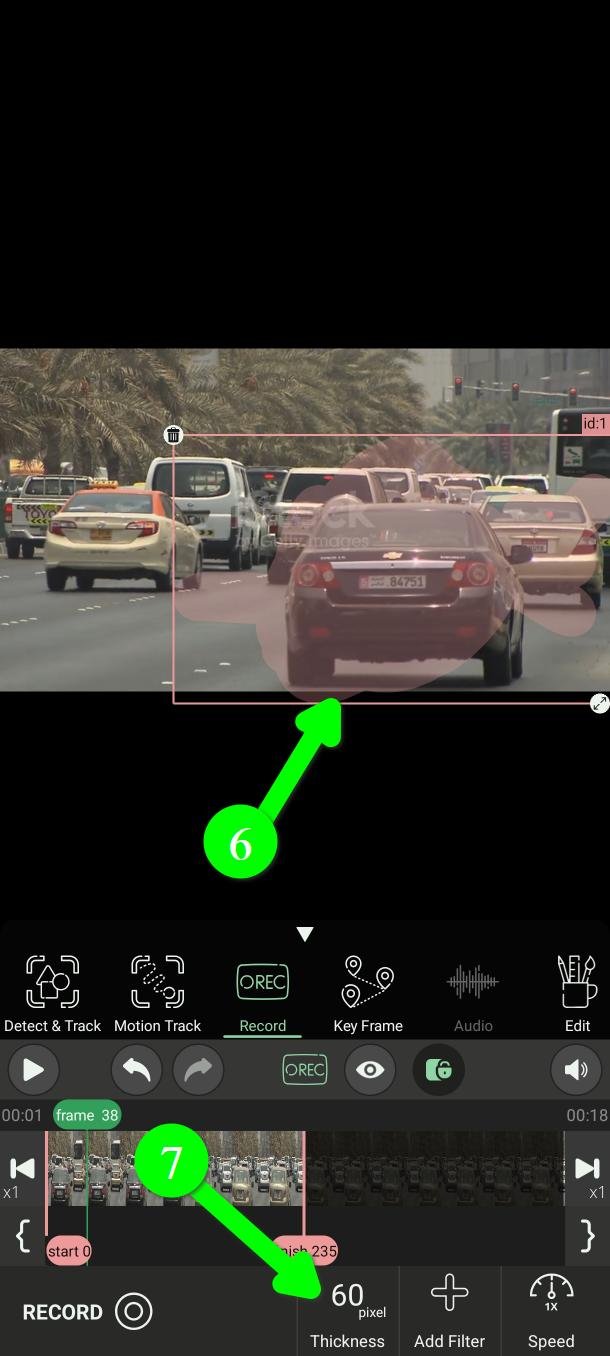
Then draw with your finger (6). Use the Thickness button (7) to set how thick your stroke is.
Line is worth the extra moment when the thing you are hiding is not a neat rectangle — a signature, a scar, an odd-shaped logo.
Add one filter, not several. You only have one finger free while recording, and steering two shapes at once is genuinely hard. Record them one at a time — each pass is quick.
Filters made with Record are red, so you can tell them apart from the green ones the automatic tools make.
Step 4 — Slow the video down
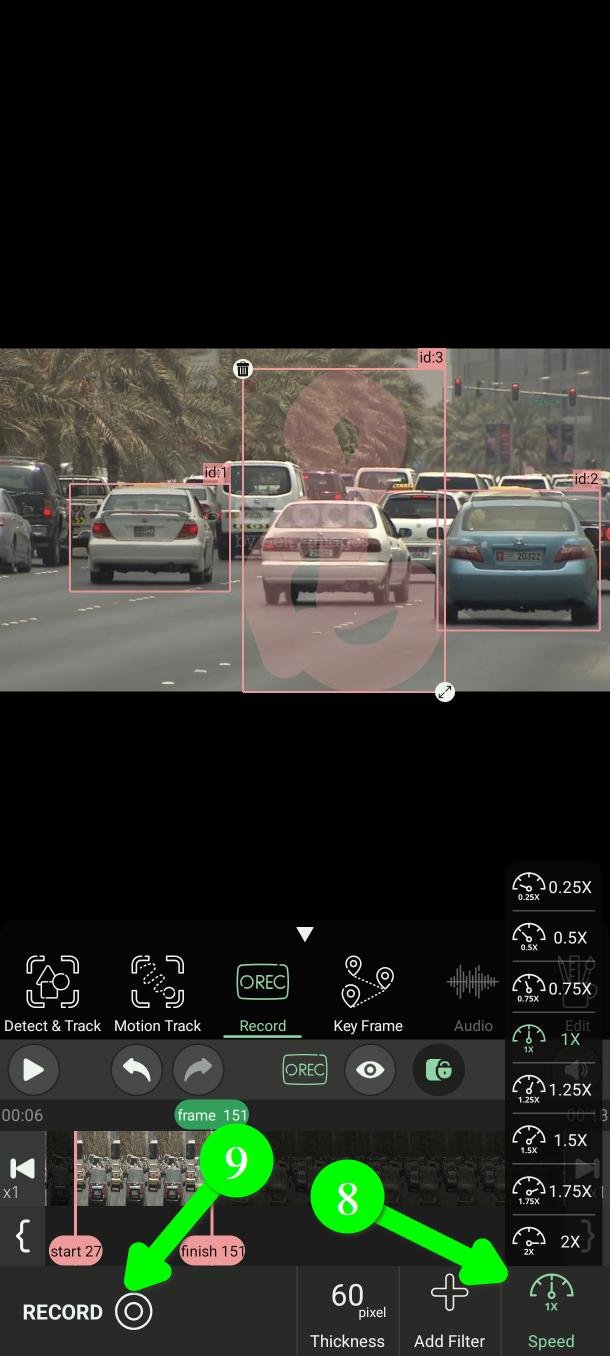
Tap Speed (8) and pick a slower playback speed — down to 0.25x.
Do this. It is the single thing that most improves the result. At quarter speed you have four times as long to react to a change of direction, and the recording still plays back at normal speed afterwards. There is no penalty for it.
Step 5 — Record
When the filter is in place and the speed is set, tap RECORD (9).
You get a three-second countdown to put your finger on the filter and get ready.
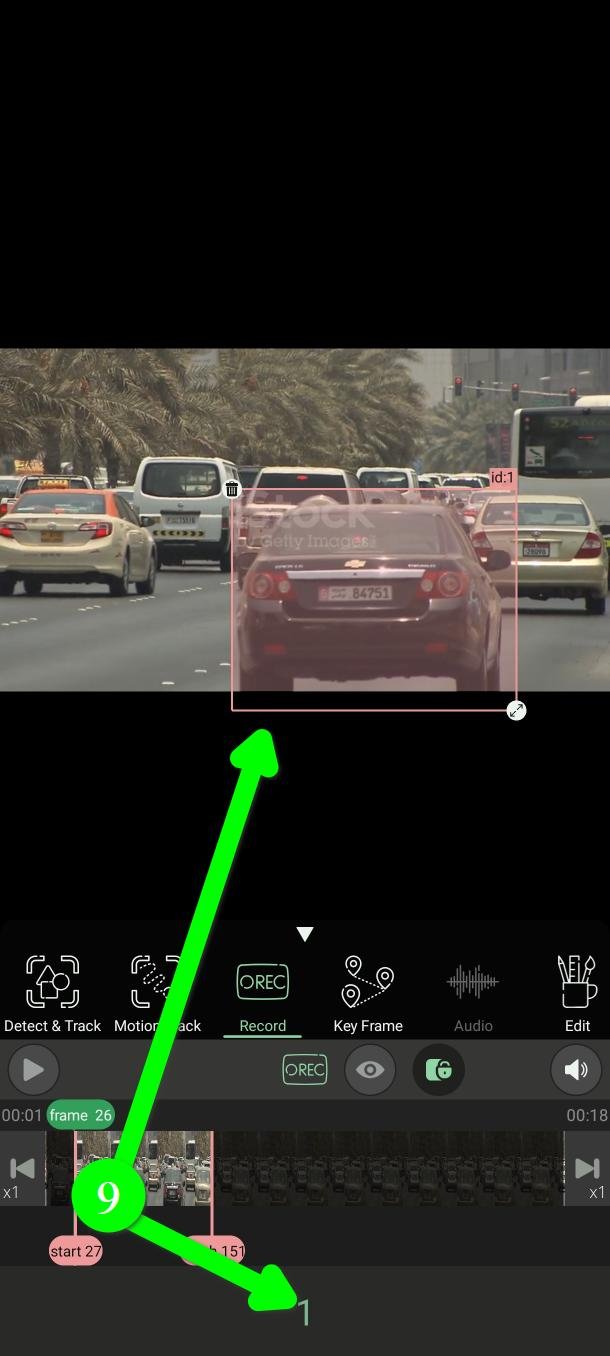
Then the video plays at the speed you chose. Keep your finger on the object and move the filter with it until you reach the end.
Do not lift your finger to correct a mistake. Carry on to the end — a small error is easy to fix afterwards, but a gap where the filter stopped is not.
Step 6 — Check the result
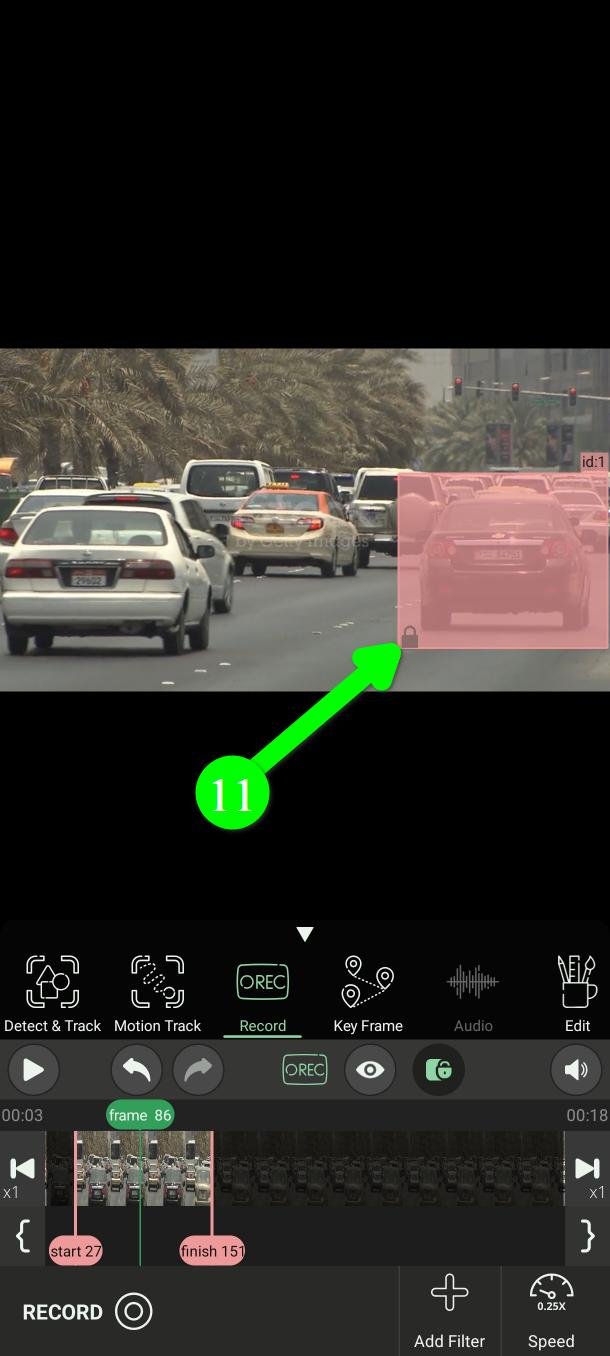
Your work appears as a red filter that follows the path you traced (11).
Watch it back before you export.
If the result is not good enough
Nothing is wasted. You have two ways to repair it, both in Edit:
- Fix it frame by frame. In Edit you can move and resize the filter on any single frame.
- Turn it into key frames. Edit can convert a red Record filter — or a green automatic one — into a Key Frame filter, and then you adjust a handful of points instead of hundreds of frames. This is usually the quicker repair.
Questions people ask
Is PutMask free? Are there ads?
Yes, it is free, and there are no ads at all. You can blur videos up to two minutes at a time for free. Some extras are for premium users.
Does my video get uploaded anywhere?
No. Everything happens on your phone, and the app does not need an internet connection to censor your video.
Your privacy is our priority. We do not collect any data about you — and that is also the reason there are no ads. An ad needs your advertising ID, and that ID is what lets ad companies follow you from one app to the next and build a profile of you. We did not want to hand anyone that information about the people using a privacy tool, so we left ads out.
My hand is not steady enough
Slow the playback right down with Speed, and make the filter a little larger than the thing you are hiding. A generous filter that always covers the object beats a tight one that slips off it.
Can I record more than one object?
Yes, but do them one at a time. Record the first, then add a second filter and record again.
Can I change the blur to a mosaic or a colour?
Yes — shape, colour and strength are all set in Edit.
Need help?
Write to Support@putmask.com, or leave a message in our Telegram channel.

One thought on “How to Blur Part of a Video by Hand with Your Finger on Android”