You have covered everything you wanted to hide. The last step is saving the result — and this is where people are most often disappointed, because a video can come out looking much softer than the one they started with.
It does not have to. This page explains every export setting in PutMask in plain language, and which ones actually decide your quality.
Before you export, watch the whole video once. Check that every face, plate or detail is covered in every frame. It is far easier to fix now than after you have shared it.
Open the Export screen
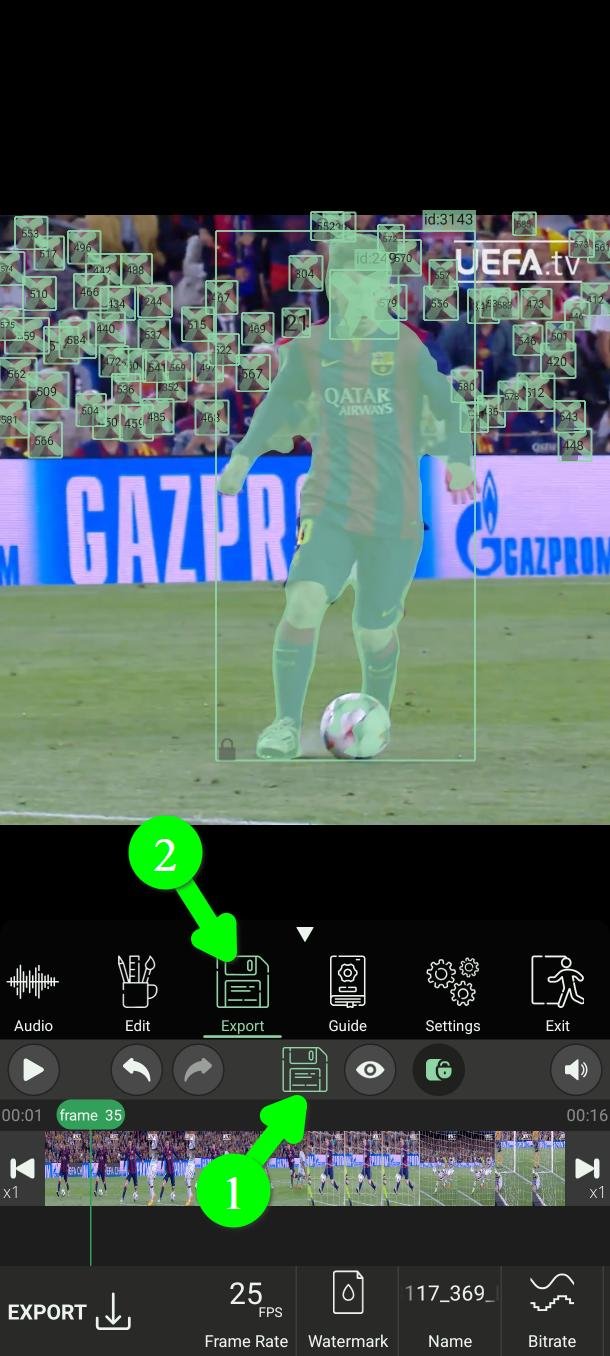
Tap the state icon to open the menu (1), then tap Export (2).
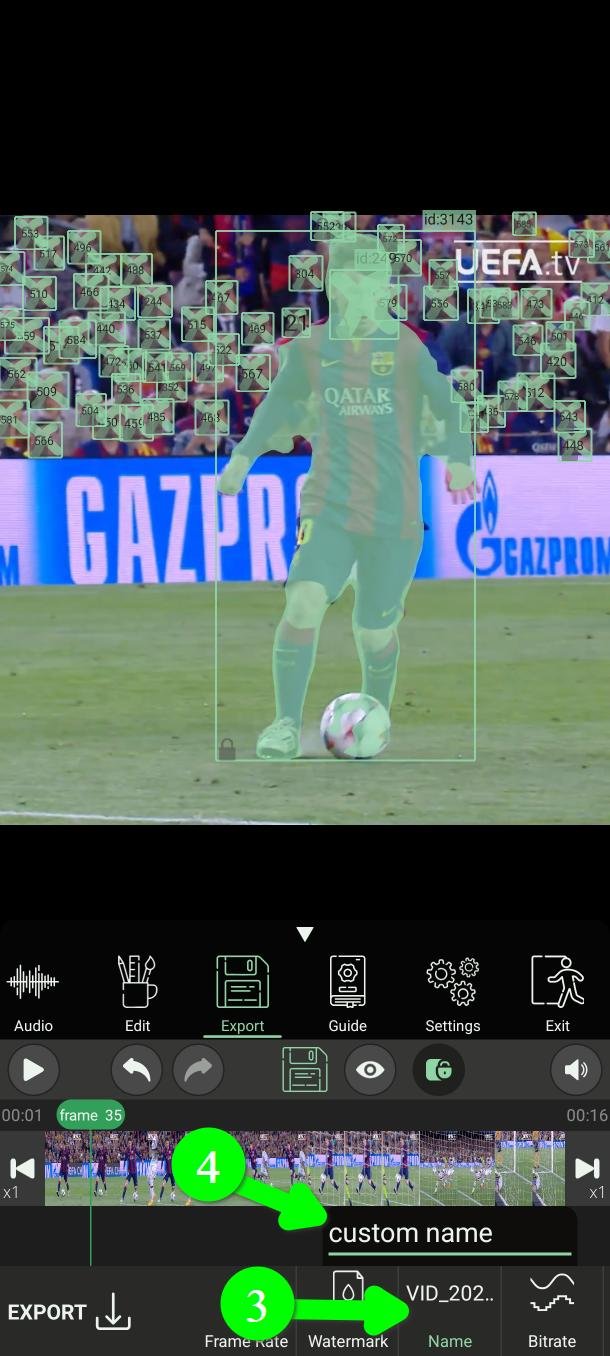
Name the file
Tap Name (3) and type what you want the video called (4).
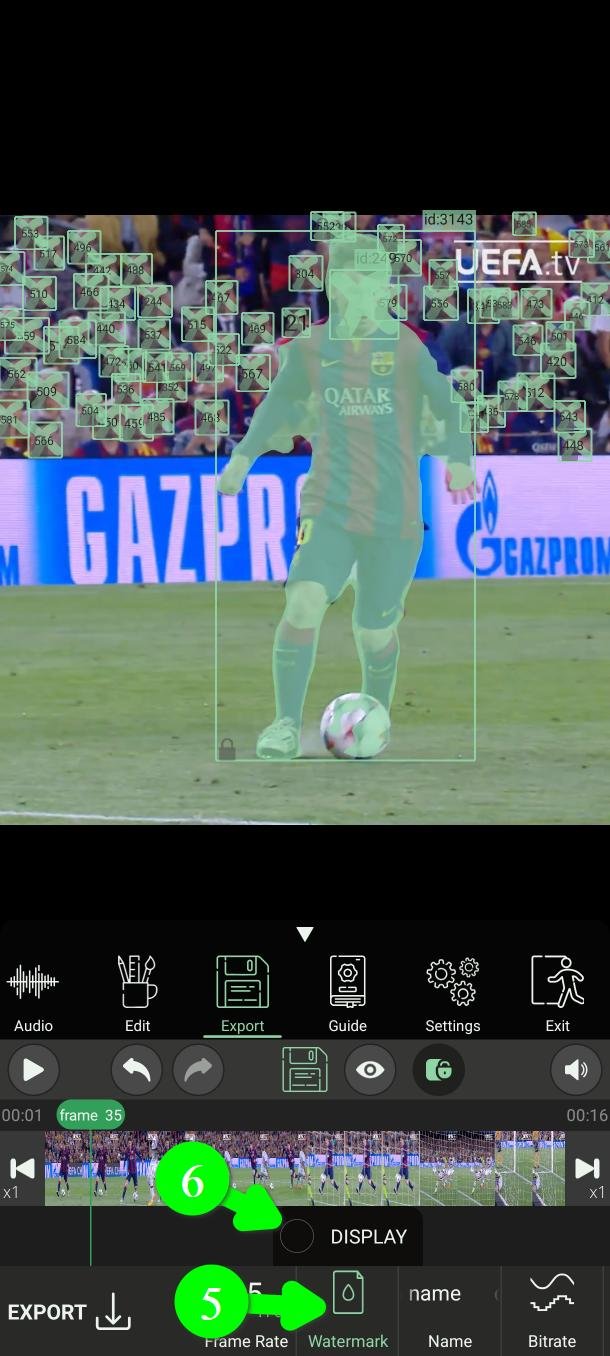
The watermark
Tap Watermark (5). Tick Display (6) to show it, or untick it and no watermark appears in the exported video.
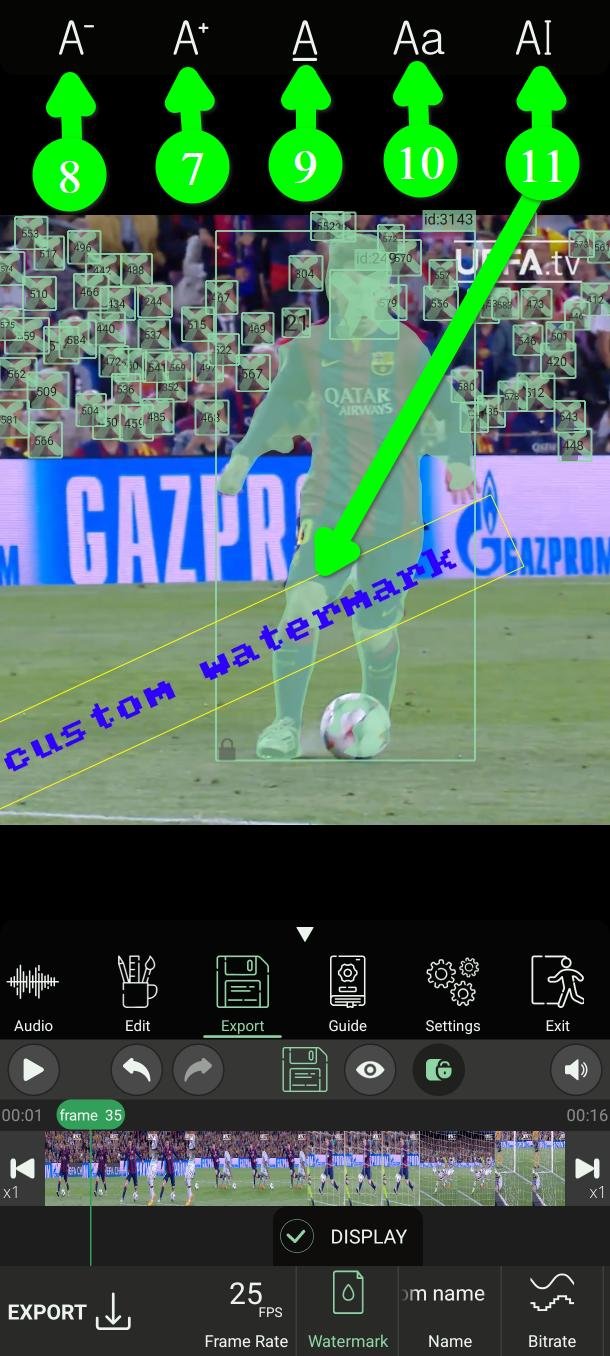
With Display on, tap the watermark on the video and you can drag it anywhere, just like a filter. A small menu appears at the top to make the text bigger (7) or smaller (8), change its colour (9), and pick a font (10).
To change the words, double-tap the watermark or use the change-text button (11).
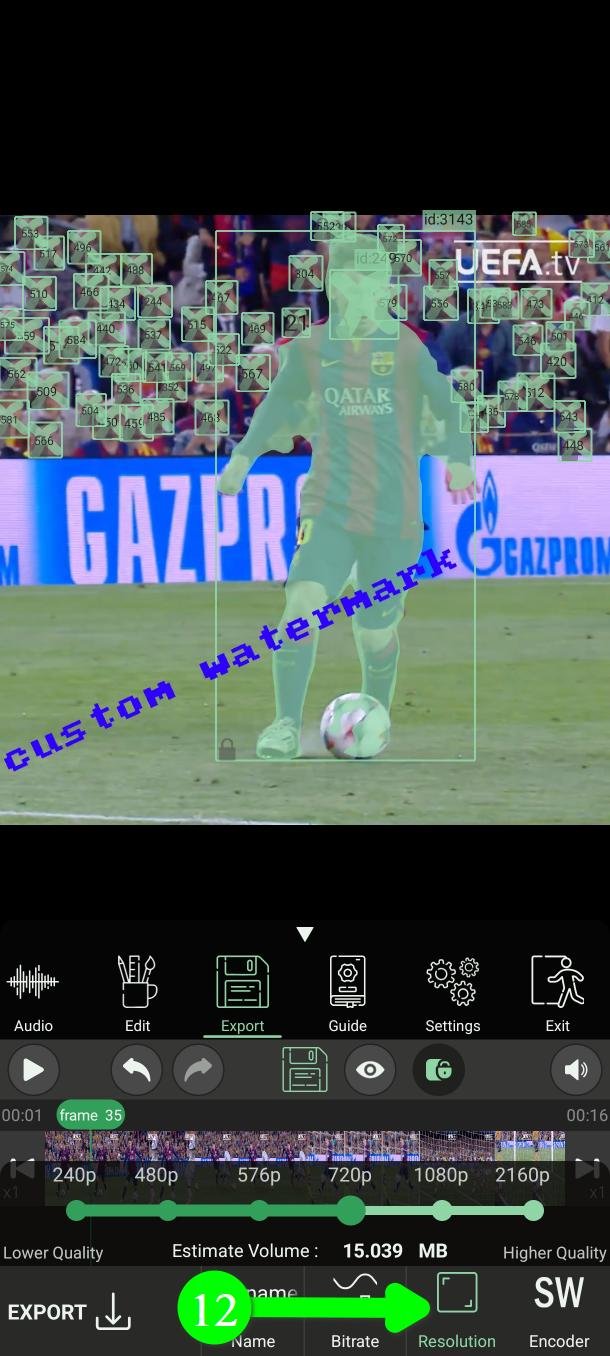
Resolution
Tap Resolution (12) to pick the size of the exported video: 2160p, 1080p, 720p, 576p, 480p or 240p.
Two things to know. 2160p, 1080p and 720p are for premium users. And the export can never be sharper than the video you started with — exporting a 720p clip at 2160p just makes a bigger file of the same picture.
Bitrate — the setting that actually decides quality
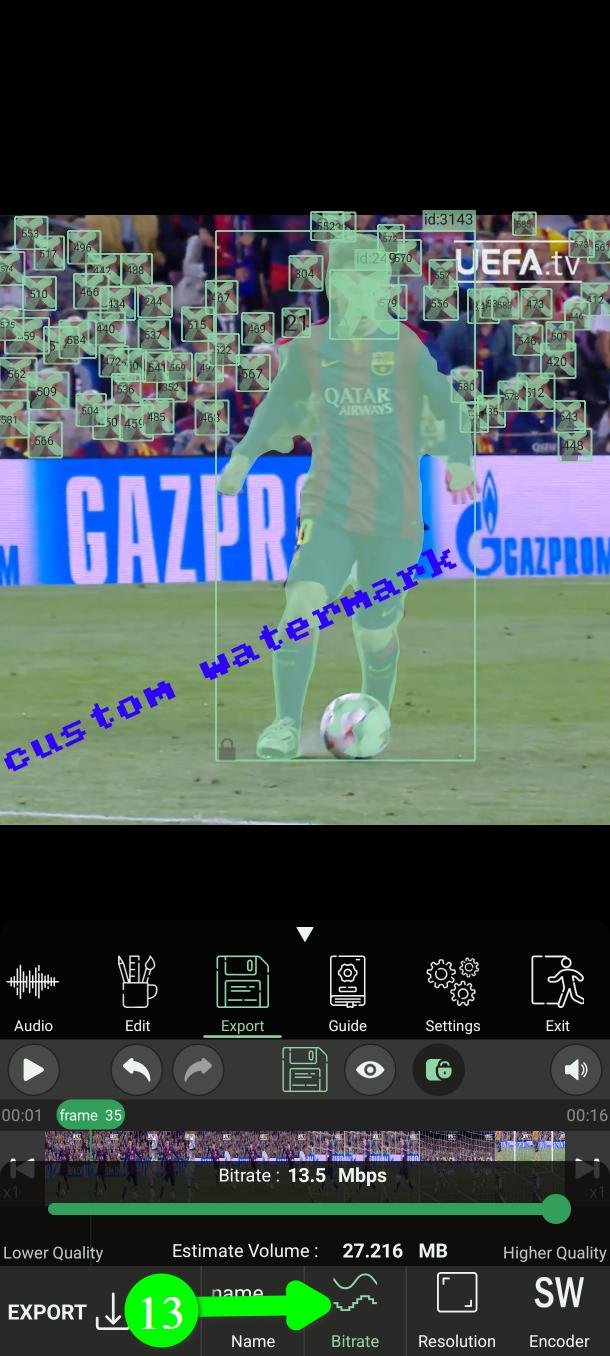
Tap Bitrate (13).
This is the one people miss. Choosing a high resolution does not on its own give you a good-looking video. Resolution is how many pixels there are; bitrate is how much detail is kept in them. A 1080p export at a low bitrate looks blocky and smeared — worse, often, than 720p done properly.
Higher bitrate means better quality and a bigger file. If you want your video to look its best, put it at maximum.
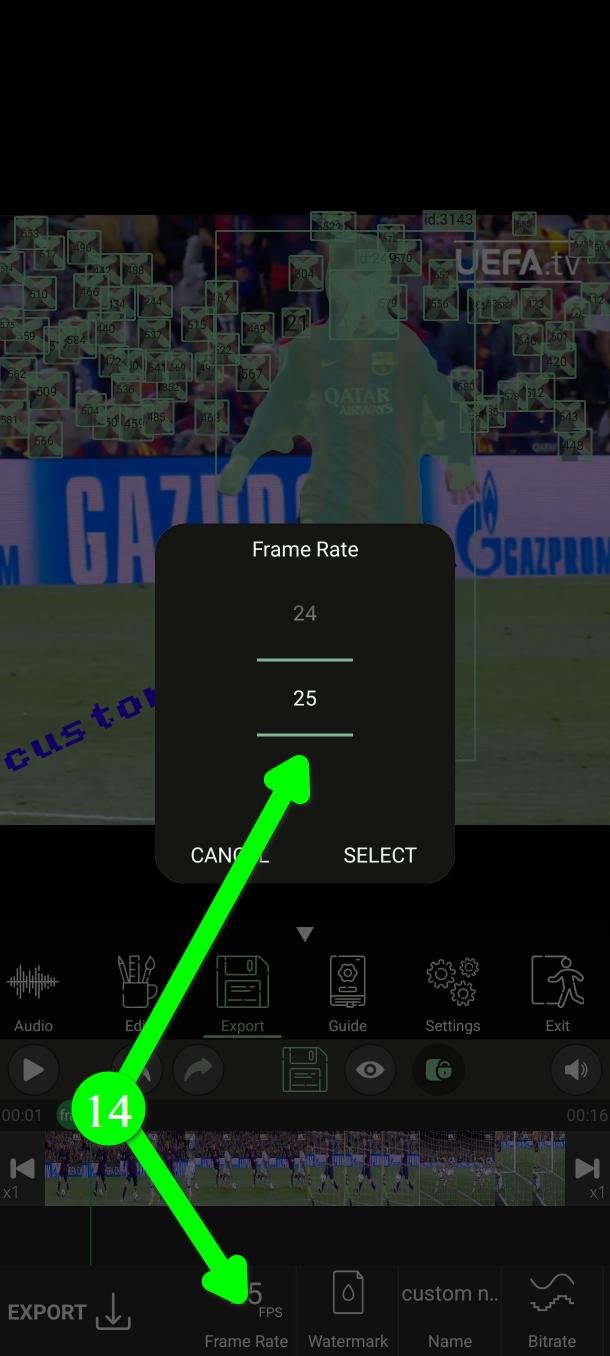
Frame rate
Tap Frame Rate (14) to choose how many frames per second the export has. This option is for premium users.
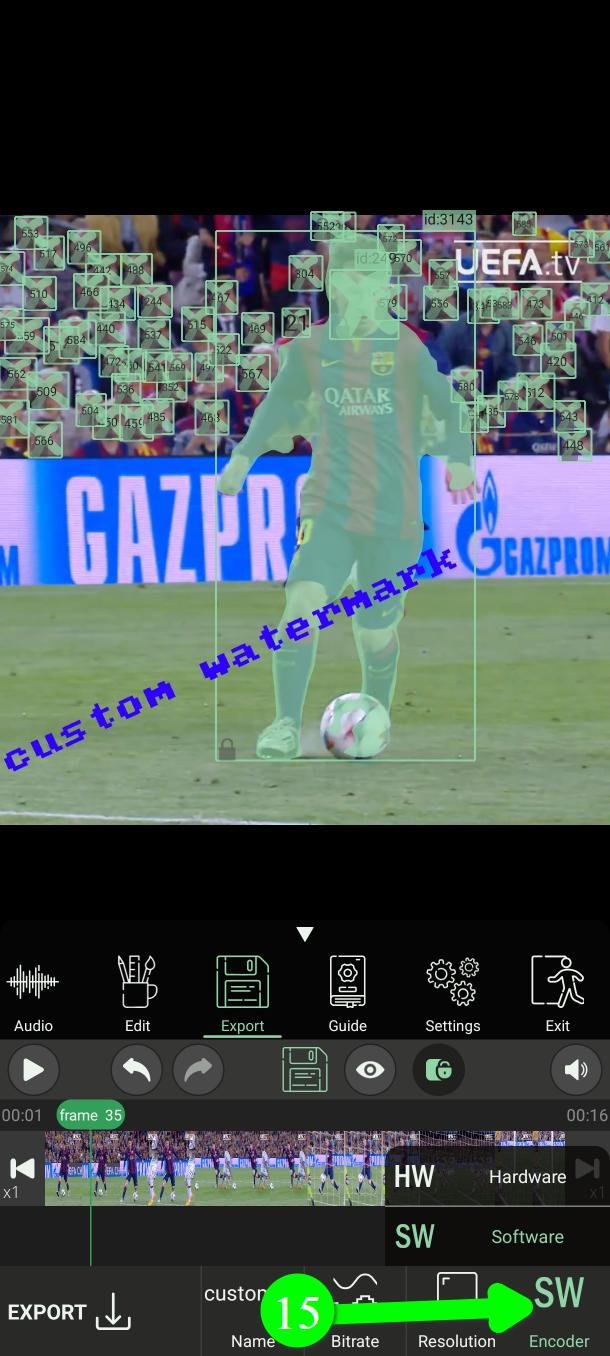
Encoder — hardware or software
Tap Encoder (15) and you get two choices.
Hardware uses a dedicated chip in your phone. On a modern device it is considerably faster, and the result is usually better.
Software does the work on the main processor. It is slower, but it behaves the same on every device.
Start with Hardware. Switch to Software if the app crashes while exporting, or if the finished video has glitches in it — some phones have unreliable hardware encoders, and Software is the safe route on those.
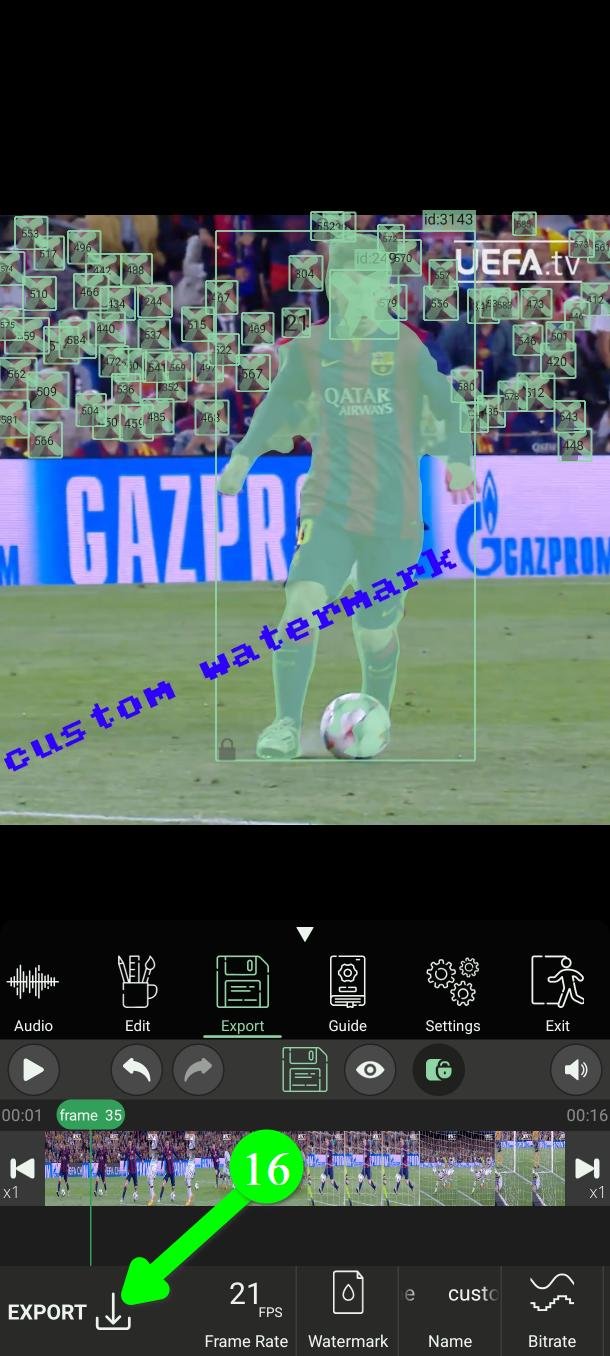
Export
Check you have enough free space on your phone, then tap Export (16).
PutMask now writes a new video. Your original file is never changed.
Stay in the app while it works.
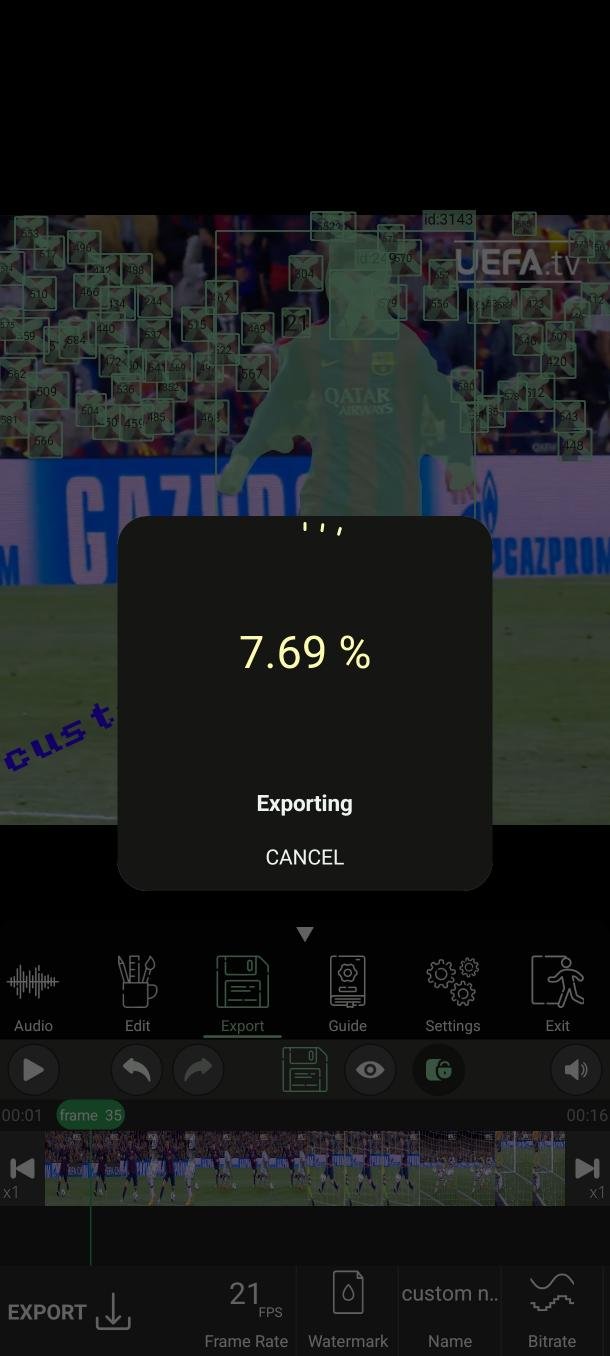
When it finishes you see Video successfully exported. Tap OK (17) to go to the review page.
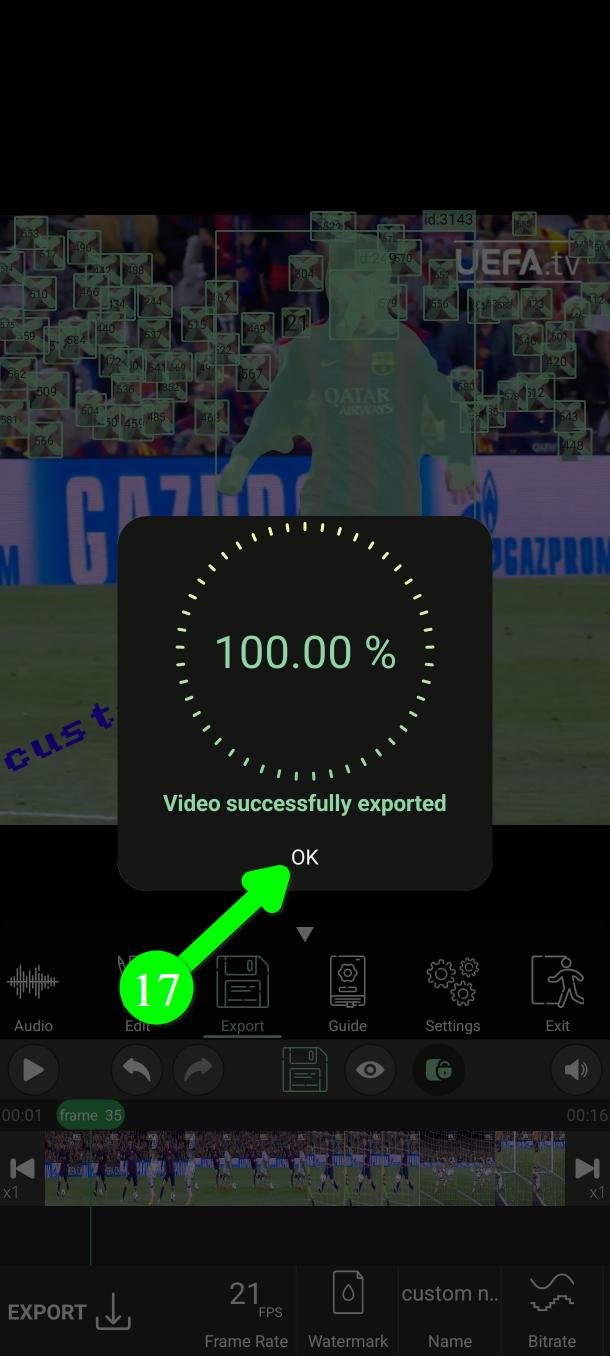
Check it, then share it
Watch the finished video here. This is your last chance to catch something.
Happy with it? Tap Share (18) to send it wherever you like.
Set your defaults once
If you always want the same watermark and encoder, set them once instead of every export.
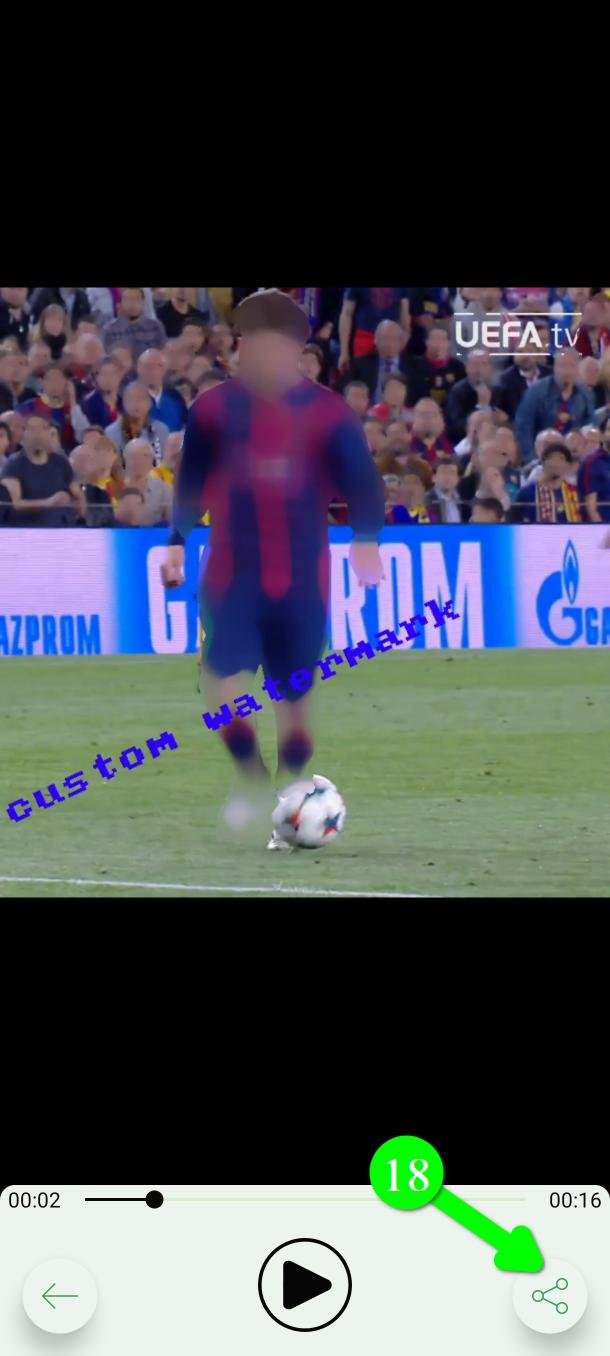
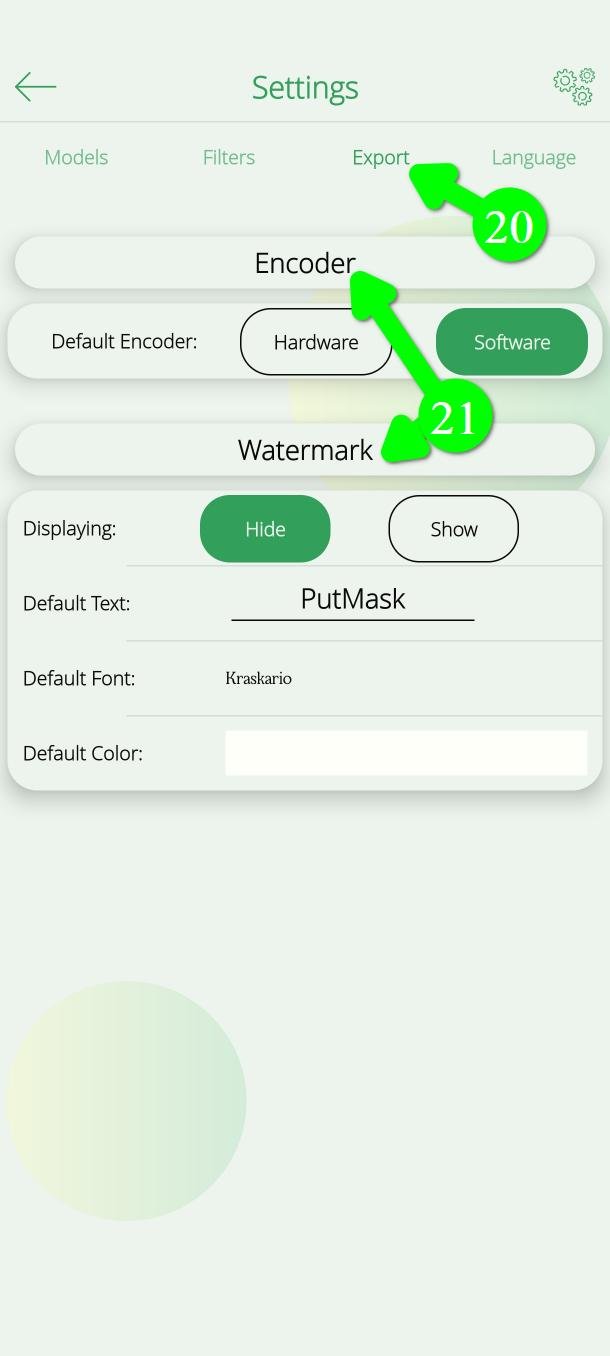
From the main menu tap Settings (19).
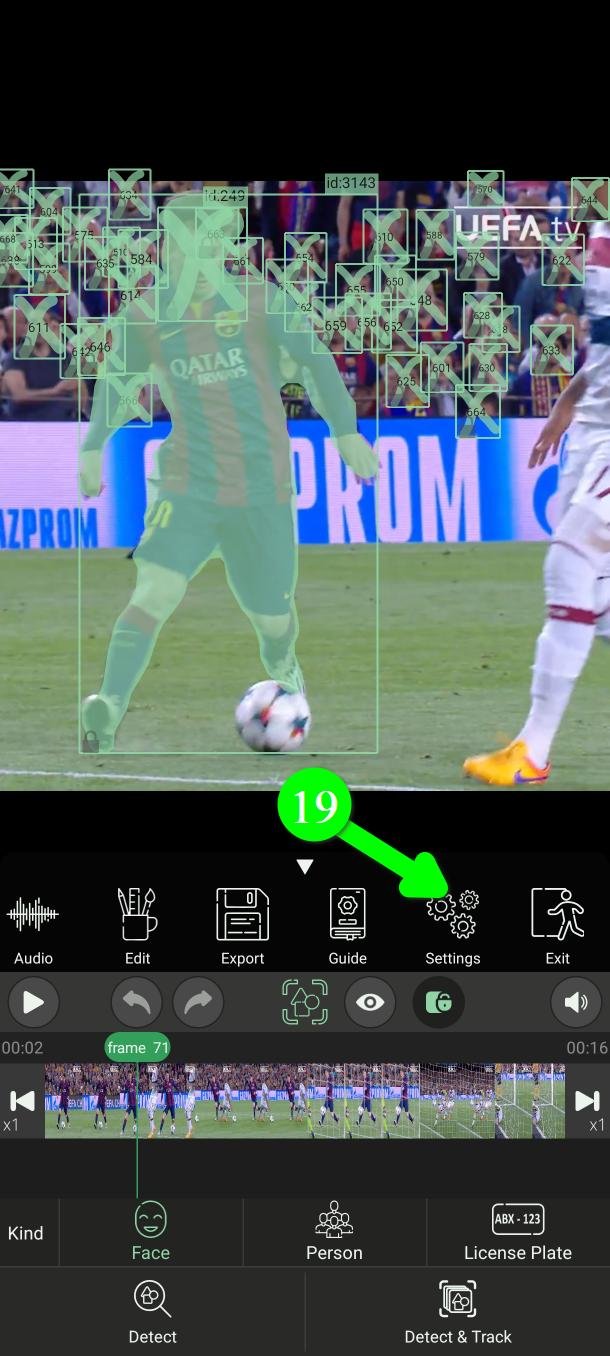
Open the Export tab (20). There you can set the default encoder, and under Watermark (21) the default text, font and colour — including hiding it by default.
Changed your mind after exporting?
Nothing is lost. Every project is saved.
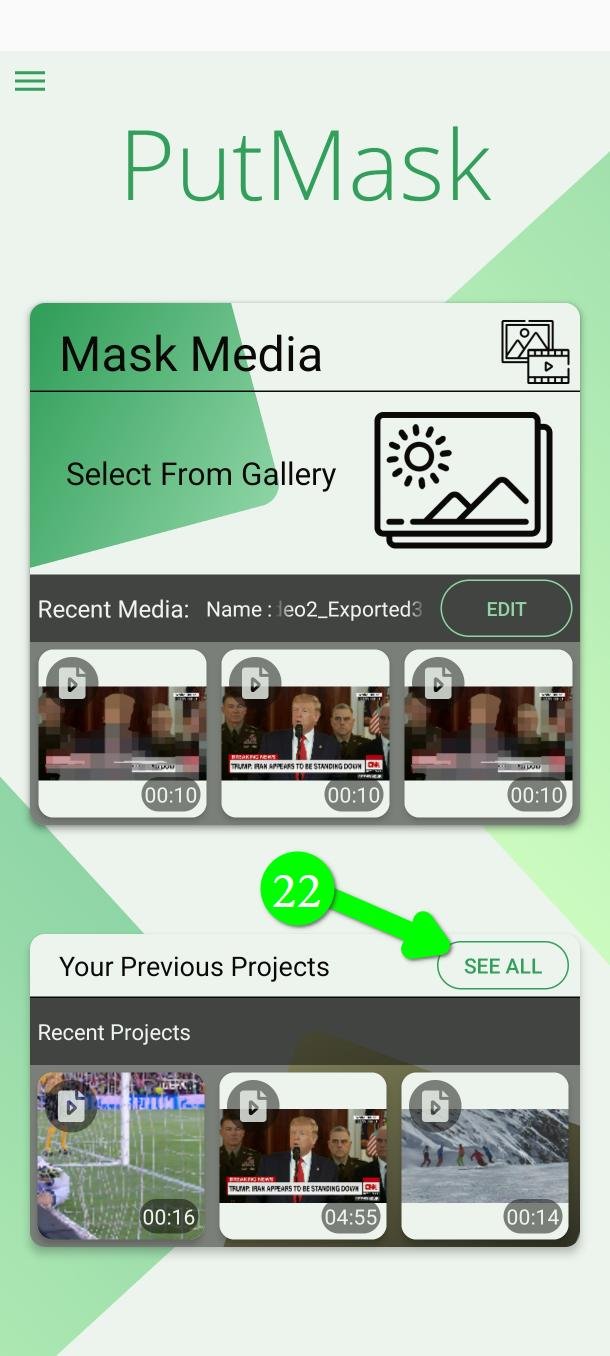
From the home screen tap See All (22).
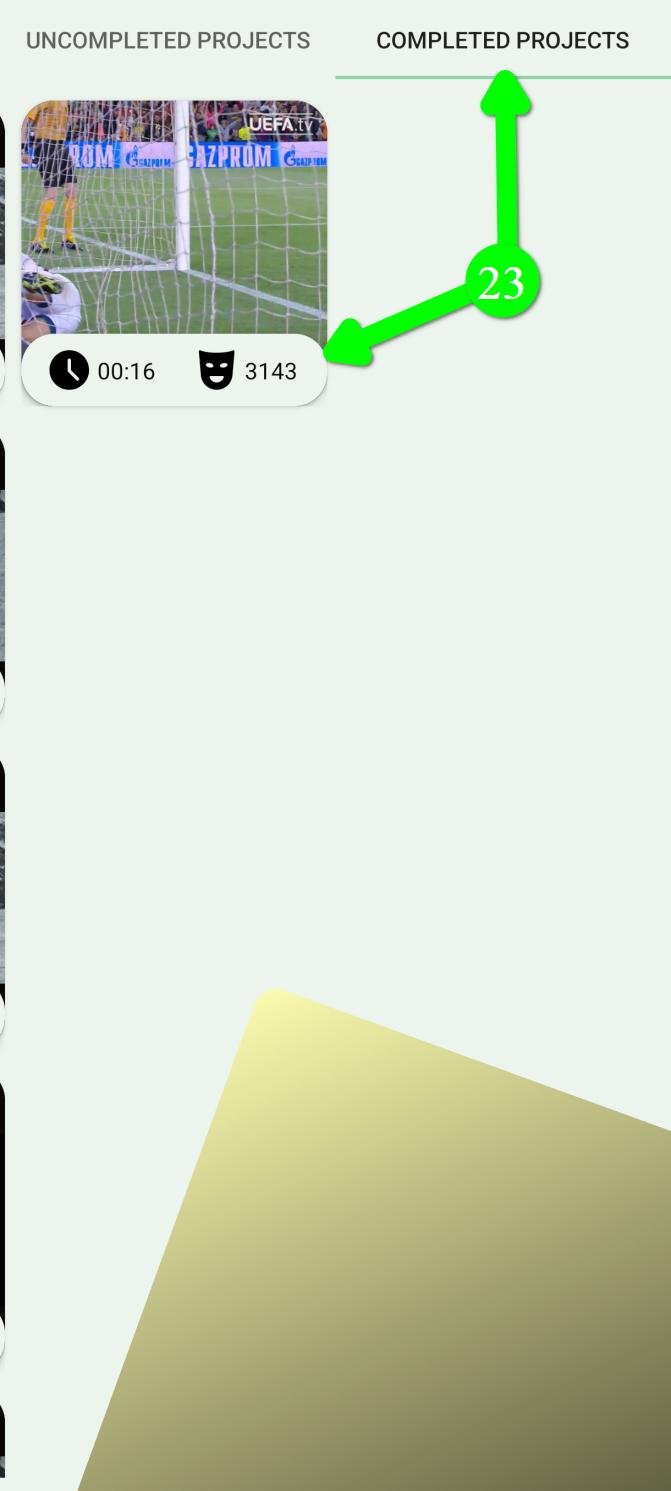
Open Completed Projects (23) and pick the one you want.
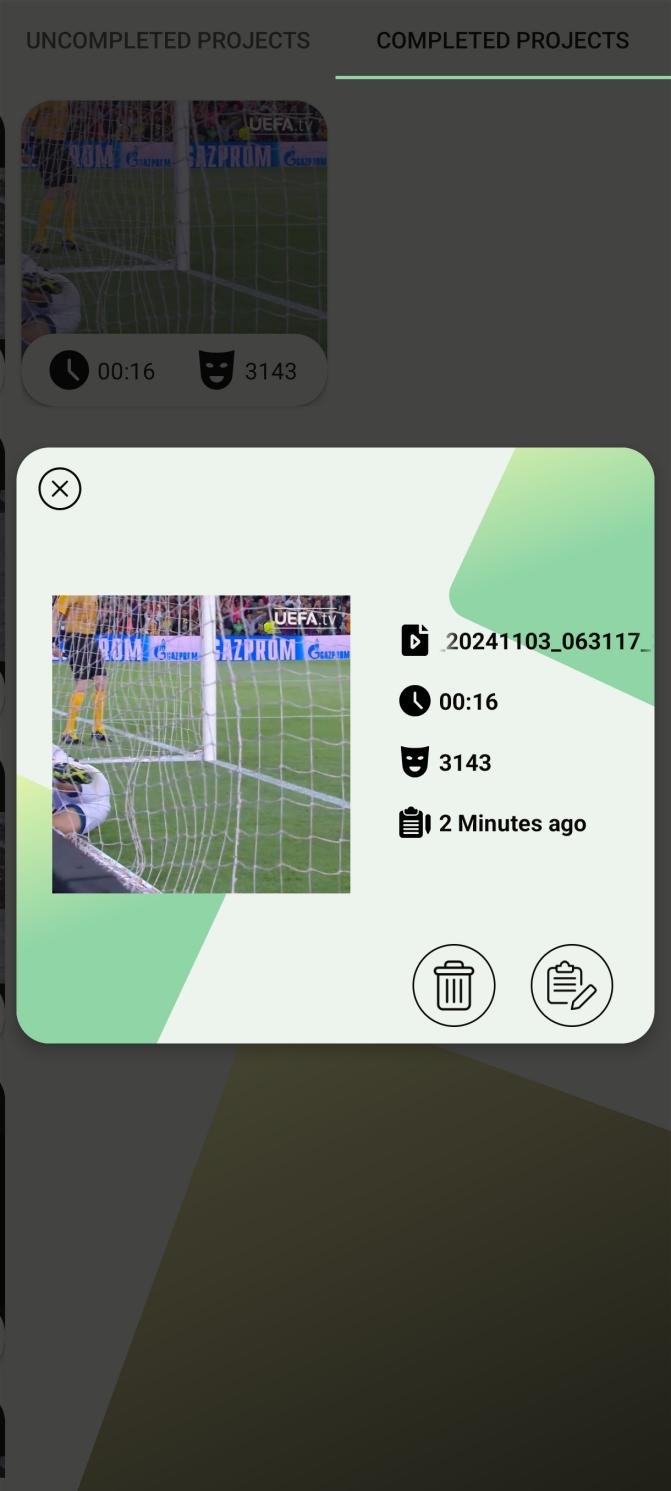
Tap it and you can see its details — length, how many filters, when you made it — and reopen it for editing.
Everything you did is still there. Change what you need and export again.
Questions people ask
My exported video looks blurry or blocky. Why?
Almost always the bitrate, not the resolution. Export again with the bitrate at maximum. Also check the resolution is not higher than the original video — that adds size without adding detail.
How do I remove the watermark?
Tap Watermark and untick Display. To have it off every time, turn it off in Settings under the Export tab.
The app crashes while exporting
Switch the encoder from Hardware to Software and try again. Some phones have unreliable hardware encoders. Check your free storage too.
Is PutMask free? Are there ads?
Yes, it is free, and there are no ads at all. 2160p, 1080p and 720p exports and the frame rate option are for premium users; everything else on this page is free.
Does my video get uploaded anywhere?
No. The whole export happens on your phone, and the app does not need an internet connection to do it.
Your privacy is our priority. We do not collect any data about you — and that is also the reason there are no ads. An ad needs your advertising ID, and that ID is what lets ad companies follow you from one app to the next and build a profile of you. We did not want to hand anyone that information about the people using a privacy tool, so we left ads out.
Will my original video be changed?
No. PutMask always writes a new file and leaves the original alone.
Need help?
Write to Support@putmask.com, or leave a message in our Telegram channel.